
How-to
Tune your match room settings: stats, flags and links
Every switch in the Matchroom tab, what it adds to a player card and how to keep cards short.
Start with a preset, then tune
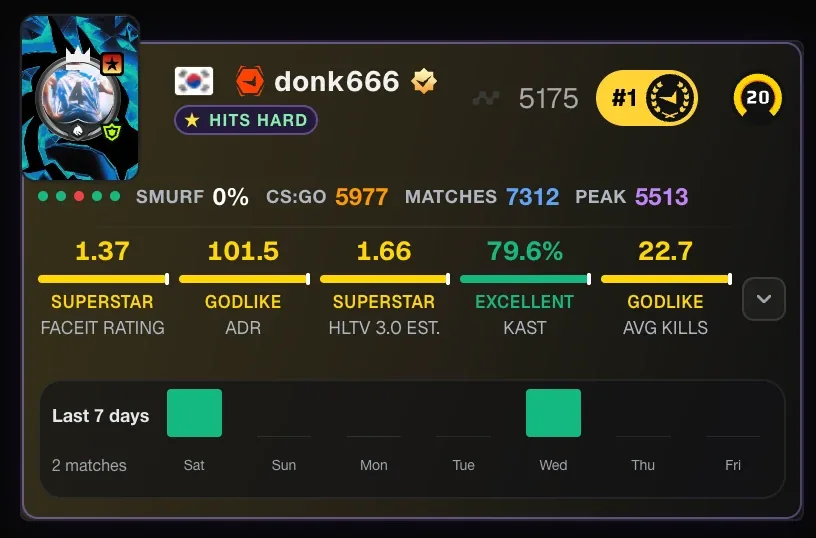
FACEIT Extender's Matchroom tab lets you switch extended stats, form, peak Elo, clutches, country flags, Focus mode and external links on or off one by one.
Presets set many switches at once, and the presets and settings guide explains what Off, Minimal, Balanced and Full turn on. This guide picks up afterwards: once a preset has set the baseline, the Matchroom tab is where you decide what each player card in the room shows.
Open the popup and choose the Matchroom tab. Applying a preset overwrites your current switches, so tune after you apply one, not before. You can run the first-time setup again with Replay setup in the General tab.
Changes apply straight away. If a card does not update, refresh the FACEIT tab once.
A good habit is to change one group at a time and open a real match room afterwards. Cards grow taller with every badge you add, so seeing the result on a live room tells you quickly whether a switch earns its space. The groups below follow the order of the tab: the main Matchroom Settings, then insights and extras, then external integrations.
Matchroom Settings
Open the Matchroom tab. The first group, Matchroom Settings, holds the main switches.
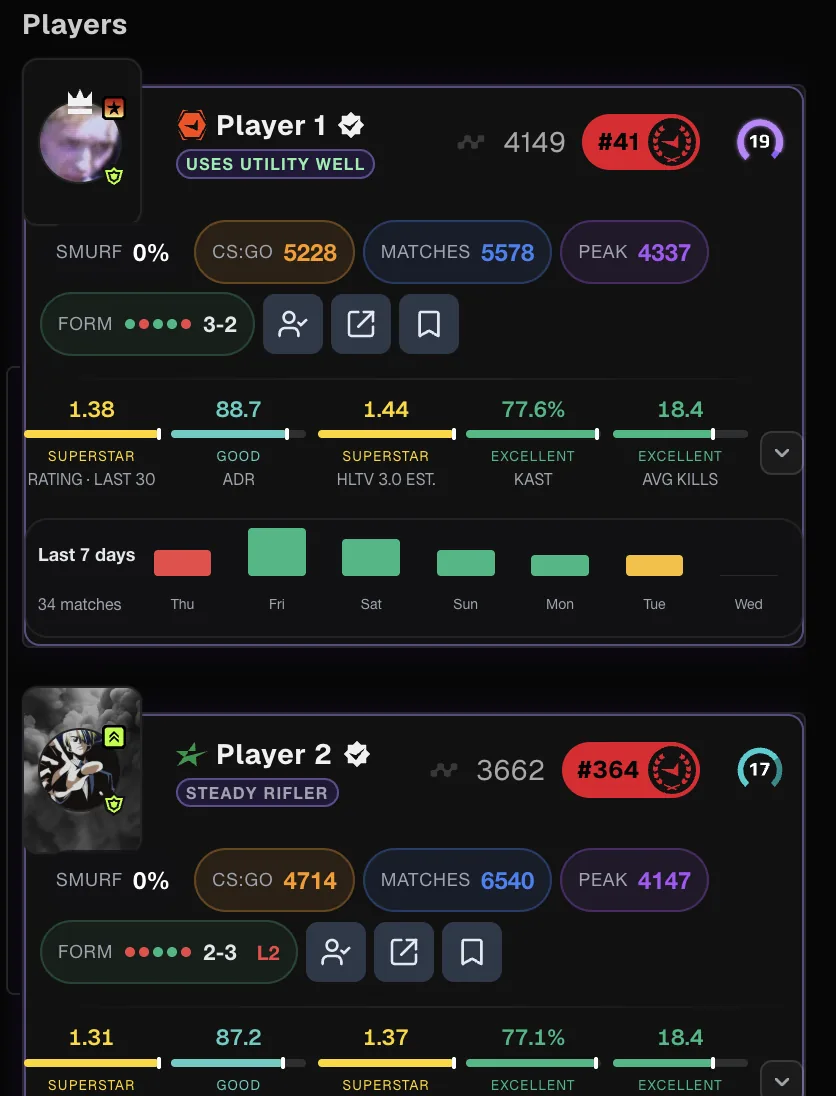
- Extended Stats: extra statistics on each card. The Period selector chooses the time range.
- Player Tracking: the track button for notes and tags. See tracking players.
- Country Flags: flag and code next to names.
- Match Count: the player’s lifetime matches.
- AI Match Briefing, with Auto-generate on load. See the briefing walkthrough.
- CS:GO Elo and Peak Elo.
- Focus Mode: hide the rosters and keep the map section.
Insights, extras and detection
- Player Insights: Recent Form (last five results with a streak) and Weekly Activity (a seven-day bar strip).
- Extended Stats Extras: 3K+ per match and Clutches won. These need Extended Stats on.
- Have We Met Button, under Have We Met. See Have We Met.
- Smurf Detection, under Player Detection & Reporting. See the smurf score guide.
External integrations
The External Integrations group controls which third-party links appear in the external-link menu on a card: Leetify, FaceitPerf.pro, CSWatch and FaceHound. Leetify and CSWatch need the player’s Steam ID to be available. Switch on only the sites you actually use.
Reducing clutter
More switches mean taller cards. If the room feels crowded, start by turning off Weekly Activity, CS:GO Elo and the external links you do not use, and keep Focus Mode for the veto. The headline stats stay in the first row either way.
A sensible path
- Start with Minimal if you are new, or Balanced if you want the most useful extras.
- Play a few matches and note which badges you never look at.
- Switch those off in the Matchroom tab. Fewer badges make cards shorter.
- Use the master switch under Extension Status if you ever need Extender fully off.
The docs cover first-time setup, the settings section of the features page summarises the options, and the download page has the extension.
Related guides
FACEIT Extender is free for Chrome and Firefox: download it or read what it is and does.
Frequently asked questions
- Which preset should I start with?
- Minimal gives the core information and stays light. Balanced adds the most useful extras.
- Does applying a preset delete my tracked players?
- No. Presets only change switches. Your tracked list and saved notes are kept.
- Can I undo a preset?
- There is no undo button. Apply another preset or turn switches back one by one, and note your settings before you apply a preset.
Comments
Comments load in your browser.