
Guide
Auto Report Smurfs and Track players you report
Two optional automations that act on your behalf: reporting suspected smurfs and keeping a record of players you report.
Two optional tools
FACEIT Extender has an optional Auto Report Smurfs switch and a tracker for players you report; both are off by default and this guide explains the threshold and the risks.
These tools act for you, so read this page before you switch anything on: a wrongly reported player is a real person. Auto-report is off by default and no preset turns it on, not even Full.
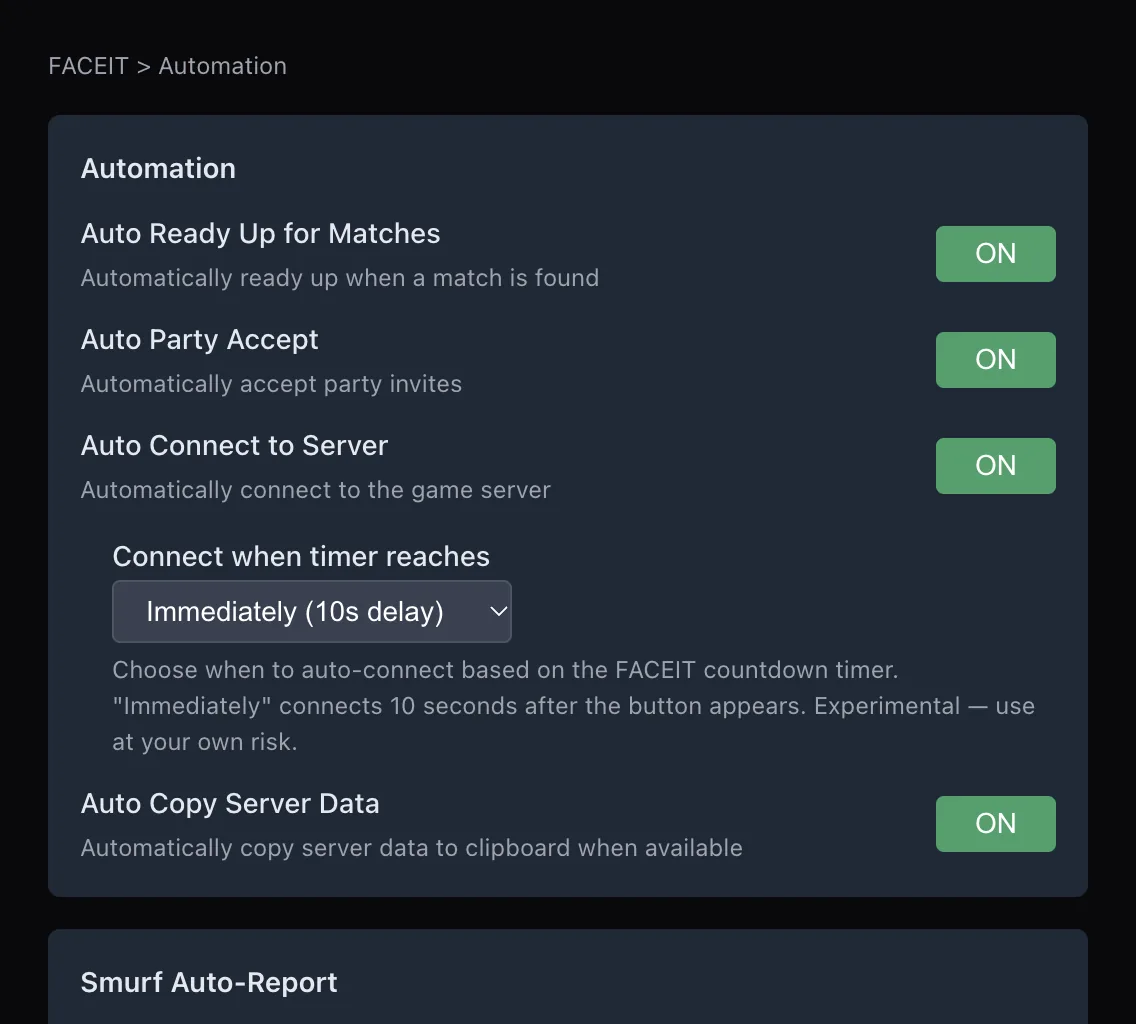
- Auto Report Smurfs reports a player when the smurf estimate passes a threshold you set.
- Track players you report adds a player to your tracked list when you report them, with the report as evidence. The Balanced and Full presets turn this one on.
A third automation, Ultrablocker, fills your matchmaking block list instead of reporting anyone. It has its own page: Ultrablocker, fill your matchmaking block list.
Auto Report Smurfs
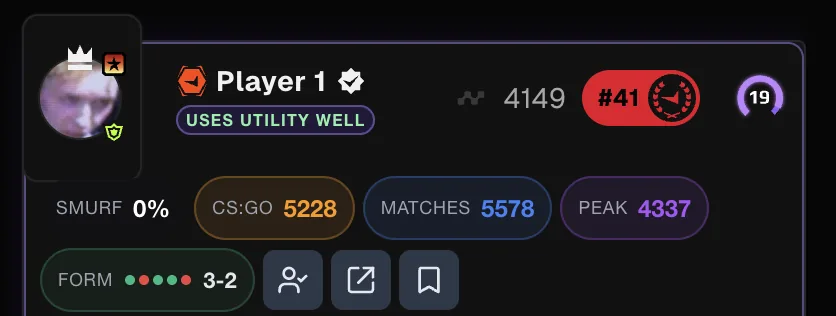
The smurf estimate is a probability built from account age, match history and results, as explained in how to spot smurfs. With Auto Report Smurfs on, a player above your threshold is reported to FACEIT for multi-accounting, with a description saying the report came from the extension.
- Switch on Smurf Detection in the Matchroom tab so you can see the estimate your threshold applies to. The smurf score guide shows how to read it.
- Open the Automation tab and switch on Auto Report Smurfs.
- Set the Report Threshold. It starts at 60% and cannot go below 50%. A higher number means fewer, more confident reports.
- Optionally switch on "Also add to tracked players" to keep a note of who was reported.
An estimate is not proof. A new account can be a genuine new player. If you want to stay in control, leave auto-report off and use the percentage as a prompt to look closer, then report by hand.
Track players you report
This one is about reports you make yourself. With Track players you report on, reporting a player on FACEIT also adds them to your tracked list. If they are already tracked, the report is added to their note as evidence. It gives you a record without extra work. See tracking players.
It is separate from the "Also add to tracked players" option under Auto Report Smurfs, which covers reports the extension files for you.
When auto-report does not run
Auto-report waits while Quiet mode is active, so nothing is filed during your own live match. It also needs Smurf Detection on, because it acts on the estimate that feature produces. Premium is not needed for either tool; only Ultrablocker needs it. See Premium and the extension for the difference.
Using them responsibly
Report for real rule-breaking, not for a lost round. Reports change other people’s experience. If you are unsure, leave the tools off: all of the extension’s stats work without them. Install FACEIT Extender and read the automation overview for the rest.
Checklist before switching anything on
- Do I understand that the smurf estimate is not proof?
- Would I be comfortable explaining each automatic report?
- Have I chosen a threshold I am happy with, rather than the starting 60%?
- Do I know where to switch each tool off again? Both are in the Automation tab.
Related guides
FACEIT Extender is free for Chrome and Firefox: download it or read what it is and does.
Frequently asked questions
- Is auto-report on by default?
- No. It is off by default and no preset turns it on.
- Does auto-report need FACEIT Premium?
- No. Only Ultrablocker needs Premium.
- Is the smurf estimate proof?
- No. It is a signal to look closer. Treat it that way when you choose a threshold.
Comments
Comments load in your browser.