
How-to
How to check past matches with a player: Have We Met
Step by step: open Have We Met from a player card, pick a date range, filter by same team or against each other, and read your win rate.
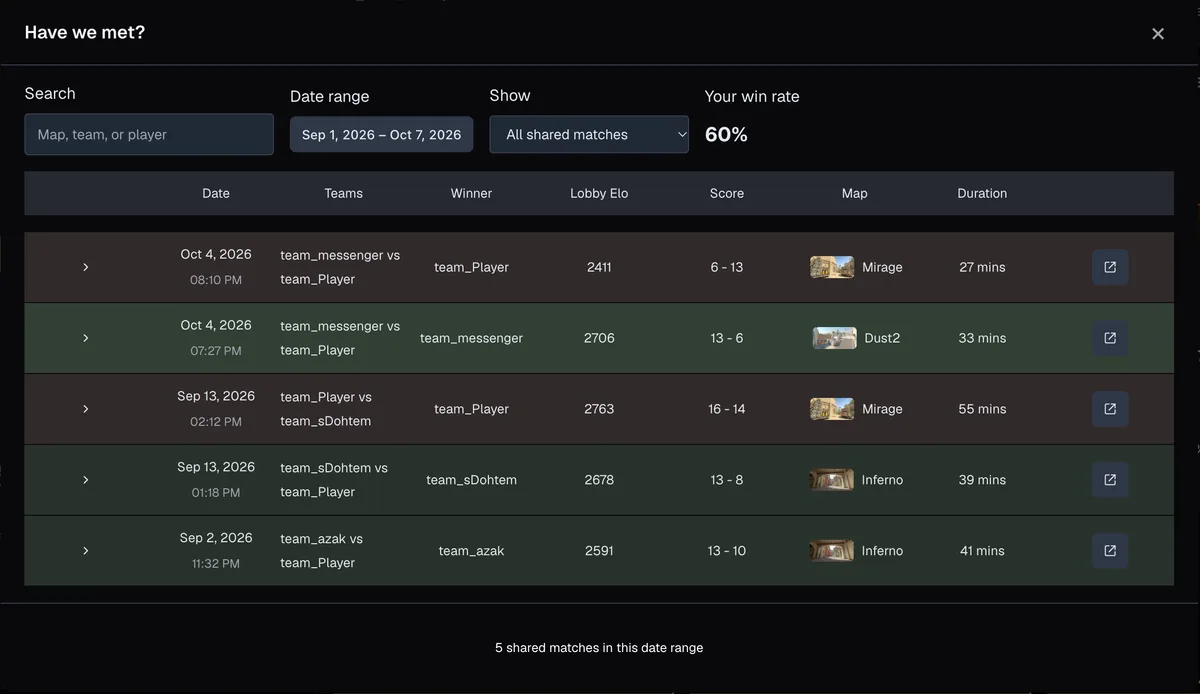
What Have We Met answers
FACEIT Extender's Have We Met panel shows the FACEIT matches you played with or against any player, with a date range, team filter and a link to each match room.
Have We Met answers a simple question: have I played with or against this person before, and how did it go? It looks through both players’ match histories for matches that include both of you.
It is useful for spotting a friendly teammate from last month, a player who beat you on the same map, or someone who keeps showing up in your lobbies.
Turn it on
- Click the FACEIT Extender icon in your browser toolbar to open the popup.
- Open the Matchroom tab. Under Have We Met, switch on Have We Met Button (“Add a Have We Met button under player names”).
- To get the same button on profiles, open the Player Profile tab and switch on Have We Met Button there.
- Refresh any FACEIT tab that was already open.
The Minimal, Balanced and Full presets all include it. The button never appears on your own card.
Open the panel
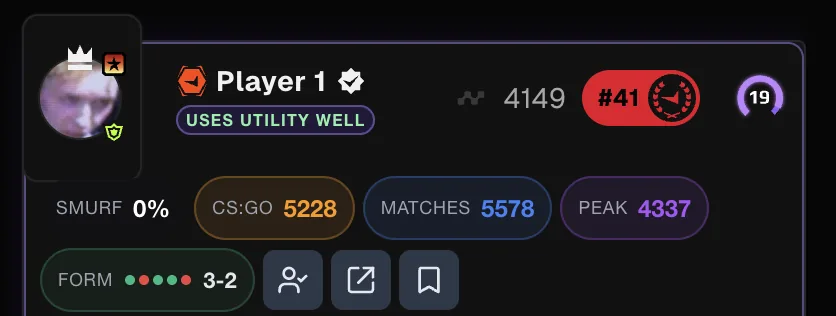
- Move the pointer over a player card in the match room.
- Click the round button with the person-and-tick icon. Its tooltip says “Have we met?”.
- If you have played together before, a red number shows on the button and a “Met” counter shows in the badge row. Hover it to see how many of your last matches you shared.
The counter looks at your most recent matches only. The panel itself searches the date range you choose.
Read the results
While it works, the panel says it is looking through your match history. Then it shows a table with these columns: Date, Teams, Winner, Lobby Elo, Score, Map and Duration.
- Rows are shaded by whether you won or lost that match.
- Click the chevron at the start of a row to see both rosters with their Elo.
- Click the small button at the end of a row to open that match room in a new tab.
- “Your win rate” in the header shows how you fared across these shared matches.
Search, date range and team filter
- Search: type a map, a team name or a player name to narrow the list.
- Date range: the panel starts at the first day of last month and runs to today. Click the range, pick a start date and then an end date. A range spans up to about a month at a time, so run it again for another stretch.
- Show: All shared matches, Same team or Against each other.
If nothing matches, the panel says so and suggests a wider date range. Choose another range rather than assuming you have never met.
Tips
- Filter to Against each other to see how you did against a player you are about to face.
- Filter to Same team to find a good teammate, then track them with a note.
- Wide date ranges take longer to load. Start with the default.
See the Have We Met section of the features page for a summary, and install the extension to try it.
Related guides
FACEIT Extender is free for Chrome and Firefox: download it or read what it is and does.
Frequently asked questions
- Does Have We Met work on any player?
- It works for any other player in the room. It only finds matches that appear in both players’ histories.
- Why does the panel only show one month?
- To keep it quick, each search covers a range of up to about a month. Run another search with a different range to look further back.
- Can I use it on a profile page?
- Yes. Switch on Have We Met Button in the Player Profile tab and a button appears next to the player’s name.
Comments
Comments load in your browser.