
How-to
Match room toolbar: Focus, map stats and AI buttons
What each toolbar button does, which settings remember their state, and how to clear the roster away for the veto with Focus mode.
Where the toolbar is
FACEIT Extender adds a row of small icon buttons to the match room for the AI briefing, Map stats, Focus mode and the map chart switch; this guide explains each.
FACEIT Extender adds a compact row of small icon buttons at the end of the Period box in the match information column. Hover a button to see its name and state.
Which buttons you see depends on your settings. The buttons below are the ones that control the match room itself.
Most of them are simple on and off switches. They are meant to be used during the short window before a match: open the room, set the view you want, and get on with the veto.
The state of each button is shown by its colour and by its tooltip, so you can always tell at a glance whether a view is on.
What each button does
| Button | Tooltip | What it does |
|---|---|---|
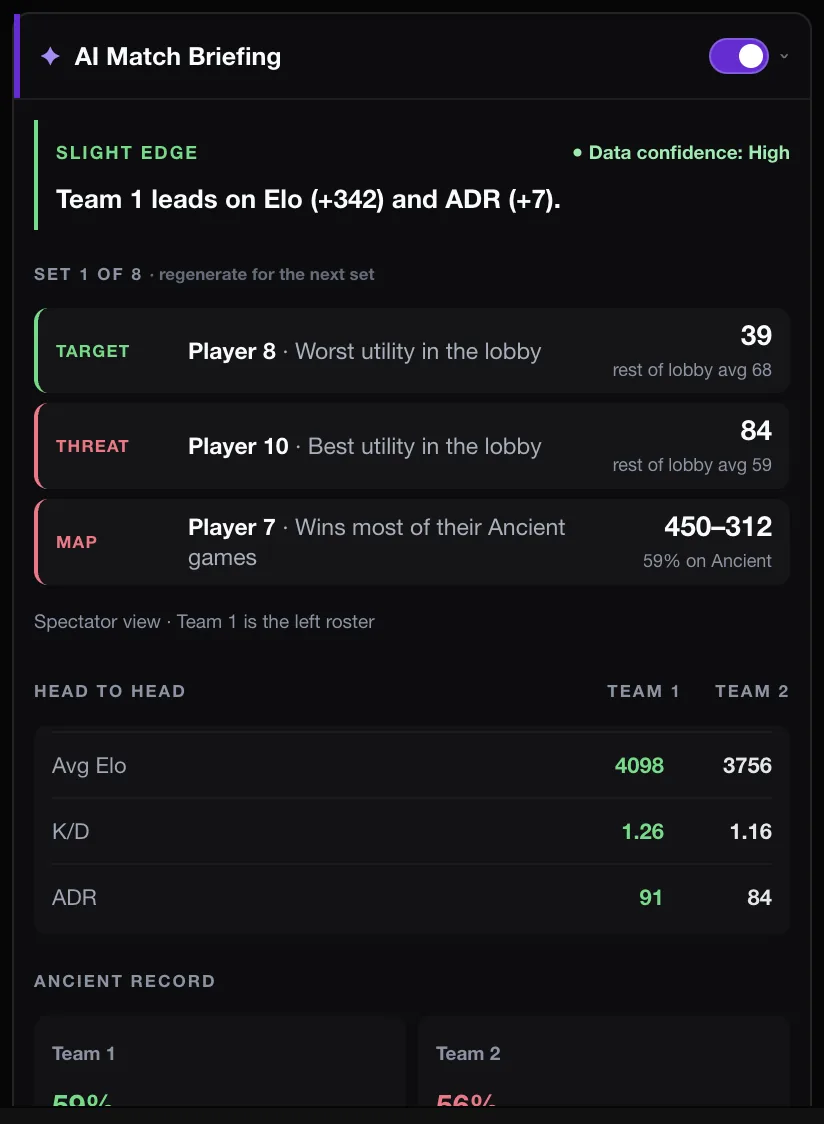
| AI | AI Match Briefing | Cycles the briefing between off, manual and automatic. See the briefing walkthrough. |
| Map stats | Map stats: OFF / ON | Shows each player’s per-map numbers on the cards. It resets to off each time you open a new room. |
| Focus | Focus: OFF / ON | Hides both team rosters and keeps the map ban and pick section. The choice is remembered. |
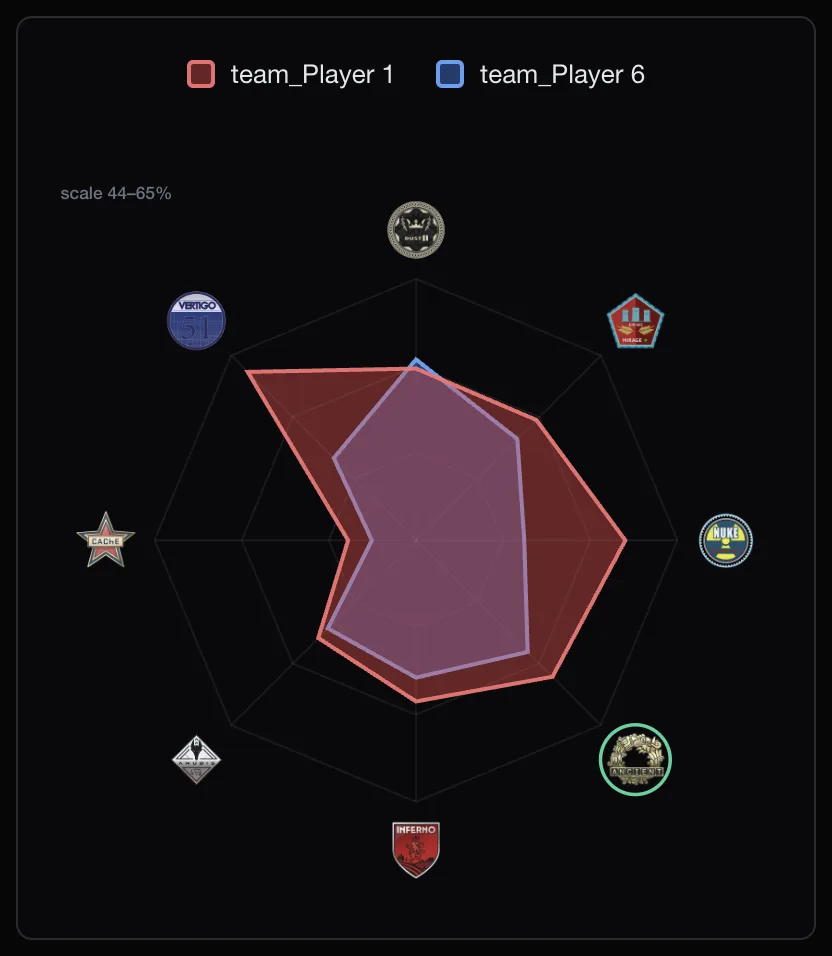
| Map chart | Map chart: Spider / Bars | Switches the team map comparison between a spider chart and bars. Also resets per room. |
Use Focus mode during the veto
The veto is a short window where two teams make decisions. Focus mode removes the rosters so only the map section stays in view.
- Open the match room as the veto begins.
- Click the Focus button. Its tooltip changes to “Focus: ON” and both rosters disappear.
- Make your ban or pick.
- Click Focus again to bring the rosters back and read the cards.
Focus mode is a display choice. It does not turn off any feature and can be switched back at any time.
Save it in the settings
You can also set Focus mode from the popup: open the Matchroom tab and switch on Focus Mode (“Hide both team rosters and show only the map ban/pick section”). The button in the match room and the popup switch control the same setting.
If you would rather keep the cards and make them less busy, turn off the badges you do not need in the same tab, such as Weekly Activity or CS:GO Elo. The settings guide lists them.
The map and AI buttons in practice
- Turn on Map stats when you want to see who on each team is strong on a map you are considering.
- Switch Map chart to Bars if the spider shape is hard to read for your teams.
- Click AI once to show the briefing without generating anything. A second click turns on automatic generation, and a third turns the briefing off.
To compare maps in depth, see how to compare both teams’ maps. Install the extension to get the toolbar, or read the settings section of the features page.
Related guides
FACEIT Extender is free for Chrome and Firefox: download it or read what it is and does.
Frequently asked questions
- Why did the Map stats button turn itself off?
- Map stats and Map chart reset when you open a new match room, so each room starts clean. Focus and the AI mode are remembered.
- Is there a compact layout setting?
- There is no separate compact switch. Focus mode hides the rosters, and you can switch off individual badges in the Matchroom tab to slim the cards.
- I cannot find the toolbar.
- It sits at the end of the Period box. If that box is not shown, the toolbar sits in the match information column instead. Refresh the page if it is missing.
Comments
Comments load in your browser.