
Guide
Analyse a FACEIT player from their profile
Pick a map, choose 3, 5 or 8 recent demos and open them in the viewer to see how a player really plays.
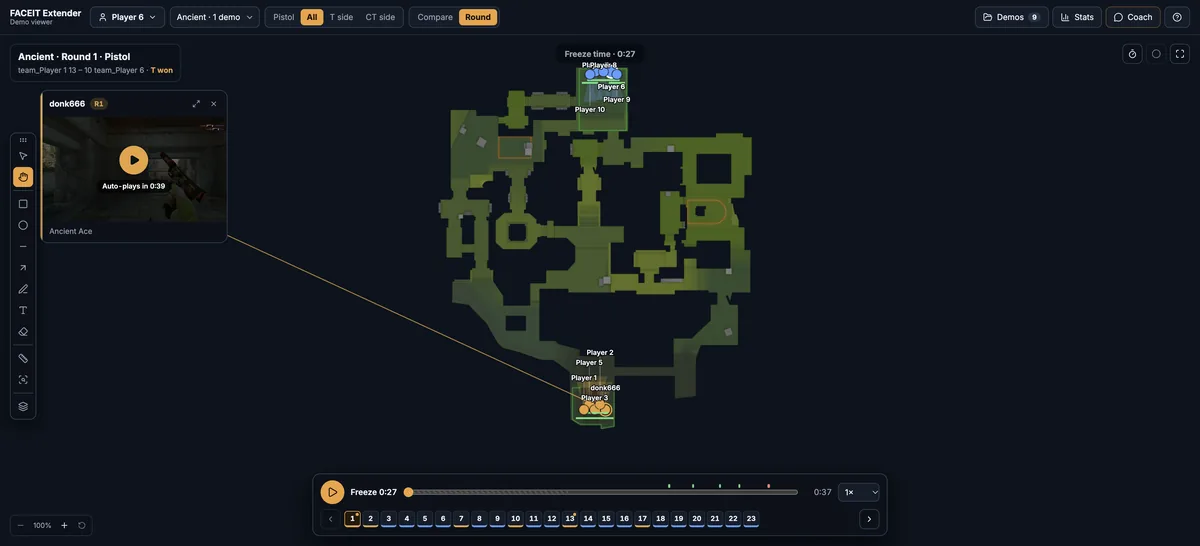
What the Analyse button does
FACEIT Extender adds an Analyse button to FACEIT profiles that pulls a player's recent demos on one map into the browser demo viewer, with nothing uploaded.
Numbers on a profile tell you what a player scored. They do not tell you how they get there: whether they take the same opening route every round, or what they do with their grenades. The Analyse button on a player’s profile answers that by going to the source, which is the player’s recent demos.
When you start an analysis, FACEIT Extender finds the player’s latest CS2 matches on the map you choose, downloads their demos and sends them to the demo viewer in a new tab. The demos are processed on your computer and nothing is uploaded.
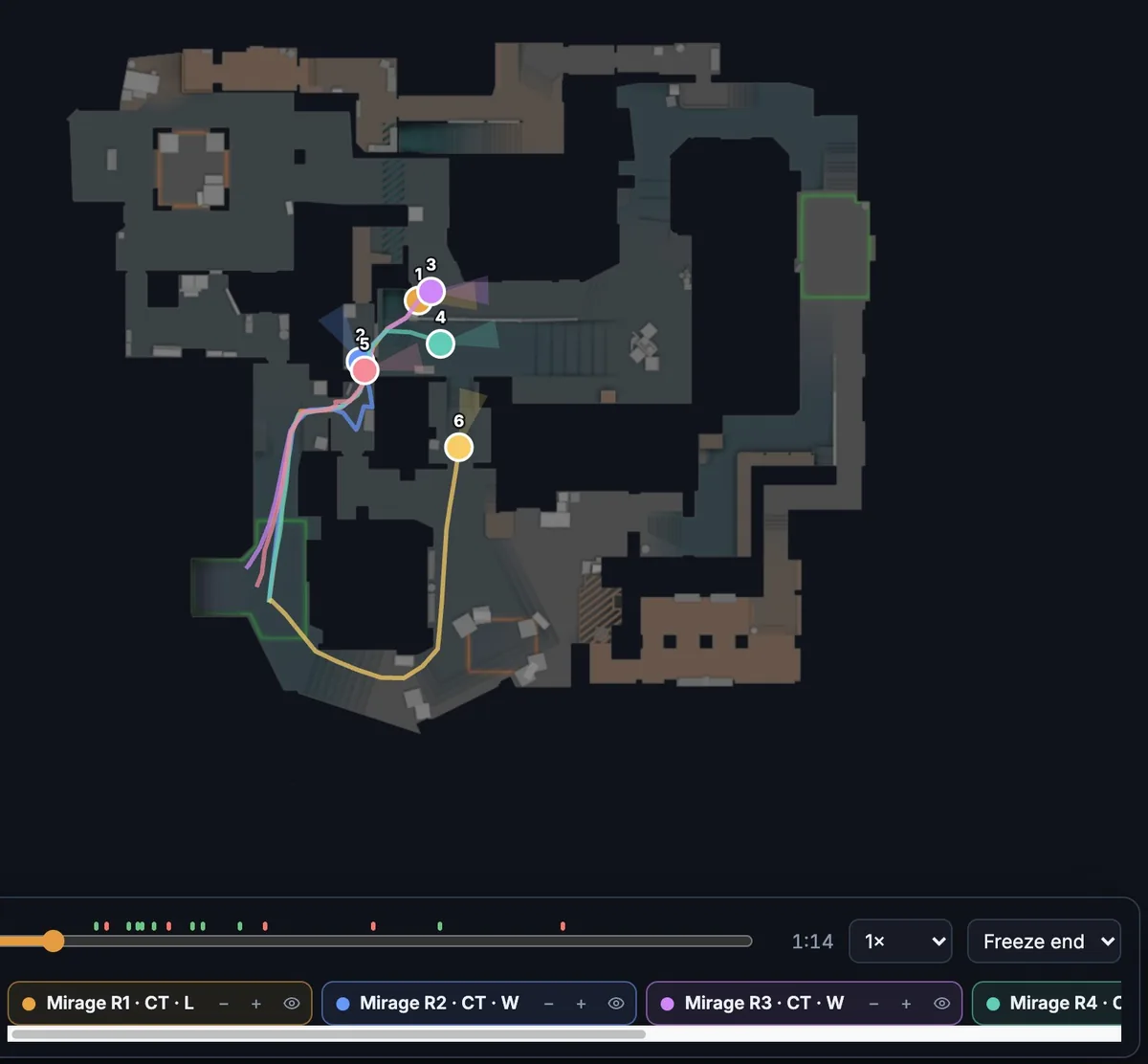
The viewer then opens focused on that player. From there you can follow the questions the features page lists: pistol rounds, opening duels and utility. You can also use Compare mode to lay several rounds on one map.
Run your first analysis
- Open the profile of the player you want to study on faceit.com.
- Select Analyse in the row of buttons near the player’s name.
- In the dialog, choose a Map. You pick one map per analysis.
- Choose how many demos to review in Demos: 3, 5 or 8. Fewer is faster; more gives a steadier picture.
- Select Analyse. The dialog lists the matches it found, with the map and date of each.
- Select Open demo viewer. Each demo shows its progress while it is downloaded and processed, then the viewer shows the player’s rounds.
If your browser blocks the new tab, allow pop-ups for FACEIT and select Open demo viewer again.
When it finds fewer demos than you asked for
The search looks through the player’s latest matches for CS2 games on your chosen map. A player who rarely plays that map may only have one or two recent matches there, and the dialog tells you it found fewer than you asked for. Review what it found, or try a different map.
- If no matching games turn up at all, choose another map.
- Very old matches may have no demo any more. FACEIT does not keep every demo available.
- Demos that were already processed are reused instead of downloaded again.
Close the dialog and keep working
You do not have to wait. If you close the dialog while demos are still being processed, the work continues in the background. Progress shows in the extension popup’s Analyse tab, which lists your player and team analyses with a status such as "Processing demos", "Ready" or, if the tab was closed too early, "Didn’t finish". From there you can Open demo viewer again or Remove an entry.
If an analysis did not finish, start it again from the profile. Closing the browser tab that was sending the demos stops it.
On your own profile and on team pages
Analyse is the one button that also appears on your own profile, so you can review your own games the same way. Tracking, Have We Met and the links to other tools are for other players and do not appear there.
Teams have an Analyse button on their team page too. It works the same way and reviews what the team’s players do together. Results show up in the Teams list in the popup’s Analyse tab.
Reading the result without over-trusting it
A few demos are a sample, not a verdict. A player who dies first three times in five games may simply have been given the entry role. Treat each finding as a question to check in the rounds themselves, using the ideas in how to review a CS2 round timeline and how to compare a player’s routes.
To analyse players from your next match, install FACEIT Extender and open the profile of anyone in your lobby.
Related guides
FACEIT Extender is free for Chrome and Firefox: download it or read what it is and does.
Frequently asked questions
- Does Analyse upload the demos anywhere?
- No. The demos are downloaded from FACEIT and processed on your computer. Only optional AI questions in the viewer send selected statistics.
- Why can I only choose one map?
- An analysis compares like with like, so each one covers a single map. Run it again for another map.
- Can I analyse my own games?
- Yes. Analyse is shown on your own profile as well as on other players’ profiles.
- How many demos should I pick?
- Three is a quick read, five is a sensible default and eight gives the deepest picture, at the cost of more waiting.
Comments
Comments load in your browser.