
Guide
Choose which FACEIT Extender features appear
Start with a preset, switch features on and off one by one, and find any setting with search.
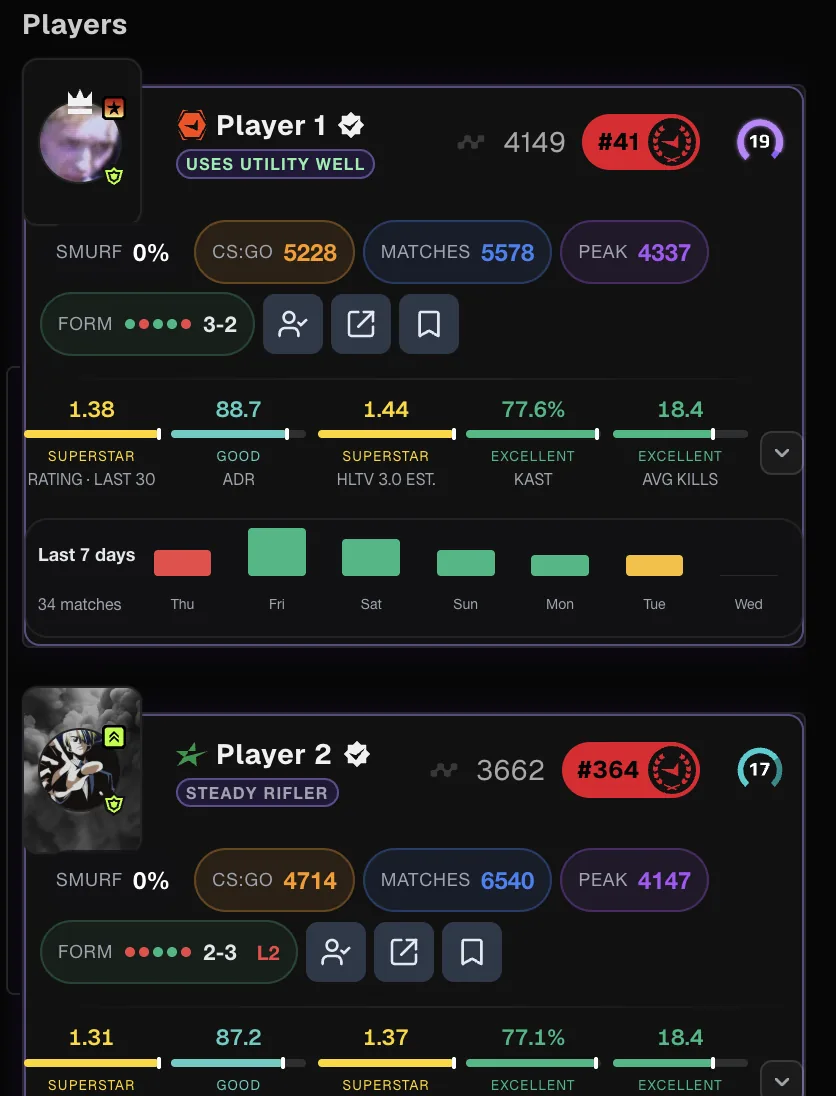
Start with a preset
FACEIT Extender lets you choose Off, Minimal, Balanced or Full preset, then fine-tune individual switches, so only the features you want appear on FACEIT.
FACEIT Extender has many optional features, and most of them are off until you ask for them. The quickest way to set up is a preset. Open the popup, go to the General tab and find Quick Presets.
| Preset | What it does |
|---|---|
| Off | Turns every feature off, as a clean slate or for troubleshooting. The extension itself stays on. |
| Minimal | Core information: extended stats in the room, lobby and profile, Have We Met, country flags and levels 11-20, plus auto-ready for matches. |
| Balanced | Minimal plus the AI match briefing, smurf detection, recent form, peak Elo, lobby ping and map win rates, clutches and 3K+, player tracking, Leetify and FaceitPerf links, the extended match history, and light automation: party invites, server copy and Track players you report. |
| Full | Everything on for maximum information: adds CS:GO Elo, weekly activity, all external links, the floating stats box, match history export, Ultrablocker and map messages. Auto-report and auto-connect stay off. |
A few choices are never flipped by a preset or by Toggle All Features, so they stay as you set them: Quiet mode, Extension compatibility, auto-veto, Hide ELO, Anonymize player names, Hide country ranking, Focus mode, the sponsored minigame and automatic AI briefings. Auto-report and auto-connect stay off even in Full.
Applying a preset overwrites your current switches. If you have already tuned things, take a note first or choose Keep my current settings during setup.
The master switch and Toggle All
At the top of the General tab, Enable Extension is the master switch. Turning it off stops everything, and your feature choices are kept: they come back as they were when you turn it on again.
Toggle All Features switches every individual feature on or off at once and leaves the master switch alone. It is a fast way to see the extension at its fullest, or to strip it back.
Tune individual features
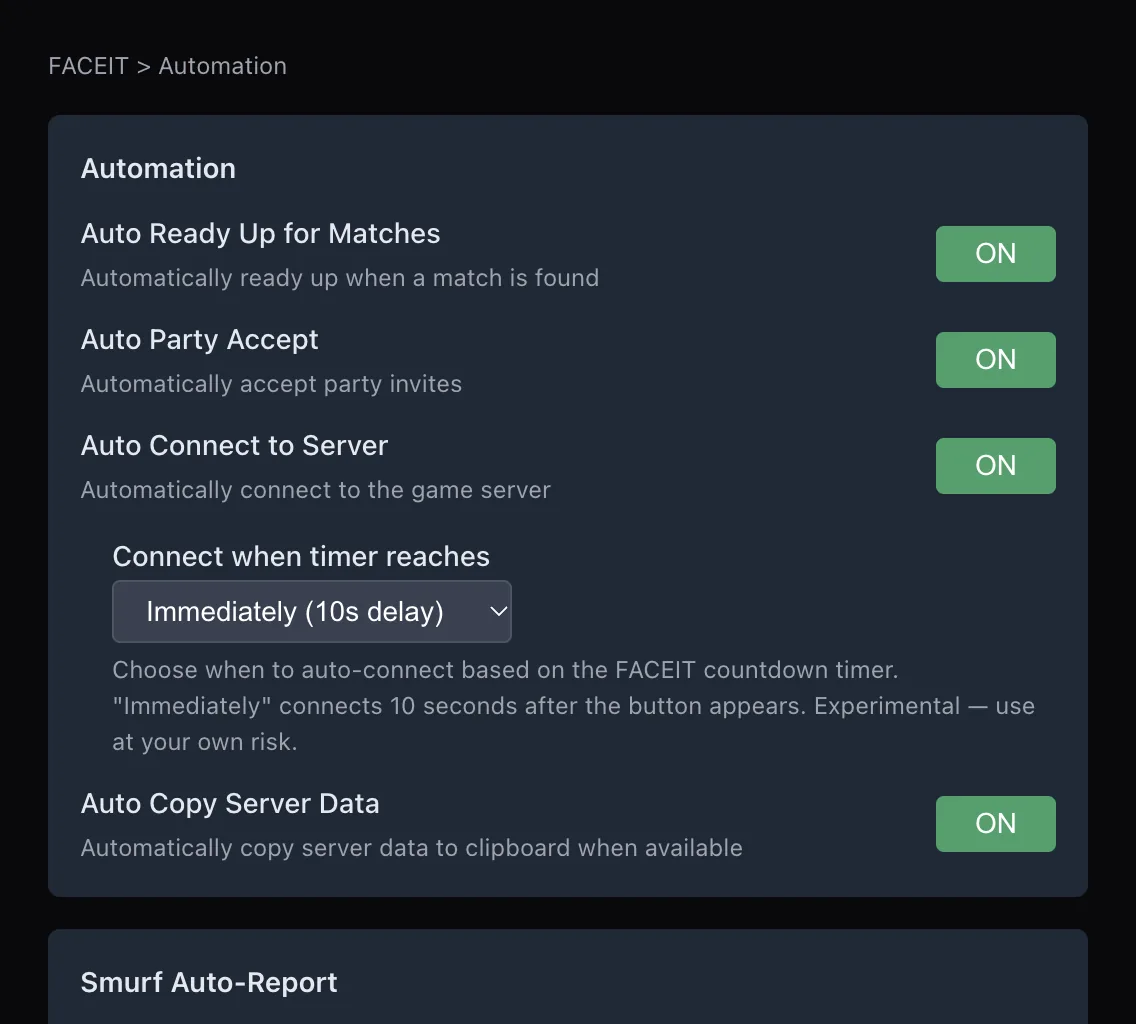
Features are grouped in tabs that mirror where they appear on FACEIT:
- Matchroom: smurf detection, Have We Met, extended stats, tracking, country flags, recent form, peak Elo and focus mode. The match room settings guide goes through them one by one.
- Player Profile: Have We Met button, Player Tracking, Extended Stats, Extended Match History Table and Match History Export.
- Player Lobby: removing ladders and header, extended stats, country flags, map win rates and server ping.
- Appearance: colour scheme, level icons, privacy options and compatibility.
- Automation: ready up, party accept, server connect and more.
Each switch has a short description underneath saying what it changes. Changes apply straight away. If a panel does not appear, refresh the FACEIT page.
Find a setting with search
Not sure where something lives? Type in the popup’s search box, labelled "Search toggles...". Try "stats", "player" or "auto". Results are listed with the tab they belong to, and typing "show all" lists every switch.
Replay setup and compatibility
When you first install, a short setup asks you to choose a preset, an accent colour and your level badges. You can run it again later with Replay setup.
If you also use another FACEIT extension, the compatibility switch lets the other extension keep its interface while Extender fills the gaps. It is a choice you make, off by default, and you can turn it off to restore the normal layout.
Not installed yet? Get FACEIT Extender. The features page summarises settings, and the automation guide covers the Automation tab.
Related guides
FACEIT Extender is free for Chrome and Firefox: download it or read what it is and does.
Frequently asked questions
- Which preset should I choose?
- Most players start with Balanced. Choose Minimal for a quiet setup or Full to see everything.
- Will a preset delete my notes or tracked players?
- No. Presets change switches, not your saved players or notes.
- How do I undo a preset?
- Apply another preset or change the switches yourself. Applying a preset replaces your previous switch settings.
Comments
Comments load in your browser.