
How-to
Quiet mode: pause FACEIT Extender while you play
Quiet mode is on by default. Here is what it pauses, when it releases and where the switch is.
What Quiet mode does
FACEIT Extender's quiet mode stops page updates and background work while you are in your own live match; this guide explains when it starts, ends and how to switch it off.
When you open the match room of a match you are playing, FACEIT Extender goes quiet. It stops updating the page, stops its background work and pauses its own animations until the match is over.
The idea is simple: once the match is live you want a still page and nothing competing for attention.
When it starts and ends
- It starts only when all three are true: you are viewing a match room, that match is ongoing or paused, and you are one of its players.
- It ends when the match finishes, when you leave the room, or when Extender cannot tell what state the match is in.
- It never starts when you are watching someone else’s match or reviewing a finished room.
Extender checks the match state about every ten seconds while you are in a room. If the state cannot be read, it does not guess: Quiet mode ends and Extender works normally.
What is paused
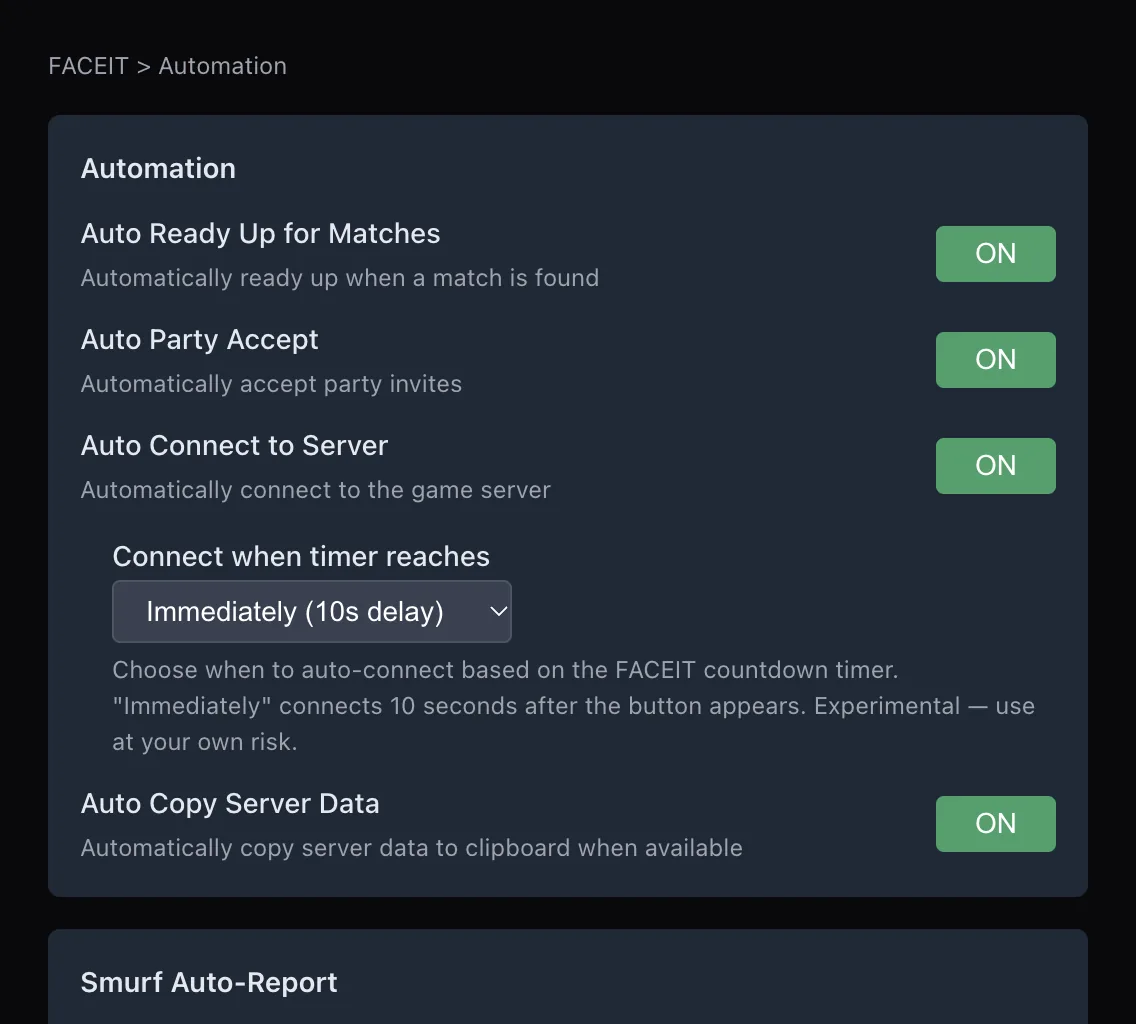
- Adding or refreshing Extender elements in the room, so extra buttons can disappear until the match ends.
- Background data requests and processing.
- Extender’s own animations.
- Optional automation helpers.
Downloads you start yourself, such as a demo, still work. Everything else resumes on its own when quiet mode ends, so you do not need to refresh the page.
Where the switch is
- Open the extension popup from your browser toolbar.
- Stay on the General tab and find the Extension Status section.
- Find Quiet mode (“Pause Extender while you are playing your own live match”).
- Switch it off if you want Extender to stay active during play, or on to pause it.
Presets and Toggle All Features leave your Quiet mode choice as it was. The change takes effect straight away; Extender wakes up as soon as you turn it off.
Before and after the match
Quiet mode only covers the time you are actually playing. Everything you do before the match still works: reading cards, checking Have We Met, tracking players and building a briefing during the veto.
After the match, open the finished room and the cards, buttons and tools are back. That is a good moment to add notes about the players you just met while you still remember them.
If you are ever unsure whether Extender is quiet, look for its buttons in the match room. If they are missing during your own live match, quiet mode is doing its job.
When to turn it off
Most players should leave it on. Switch it off if, for example, you watch your own room while you wait and want cards, flags and tools to remain available during play. To switch Extender off everywhere instead, use the master switch Enable Extension at the top of the General tab.
If panels are missing in a match you are playing, this is the first thing to check: it is not a fault. Quiet mode controls when Extender runs. To control what it shows, see presets and settings, and for what it does on its own see auto ready, accept and connect.
For a lighter, separate way to clear the page during the veto, see Focus mode. The docs explain the other settings, and you can install the extension from the download page.
Related guides
FACEIT Extender is free for Chrome and Firefox: download it or read what it is and does.
Frequently asked questions
- Is Quiet mode on by default?
- Yes. You can switch it off in the General tab under Extension Status.
- Does it stop working in other people’s matches?
- Quiet mode applies only to a match you are playing in. When you review a finished room or watch another match, Extender works normally.
- Do I need to refresh when the match ends?
- No. Extender resumes by itself when the match finishes or you leave the room.
Comments
Comments load in your browser.