
How-to
How to review a CS2 round with player tracking and the kill timeline
A repeatable five-minute review: follow one player, pause before the fight and check what the rest of the team was doing.
Pick a round and a question
FACEIT Extender's demo viewer lets you review a CS2 round in your browser with player tracking and a kill timeline, so you can answer one question about one fight at a time.
A useful demo review starts with a small question. Why was I isolated at the first fight? Was my teammate close enough to trade? Did I rotate before the attack was confirmed? Choose one situation rather than trying to explain every decision in the match at once.
Open the browser demo viewer, import a completed CS2 match and select the player you want to follow. The import guide explains supported files and common errors. You can install the extension for a shortcut from completed match rooms, but importing a local file works without it.
Open Round view and choose the round
- Choose Round in the top View controls. If you are looking at Compare, you can also open one of its listed rounds with the play control.
- Choose a round number in the strip below the map. The previous and next round buttons let you move through the match in order.
- Use Play or press Space to start and pause playback. Move the Playback position slider to the part of the round you want to inspect.
- Choose a lower Playback speed for a close look. Increase it only when moving through a period that is not relevant to your question.
The round strip can show rounds outside your current side filter as dimmed entries; they remain clickable. Check the actual round number and side after changing views so you do not accidentally compare different situations.
Follow a player and jump before a kill
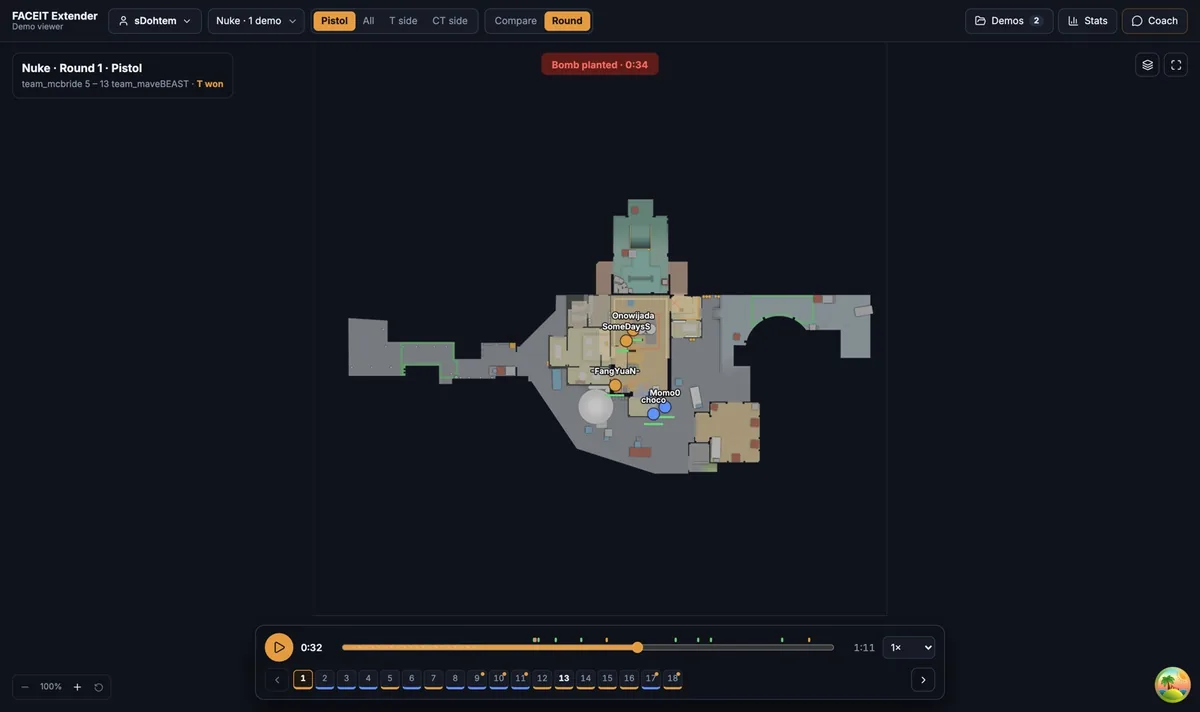
- Open the Players panel and choose the player in its roster. You can also select a player on the map.
- Watch the selected player’s position, weapon and available grenades as the round advances. Keep the nearest teammate in view as well.
- Use an event in the player timeline to jump to two seconds before the kill. That lead-in shows the approach instead of starting only at the result.
- Pause before the fight and check whether a teammate could follow the same route or trade the contact. Replay the moment once at normal speed before interpreting the outcome.
A kill timeline is a navigation tool. A highlighted event is not a diagnosis of a mistake, and a kill does not prove that the preceding decision was sound. The rest of the team, the bomb and the remaining time can change the purpose of the play.
Check utility, timing and team context
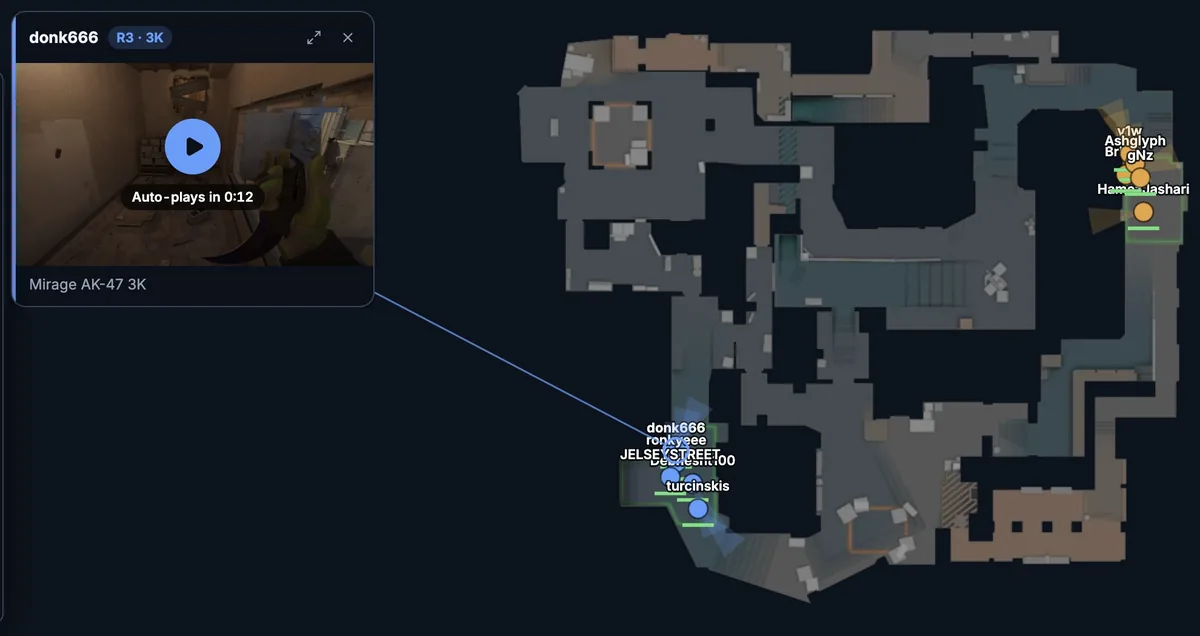
Use the map layers to reduce clutter or restore information you need. Check whether the grenade you expected was actually thrown, whether it arrived before the crossing, and where the bomb was. Compare the player’s movement with the round clock rather than judging speed from an accelerated replay.
If recorded comms are available in the demo, they may add context, but not every demo contains voice. Silence in the viewer does not prove the team failed to communicate. Likewise, a reconstructed radar does not show exactly what was visible in the game. Use CS2 playback for precise aiming or line-of-sight questions.
Review what the replay demonstrates separately from what you infer. “The teammate was on the other side of the map” is an observation; “they ignored the call” needs evidence the map alone cannot provide.
Check whether the situation repeats
Finish the review with one specific observation and one action to test. For example: wait for a teammate to reach trading distance before repeating the same opening cross. In the next match, look for the same trigger and see whether your adjustment changes the situation.
Use Compare mode to find similar openings across several rounds, then come back to Round view for context. If you want to explain the idea visually, mark the route with an arrow or note. This gives the review a concrete next step instead of a long list of vague criticisms.
Related guides
FACEIT Extender is free for Chrome and Firefox: download it or read what it is and does.
Comments
Comments load in your browser.