
How-to
Turn on the smurf score and decide what to do next
Where the smurf badge appears, how to read it, and a measured response that does not treat an estimate as proof.
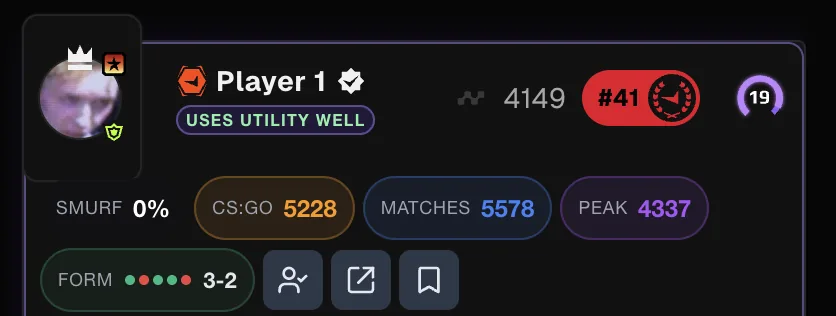
Turn it on
FACEIT Extender can show a smurf estimate as a percentage badge on match room player cards; this guide shows how to turn it on and what to do with it.
- Open the extension popup and the Matchroom tab.
- Under Player Detection & Reporting, switch on Smurf Detection (“Show smurfing probability percentage under player names”).
- Open a match room. Each card shows a Smurf badge with a percentage.
The Balanced and Full presets include it. Extended stats need to load for a player before the percentage can show.
Read the badge
The percentage runs from 0 to 99. It moves from white through yellow and orange towards red as it rises. It combines signals such as account age, how fast a skill level was reached and recent results.
- A low number says little about a player. Many honest accounts sit near 0%.
- A high number means several signals line up, not that the player is a smurf.
- A new but strong account can score high without any wrongdoing, for example a returning player on a fresh profile.
The smurf guide explains the signals in more detail.
What to do with a high score
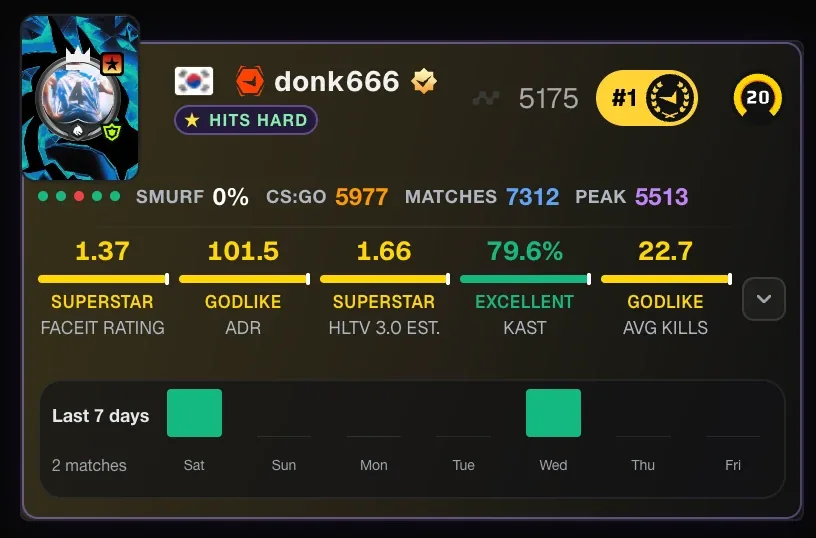
- Open the player’s card and look at the stats next to the badge: matches, peak Elo and form.
- Check the match history with Have We Met or the profile.
- Plan around the stats, not the label. A high-rated player is a threat whatever their account age.
- If you are sure a player breaks the rules, report them yourself on FACEIT with a clear reason.
About Auto Report
The Automation tab has an optional Auto Report Smurfs switch. When it is on, Extender files a report with FACEIT for any player whose estimate reaches your threshold. It is off by default and the Full preset leaves it off.
- The Report Threshold slider runs from 50% to 100%, with 60% as the starting value.
- “Also add to tracked players” puts anyone it reports on your list.
- “Track players you report” adds players you report by hand to your list as well.
An estimate is not evidence. Automatic reports are made for you without a human check, so leave Auto Report off unless you are comfortable with that. Use it at your own risk and follow FACEIT’s rules. The full walkthrough is in Auto Report Smurfs and Track players you report.
Common false alarms
- Returning players on a new account, who are strong but young.
- Players who moved from another platform and climbed quickly.
- Streamers and coaches with a fresh account for a specific match.
None of these break a rule, and the badge cannot tell them apart from a smurf. That is why it is a prompt to look closer rather than a verdict.
Quick summary
Use the badge to decide where to look, and the stats to decide what to do. See the smurf estimate section of the features page for a summary. Install the extension to see the badge in your own lobbies.
Related guides
FACEIT Extender is free for Chrome and Firefox: download it or read what it is and does.
Frequently asked questions
- Is the smurf score accurate?
- It is an estimate from public information. It is a reason to look closer, never proof of anything.
- Why does a strong player show 0%?
- Long-standing accounts with steady progress show low numbers. A low score only means the signals do not stand out.
- Is Auto Report on by default?
- No. It is off by default and no preset turns it on.
Comments
Comments load in your browser.