
How-to
How to draw arrows and notes on a CS2 demo map
Pause the replay, mark one route and explain why the timing matters. A walkthrough of the viewer’s drawing tools and layers.
Pause on the situation you want to explain
FACEIT Extender's demo viewer includes drawing tools, so you can place arrows and notes on the CS2 map while you review a round and keep your own plan next to the replay.
A drawing is most useful when it answers a specific question. Mark where a teammate could trade, where a rotation could begin, or which route you want to try next round. Avoid filling the entire map with arrows before you have chosen the situation.
Open a demo in the CS2 viewer, choose a player and round, and pause at the relevant moment. If you need help loading a file, start with the import walkthrough. You can also install the extension to open demos from finished match rooms.
Use the 2D map for this walkthrough. It provides a clear surface for reviewing the tools without needing to orbit the 3D camera or interpret a perspective view. Keep the player positions and round clock visible so your annotations have context.
Draw a route with an arrow
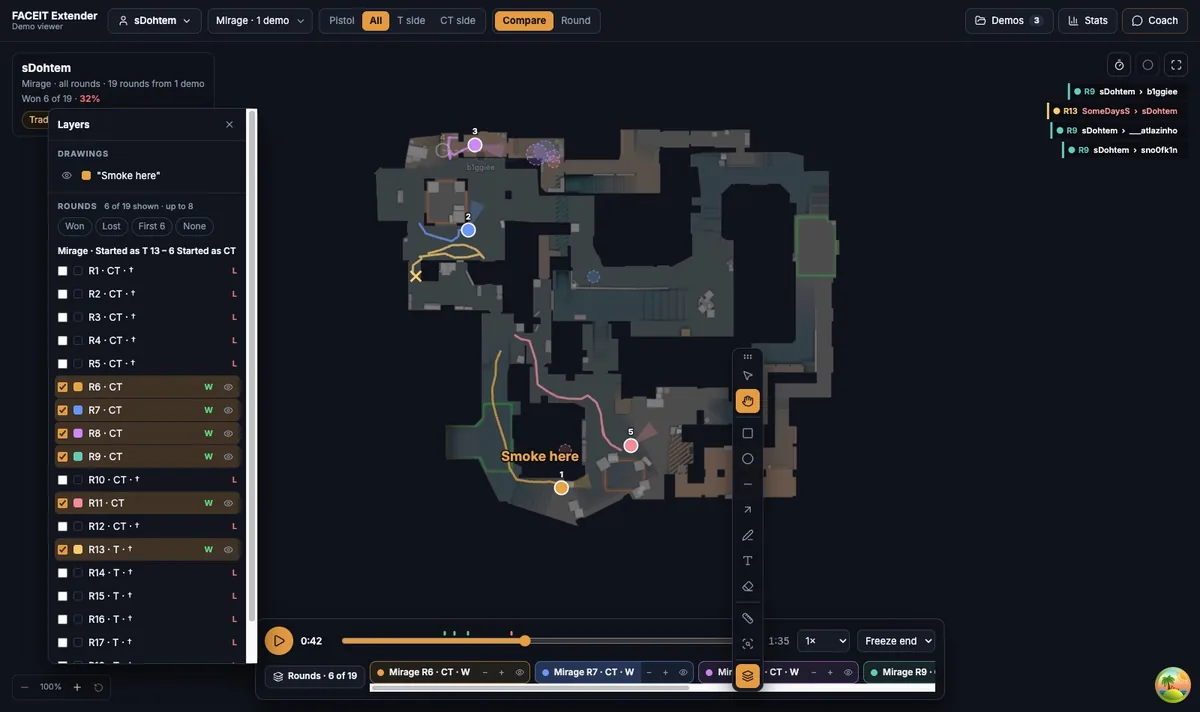
- Choose Arrow from the map toolbelt, or press R while you are not typing in another field.
- Choose a colour and stroke width from the tool options. Use one colour for the proposed route and another only if you need to distinguish a second idea.
- Drag on the map from the start of the proposed movement toward its destination. Release to finish the arrow.
- Return to the selection tool when you want to work with the drawing. Use the hand tool when your intention is to navigate the map instead of adding a mark.
A short arrow can communicate a rotation more clearly than a long freehand line. Keep the beginning and end away from important player labels where possible. If several arrows cross, split the explanation into separate moments instead of forcing every alternative into one image.
Add a shape or a short note
- Choose Rectangle or Ellipse to mark an area rather than a route. Their options include a Fill switch; leave the fill off if it covers the positions you want to discuss.
- Choose Text, or press T, click the map, type your note and press Enter to finish. Press Escape to cancel. Describe the action or timing, such as “wait for the trade”, rather than writing a paragraph.
- Use the available colour and size options to keep the note legible. Reposition it so it does not obscure the route or the selected player.
- Use the pen or line tool only when a straight arrow or area marker cannot explain the point.
The drawing is an explanation you add, not an event recovered from the demo. Make that distinction clear when reviewing with a teammate: the actual player path shows what happened, while your arrow proposes a different action.
Edit drawings and use Layers to reduce clutter
- Open Layers with the map toolbelt button or F7. The panel separates the map information from the stack of your drawings.
- Select the drawing you want to adjust. Check its properties before changing a colour, opacity or size so you do not alter the wrong annotation.
- Use Undo to reverse a recent edit and Redo to restore it. The tool options show the available actions and shortcuts.
- Choose Eraser and click a drawing to delete it when it no longer helps. Remove practice marks before capturing an explanation.
If a map layer is hidden, restore it before concluding that a replay event is missing. If a drawing seems to cover the wrong situation, confirm the selected map, player and round and inspect the layer list. Keep one clear explanation on screen at a time.
Check the drawing against the replay
Play the moment again after marking it. Does the suggested route fit the time available? Could the teammate actually have been there? Did the bomb or an opponent make the route unreasonable? A tidy arrow is not evidence that a play would have worked.
Use the round review workflow to check the nearby players and lead-in to the fight. Use Compare mode if your note concerns a repeated habit. End with a small action that can be tested in another match, rather than treating a diagram as a complete tactical solution.
Use the game’s demo playback for exact aiming and visibility. These annotations help explain movement and timing on the reconstructed map; they do not simulate every detail of the game.
Related guides
FACEIT Extender is free for Chrome and Firefox: download it or read what it is and does.
Comments
Comments load in your browser.