
How-to
How to build and read an AI Match Briefing
A hands-on walkthrough: turn the briefing on, build one, read each section, regenerate it and manage tokens.
Turn it on
FACEIT Extender can build an optional AI Match Briefing once the map is picked; this guide shows how to switch it on, read the edge, roles and evidence and watch your weekly tokens.
This is a practical companion to what the briefing is. Start by switching it on.
- Open the extension popup and the Matchroom tab.
- Under Matchroom Settings, switch on AI Match Briefing.
- Open a match room. A violet AI button appears in the toolbar next to the Period selector.
The Balanced and Full presets include it. The Minimal preset does not. The first time you see it, a small “New: AI Match Briefing” hint explains the panel.
Before the map is picked
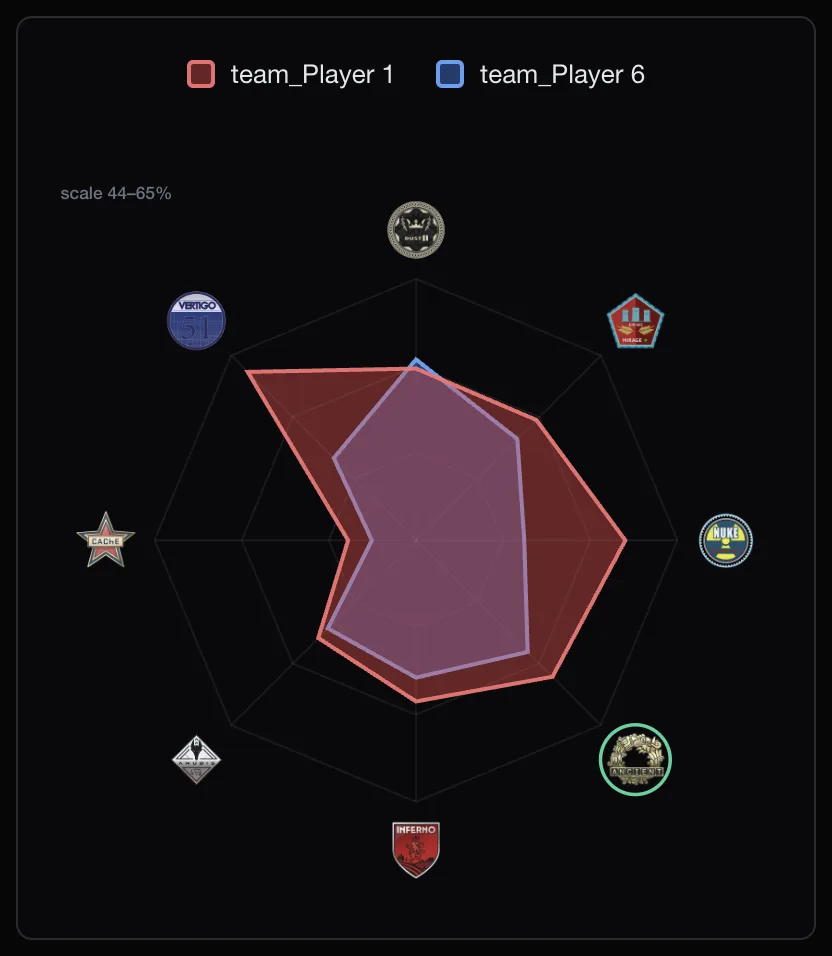
During the veto the panel is titled Map veto and shows the free veto advice for the maps still available. It is labelled free: no token is used. The full briefing unlocks once the map is picked. The map comparison guide explains the veto view.
Build a briefing
- Wait for the map to be picked.
- Click Build briefing in the panel. It spends one token.
- Wait a few seconds while the panel reads the lobby. If something goes wrong, use Try again.
Nothing is sent before you build one. Building sends the lobby players’ identifiers and public stats to our service and its AI provider. The support page and the Privacy Policy answer the common questions.
Read the briefing
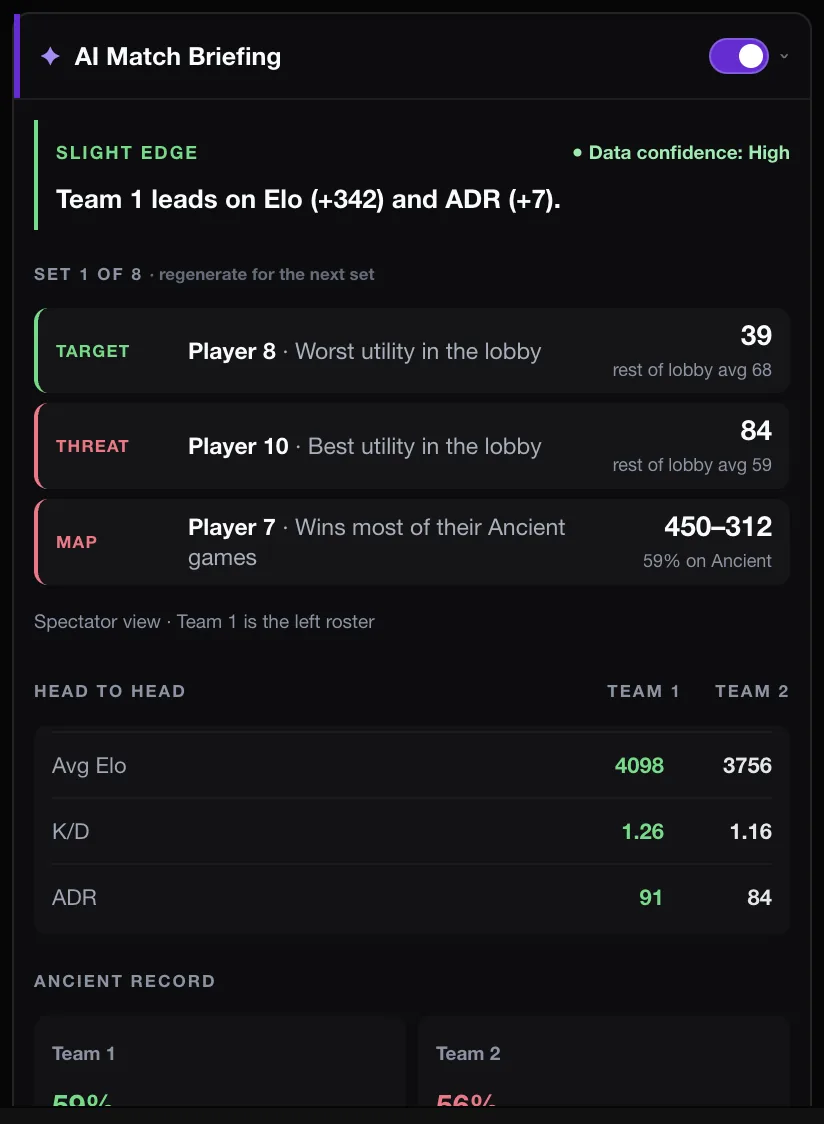
- The headline gives the edge between the teams and a data confidence label.
- Reads such as Target, Threat and Map show a player, what stands out, their number and the rest of the lobby’s average.
- Head to head compares the teams on Elo, K/D and ADR, among other stats.
- Roles lists suggested roles from each player’s own stats. Hover a row to see why.
- Watch and Your role summarise who to keep an eye on and what your own stats suggest.
- Lobby facts holds the underlying numbers. Use Evidence to show or hide the proof.
Check the number next to every claim. If a read does not match what you know about a player, trust your own knowledge.
Regenerate and auto-load
- Regenerate rebuilds the briefing from fresh data and shows the next set of reads. It costs one token each time, up to five times per match.
- Auto-load AI report builds one automatically as soon as lobby data is ready. Each new briefing costs one token. The same option is called Auto-generate on load in the popup.
- Click the toolbar AI button to cycle off, manual and automatic.
Keep an eye on tokens
The panel shows how many tokens are left this week. Free users get five a week; a one-time Supporter Tier raises the allowance. When the count reaches zero the panel says so and the build button is disabled until the weekly reset.
Veto advice and all card stats never use tokens. Install the extension to try the briefing, or read the AI Match Briefing section of the features page.
Related guides
FACEIT Extender is free for Chrome and Firefox: download it or read what it is and does.
Frequently asked questions
- Does the briefing predict who wins?
- No. It summarises the numbers behind the lobby, with the evidence next to each claim.
- Why is the build button greyed out?
- You have no tokens left this week, or the map has not been picked yet.
- Can I get a briefing without spending a token?
- The veto advice shown before the map is picked is free. A full briefing always uses one token.
Comments
Comments load in your browser.