
How-to
How to compare a player’s CS2 rounds and spot repeated routes
Start with one player and one question, then use side filters and round alignment to find a pattern worth reviewing.
Start with one demo and a specific question
FACEIT Extender's demo viewer has a Compare mode that stacks several rounds of one player on a single map, so you can spot repeated routes and opening timings in your browser.
This walkthrough uses Compare mode in the current browser viewer. Its purpose is to put several rounds of the same player on one map so you can compare opening movement and timing. Begin with a question such as: do my CT openings take the same route even when the opponent changes its attack?
Open the CS2 demo viewer on a desktop browser and import a match. If you have not done that before, follow the download and import walkthrough. The browser extension is optional for files you already have; installing it adds a shortcut from a finished match room.
Choose the player, map and side
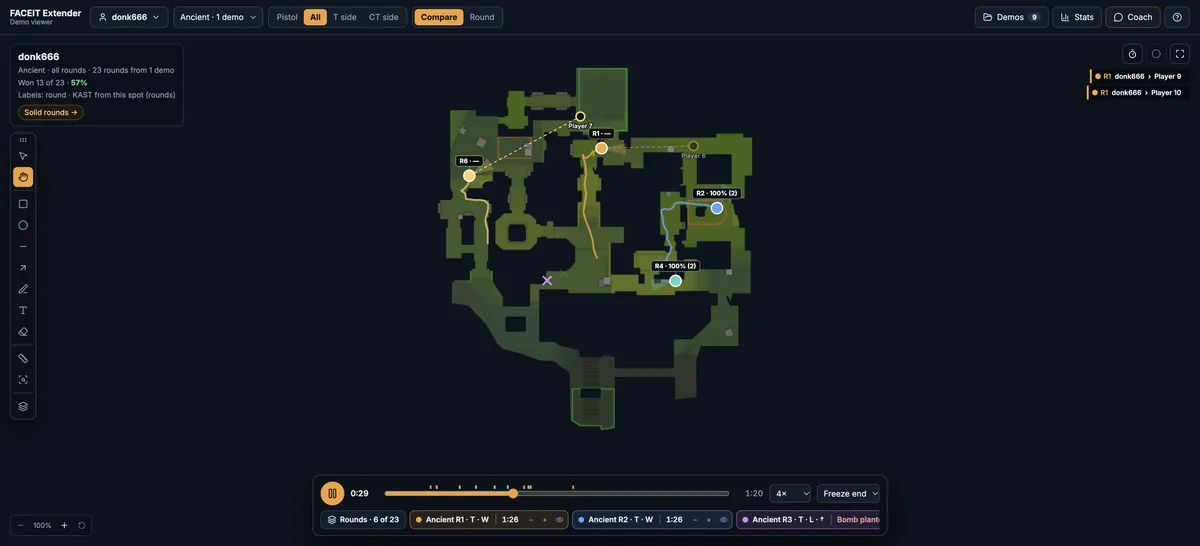
- Choose a player from the subject control in the top toolbar. Search by name if the list is long. Keep one player selected for this first comparison.
- Select the map in the Map dropdown. When several demos are loaded, check that the displayed demo count matches the scope you intend to review.
- Choose Compare in the View controls. Each coloured trace represents a round, rather than a different teammate.
- Select CT side or T side in the Rounds controls. Use Pistol only when your question concerns pistol rounds; use All to return to the full sample.
Separating sides matters because a similar point on the map can mean a completely different job on defence and attack. Do not compare a CT opening rotation directly with a T default and treat the difference as a mistake.
Align the moment you want to compare
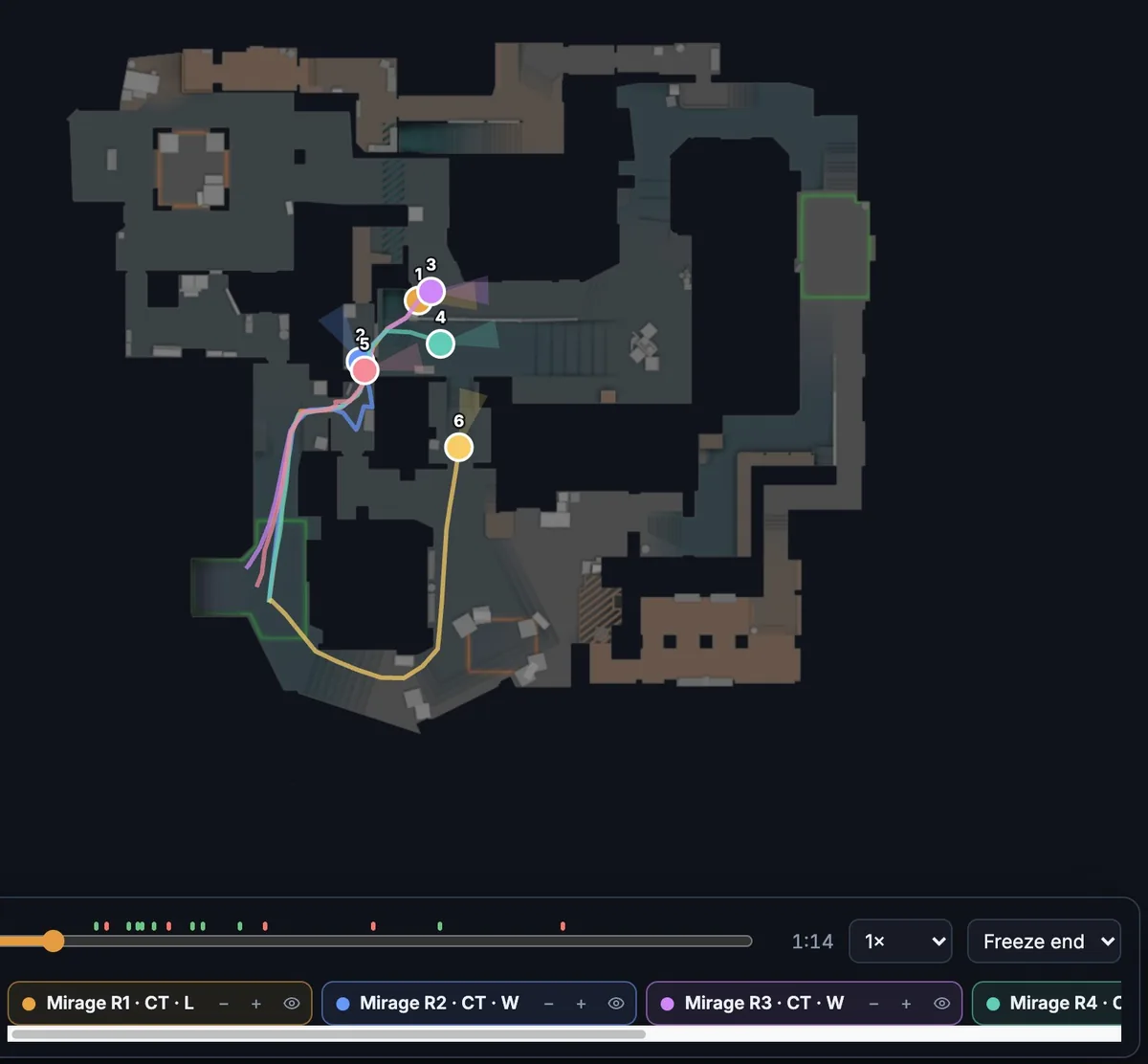
- Leave Line up at freeze end selected when checking opening routes and who reaches a position first.
- Press Play and watch the first few seconds. Pause when the paths separate or several rounds reach the same choke point.
- Change the alignment to first kill when you want to compare positioning around the opening fight. Choose bomb plant when reviewing the transition into a post-plant.
- Scrub the playback position or lower the playback speed to inspect the movement around that shared moment.
The alignment changes the reference point for the overlay. It does not mean the rounds had identical economies, information or opponents. A route that looks consistently late might be a deliberate hold for utility in some rounds and a slow rotation in others.
Reduce clutter and check the actual round
- Open Rounds using the count button beside the timeline. Use its round selection controls to keep a manageable group on the map.
- Compare Won and Lost samples, then return to the full group. Check the number of rounds in each sample before interpreting the result.
- Use the play control beside an interesting round to open Round view. Review all ten players and the available utility around the moment you spotted.
- Return to Compare to check whether the same situation happened again, rather than relying on one memorable example.
If you cannot see enough rounds, check the side filter, selected player, selected map and included demos before assuming that import failed. A player who only appears in one loaded match cannot provide evidence across an entire season.
Turn one observation into a practice change
Write down an observation you can verify: “In these three CT rounds I crossed the same angle before my teammate was ready to trade.” Then choose a small adjustment for your next match. Avoid conclusions such as “this route never works” from a handful of outcomes.
Use round playback and the player timeline to inspect the fights behind the overlay. You can also draw arrows and notes on the map to explain the proposed change to a teammate.
The reconstructed map is for movement, timing and context. Use the game’s demo playback when evaluating precise aiming or exactly what a player could see.
Related guides
FACEIT Extender is free for Chrome and Firefox: download it or read what it is and does.
Comments
Comments load in your browser.