
How-to
How to track FACEIT players with notes and tags
Track a player from the match room, add a note and role or behaviour tags, and manage the whole list from the extension popup.
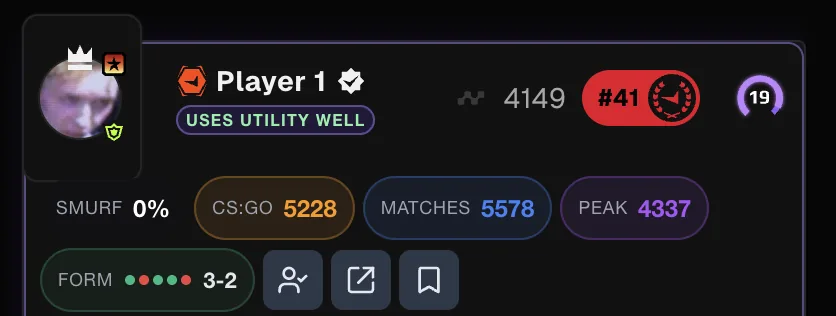
Why track players
FACEIT Extender lets you save a note and tags such as AWPer, IGL or toxic for players you meet in the match room, then search, filter, export and import your list.
Names fade quickly. Tracking lets you attach a short note and a few tags to a player so you recognise them the next time they show up in a lobby.
Your tracked list is stored in your browser. Notes and tags are for you only; other players cannot see them.
Turn it on
- Open the extension popup from your browser toolbar.
- In the Matchroom tab, switch on Player Tracking (“Add button to track players and add notes/tags”).
- In the Player Profile tab, switch on the same option to track from profiles.
The Balanced and Full presets turn it on. You cannot track yourself, so the button does not show on your own card.
Track a player from the match room
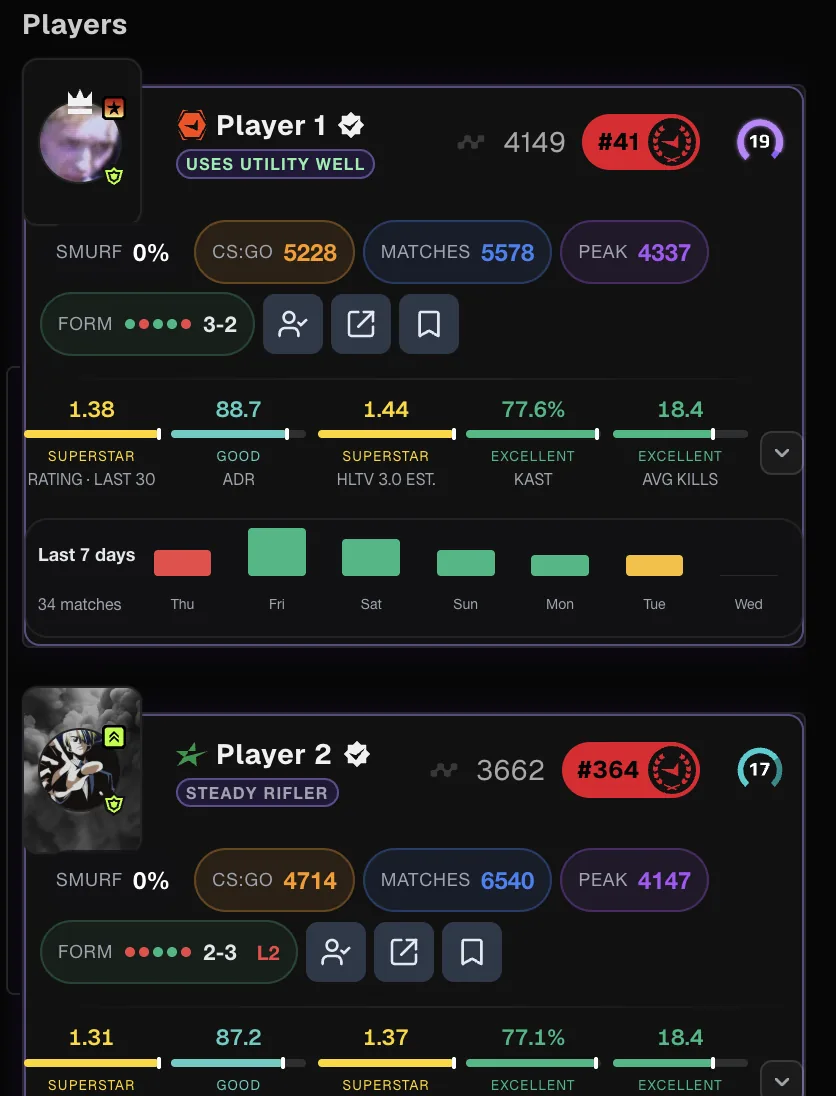
- Hover the player’s card and click the bookmark button. Its tooltip says “Track Player”.
- In the window that opens, type a note in the Notes box. Keep it short and factual, for example “calls well, plays CT anchor”.
- Add tags. Quick tags are offered: toxic, friendly, smurf, cheater, good teammate, AWPer, IGL and support. You can also type your own.
- Click Track Player. A confirmation says “Player tracked”.
The same button reads “Tracked” once someone is on your list, and opening it again lets you edit the note and tags with Update Player.
In the match room, a tracked player’s name is underlined. Clicking the name opens their notes instead of their profile. Use the profile link elsewhere on the page when you need the profile itself.
Manage the list in the popup
Open the Player Tracking tab of the popup to see everyone you track, with when you tracked them and when you last updated them.
- Search by name, note or tag.
- Sort by Newest First, Oldest First, Name (A-Z) or Most Tags.
- Filter by a single tag using All Tags.
- Edit notes and tags, or remove a player. Removing asks you to confirm.
Back up and move your list
- In the Player Tracking tab, click Export. Your browser downloads a JSON file named with today’s date.
- On another browser or after a reinstall, click Import and choose that file.
- Pick an import mode: Merge with existing players updates matching players and adds new ones, while Replace all players swaps your list for the file.
Export before you clear your browser data or uninstall the extension, because the list lives in the browser.
Related tools
- Switch on “Track players you report” in the Automation tab to add players you report on FACEIT to your list, with the report added as evidence.
- Ultrablocker can fill your block list with your most recently active tracked players if you have FACEIT Premium.
The player notes section of the features page has a short summary. Install the extension to start your own list.
Related guides
FACEIT Extender is free for Chrome and Firefox: download it or read what it is and does.
Frequently asked questions
- Do tracked players know I tracked them?
- No. Notes and tags are stored in your browser and are not shown to the player or to anyone else.
- Can I add tags that are not in the quick list?
- Yes. Type any tag you like into the tag field and add it. The quick tags are only shortcuts.
- Will my list survive uninstalling the extension?
- Not by itself. Export a JSON backup first and import it later.
Comments
Comments load in your browser.