
How-to
How to set up auto-veto as a FACEIT captain
Auto-veto is off by default and always gives you a few seconds to cancel. Here is how to configure it.
What auto-veto does
FACEIT Extender has an optional auto-veto that bans maps for you when you are team captain, using a saved order or team map stats, with a cancel window so you stay in control.
Auto-veto is an optional helper that bans maps on your behalf. It works only when you are the team captain and FACEIT allows your turn. It is off until you switch it on. It arrived in version 0.6.0, so update the extension if you cannot find it.
Automation acts for you. Use it at your own risk and follow FACEIT’s rules. You can cancel every ban before it happens.
Switch it on
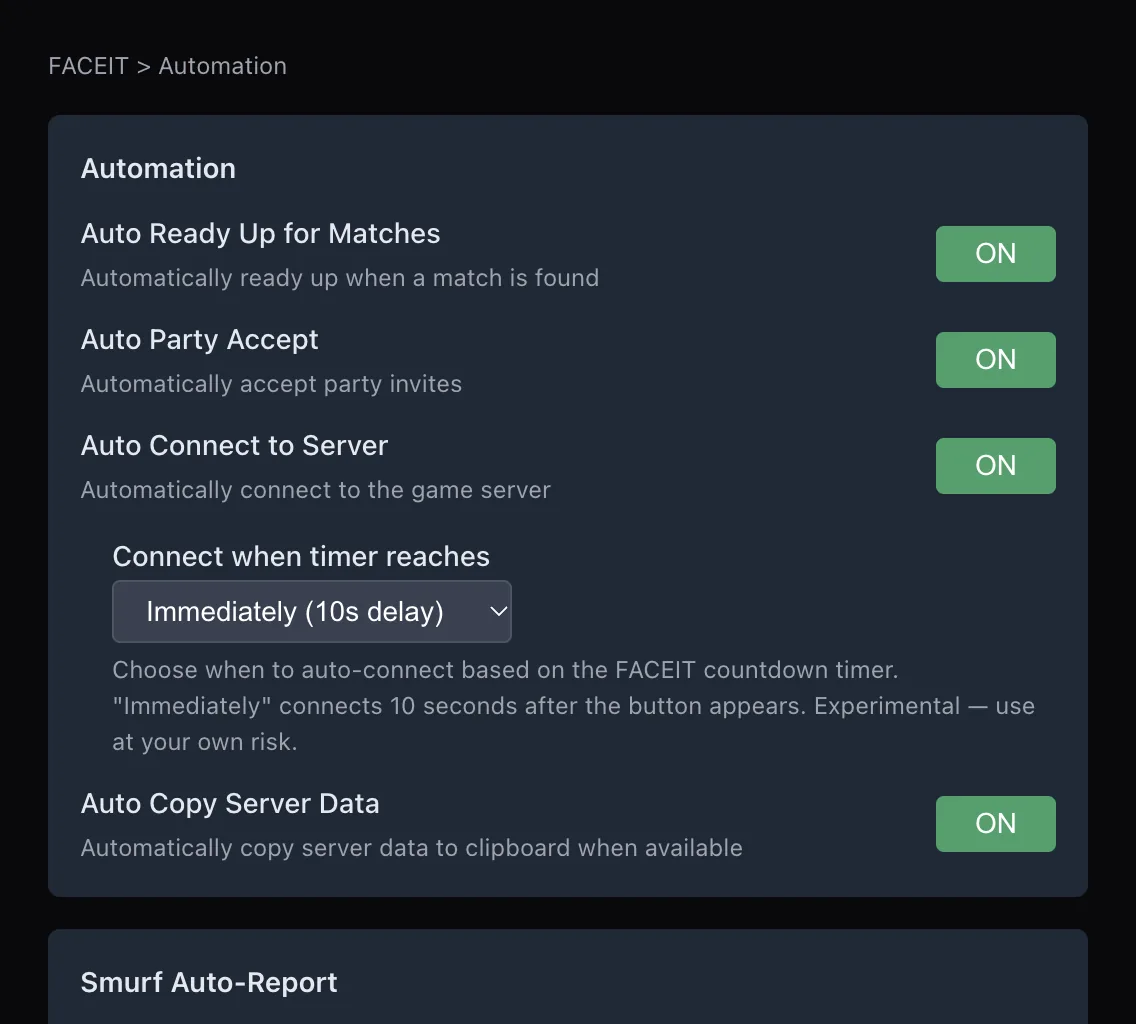
- Open the extension popup and the Automation tab.
- Find Auto-veto maps (“Off by default. Bans maps only when you are captain and FACEIT allows your turn”) and switch it on.
- Under Choose maps using, pick a method.
- Set the Cancel window.
Choose how maps are picked
| Method | How it chooses | Notes |
|---|---|---|
| Saved ban order | Bans the first available map in your list | Maps outside your list are left to you |
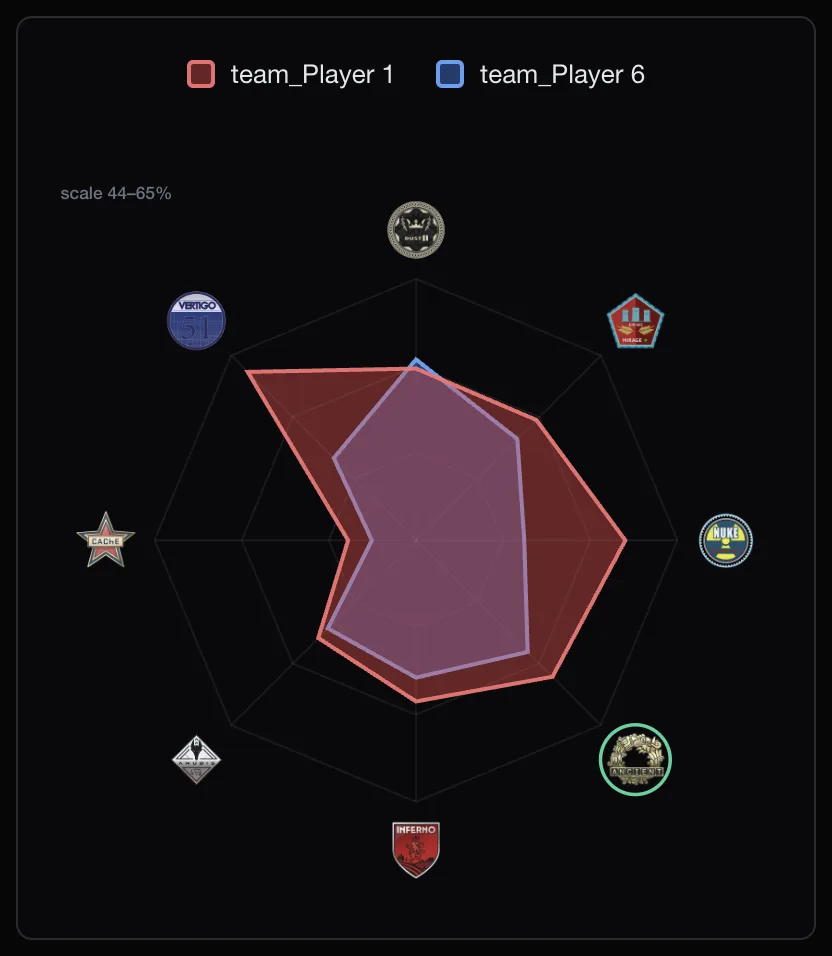
| Team map stats | Bans the map with your team’s worst win-rate gap, from up to 100 recent matches per player | Thin samples are skipped |
| AI deep stats | Builds a plan from per-map results and, where available, Leetify data | Uses one AI token per room and sends stats and IDs to our AI service |
With Saved ban order, build your list with the arrows to move a map up or down, the cross to remove it and the Add map to ban order menu. An empty list means no automatic bans.
The cancel window
Every ban waits a few seconds so you can stop it. Choose 3, 5, 10, 15 or 20 seconds under Cancel window. The default is 5 seconds.
- On your turn, a notice reads “Banning (map) in (seconds)s.”
- Click Cancel this turn to stop it and ban yourself. The notice confirms the cancellation.
- Do nothing and the ban is submitted. The notice says “Ban submitted”.
If you change your auto-veto settings in the middle of a turn, the countdown restarts with the new settings.
Which method should you pick?
- Saved ban order suits teams with settled preferences: the same two maps are banned every time.
- Team map stats suits changing line-ups, because it reads recent results rather than a fixed list.
- AI deep stats adds more evidence but needs a token and the AI data permission, so it is the one to try last.
Whichever you choose, play a few matches with the cancel window at 10 seconds or more until you trust the choices it makes.
When it pauses
- You are not the captain, or it is not your turn.
- It is waiting for your saved maps, team data or an AI plan.
- Compatibility mode is on and another FACEIT extension is detected. See using Extender with Repeek.
- The AI plan is unavailable. There is no fallback ban: ban manually or choose Retry AI plan.
- The turn was handled in another browser tab.
Keep the match room open during the veto. Compare the maps yourself first to decide which method suits your team, and see the automation section of the features page for the other helpers. Install the extension to try it.
Related guides
FACEIT Extender is free for Chrome and Firefox: download it or read what it is and does.
Frequently asked questions
- Can auto-veto ban when I am not captain?
- No. It acts only when you are captain and FACEIT allows your turn.
- What if I forget it is on?
- Each turn shows a countdown and a Cancel this turn button before anything is submitted.
- Does it pick a map for my team?
- It only bans, and only maps you allow it to choose among. The pick remains yours.
Comments
Comments load in your browser.