
How-to
How to read a player card in the FACEIT match room
Learn what every part of an extended player card shows, and a 30-second routine for reading a lobby before the match starts.
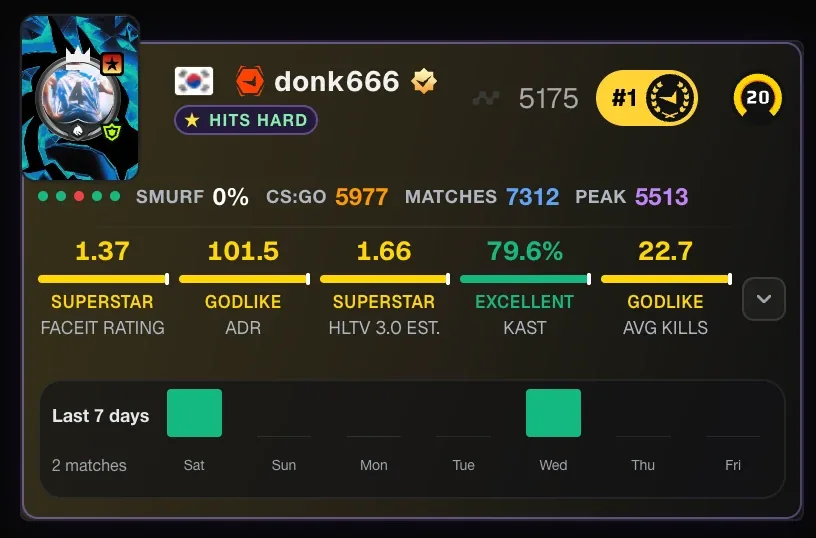
What is on a card
FACEIT Extender adds a player card to every player in the FACEIT match room, with five headline stats, form dots, peak Elo, a seven-day activity strip and hover buttons.
Open a match room with FACEIT Extender installed and each player card gains three layers under the name.
- A row of small badges: smurf estimate, CS:GO Elo, total matches, peak Elo and recent form.
- A row of five headline stats, each with a coloured bar and a one-word rating such as Good, Excellent or Godlike.
- A seven-day strip that shows how many matches the player played each day.
A short label under the nickname, for example “Hits hard”, puts the main takeaway about that player in plain words. A star next to it marks the player with the best ADR and K/D together on that team.
Which badges you see depends on your switches in the Matchroom tab of the popup. The settings guide lists them all.
The five headline stats
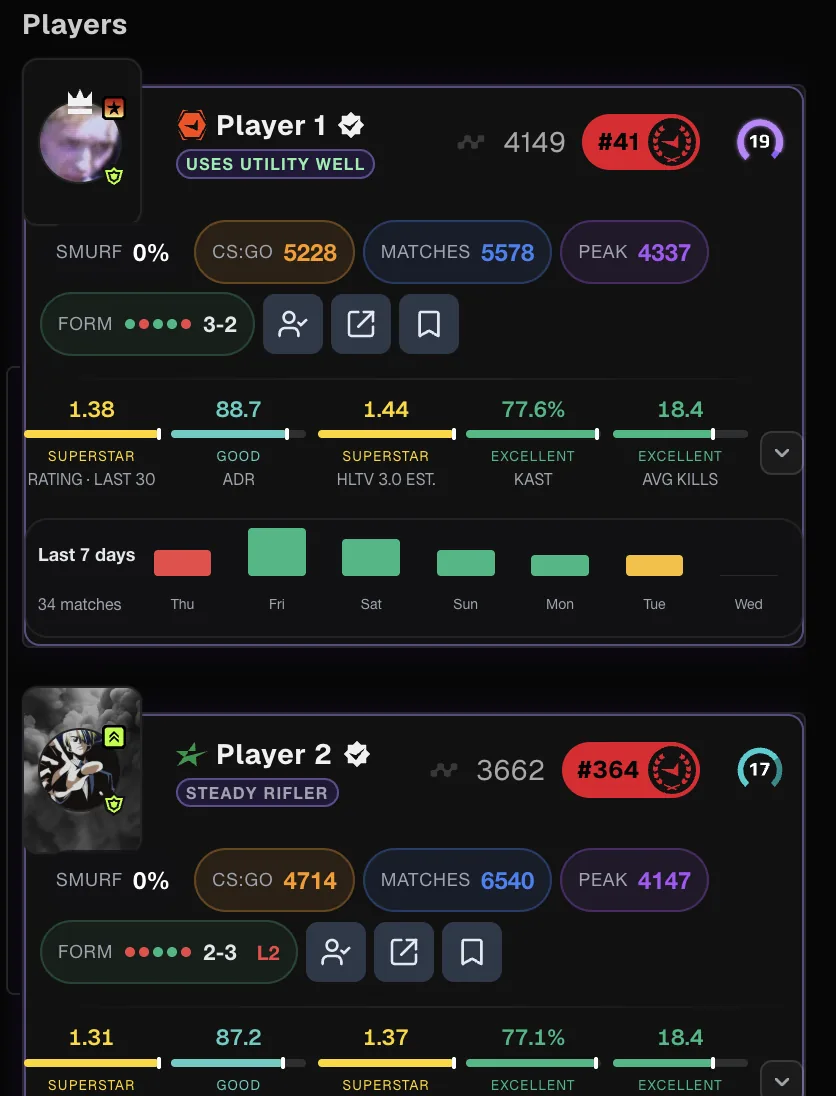
The first row shows the numbers most players can judge at a glance:
- FACEIT rating: the platform’s own overall rating. When the label says “Last 30” the figure comes from the last 30 matches.
- ADR: average damage per round.
- HLTV 3.0 estimate: a rating estimate from available stats, marked as an estimate.
- KAST: the share of rounds with a kill, assist, survival or trade.
- Average kills per match.
The remaining stats are one click away. Hover or focus the small arrow at the end of the row and a panel opens with the rest, such as Round Swing, KPR, DPR, multi-kill, 3K+ per match and clutches won. Click the arrow to keep the panel pinned open. The stats guide explains each number.
Click any stat and Extender copies that player’s whole stat line to your clipboard, ready to paste into team chat or a note.
Choose the time period first
All numbers follow one setting. In the match information column, find the box labelled Period and pick Day, Week, Month, Quarter, Year or Last 30 Matches.
- Open the match room.
- Use the Period selector to choose a window. Last 30 Matches is a steady default.
- Wait a moment while the cards refresh. Switching to a window with few matches can make a player look unusually hot or cold.
If a player has barely played in the chosen window, move to a longer one before you judge them.
Badges, form dots and the seven-day strip
- Smurf: an estimate from 0% upwards that shifts from white towards red as it rises. It is a prompt to look closer, not a verdict. See the smurf guide.
- CS:GO: the player’s old CS:GO Elo, if you switch it on.
- Matches: lifetime match count.
- Peak: the highest CS2 Elo found in the player’s match history. Hover it to see how many matches were scanned.
- Form: five dots, latest match first, green for a win and red for a loss. Hover for the record and current streak.
- Last 7 days: one bar per day. Hover a bar for games and wins.
The three buttons on hover
Move the pointer over a card and three round buttons appear on the card art: Have We Met, an external stats link and Track Player. On touch screens they stay in the badge row instead.
If you have already played with or against someone, a small “Met” counter with the number of shared matches shows in the badge row. Click it to open the list.
A 30-second routine
- Set Period to Last 30 Matches.
- Scan the five headline stats for the highest and lowest bars on each team.
- Check Form and the seven-day strip for anyone on a cold run or just back from a break.
- Glance at the smurf badge for anyone whose level looks out of place.
- Decide the veto with the map comparison.
Install the extension from the download page and see the player stats section of the features page for the full list of stats.
For the wider picture of the match room before a game, see FACEIT stats extension: match room stats and how to check a FACEIT player before the match.
Related guides
FACEIT Extender is free for Chrome and Firefox: download it or read what it is and does.
Frequently asked questions
- Why does a stat label say “Last 30”?
- It means the figure is based on the player’s last 30 matches rather than the full period you selected.
- Can other players see these cards?
- No. The cards are added to your own browser. Other players, including people who use the extension, only see what they have switched on themselves.
- Why is a badge missing on some cards?
- Each badge has its own switch in the Matchroom tab. Some, such as peak Elo, also need the player’s history to load first.
Comments
Comments load in your browser.