
Guide
FACEIT auto ready, auto accept and auto connect
Optional helpers for the queue. Each has its own switch, all are off by default and none are needed to use the extension.
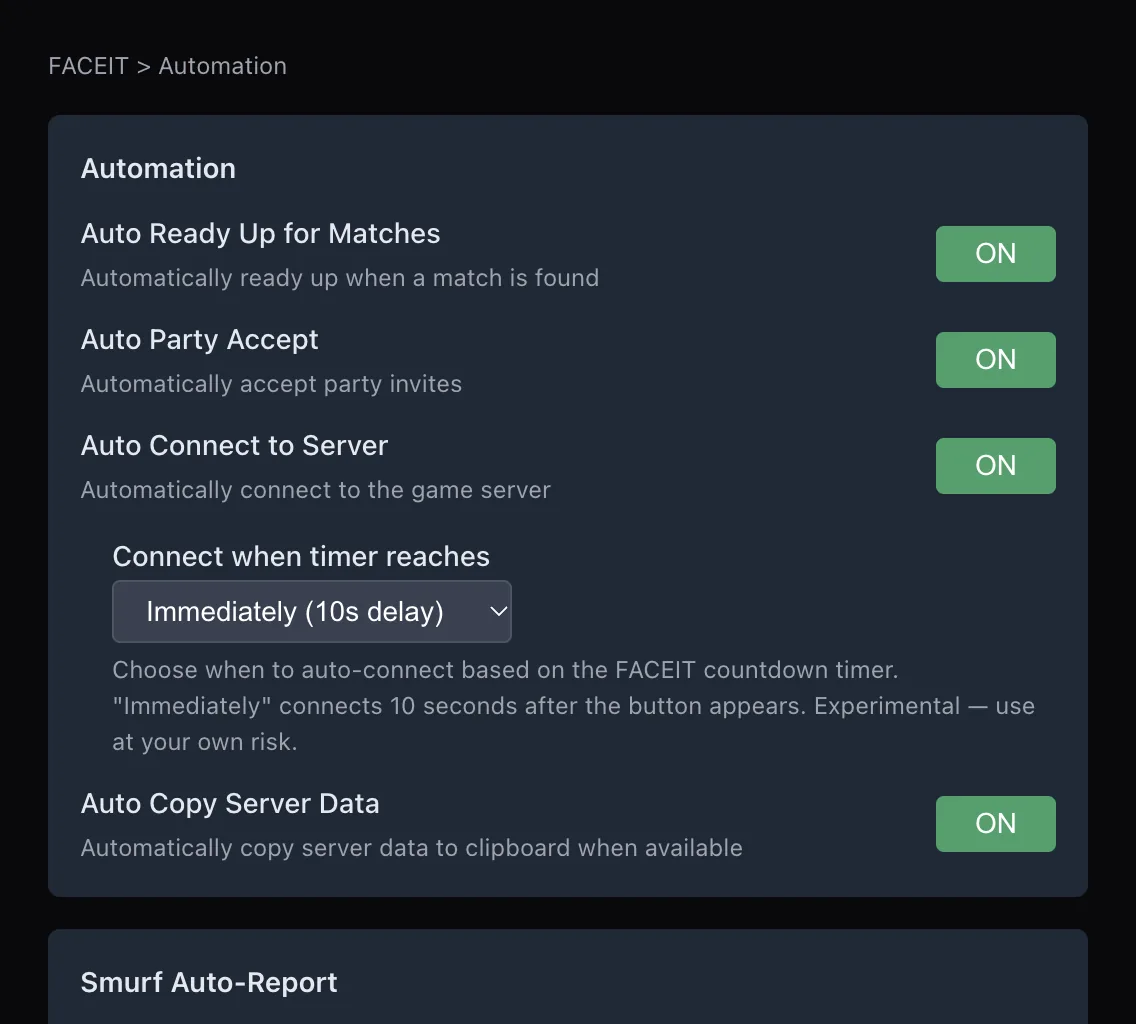
What automation exists
FACEIT Extender can optionally click ready, accept party invites and connect to the server for you; each helper is off by default, independent and carries risks explained here.
FACEIT Extender can click a few buttons for you. These helpers are optional, off by default and independent of each other. Use them at your own risk and follow FACEIT’s rules, which are the final word on what is allowed on the platform.
- Auto Ready Up for Matches: readies up when a match is found.
- Auto Party Accept: accepts party invites automatically.
- Auto Connect to Server: connects to the game server automatically.
- Auto Copy Server Data: copies the server details to your clipboard when they are available.
- Auto Map Message and Pretalk message: send a text you wrote in team chat.
Turn one on
- Open the extension popup and go to the Automation tab.
- Switch on the helper you want.
- Leave the popup. There is nothing else to start: the helper acts when the matching event happens on FACEIT.
The Minimal preset turns on auto ready; Balanced adds party invites and copying the server address; Full adds map messages. Auto-connect is not part of any preset. See presets and settings.
Auto connect and the server address
Auto Connect to Server can start the game connection for you. A setting, "Connect when timer reaches", lets you choose when it acts relative to FACEIT’s countdown, or use "Immediately (10s delay)", which connects ten seconds after the button appears. The popup marks this as experimental.
It is best to start CS2 yourself first. If the game is not running, a connect attempt has nothing to join. If you would rather connect by hand, Auto Copy Server Data is the gentler option: it only copies the address to your clipboard so you can paste it into the game console.
Messages for your team
Auto Map Message sends a short text you wrote for the chosen map after the veto ends, for example where you like to play. Select "Configure map messages" to write one per map. Pretalk message sends one text of your own in team chat as soon as the room loads, whatever the map.
Keep messages short and friendly. They go out as if you typed them, so the team will read them as yours.
Use them sensibly
- Ready up automatically only if you will be at your desk when the match starts.
- Do not rely on auto accept if you want to check party invites first.
- Switch off anything you do not use. Fewer helpers mean fewer surprises.
- During your own live match, Quiet Mode pauses the extension, including automations. See quiet mode.
Automation is optional. Install FACEIT Extender for the stats features alone, and read the features page for the overview.
Quick reference
If you are not sure which helpers you want, start with none, play a few matches and add one at a time. Each switch is independent, so there is nothing to untangle later.
- Want fewer clicks: Auto Ready Up for Matches and Auto Party Accept.
- Want less typing: Auto Copy Server Data and map messages.
- Want the most hands-off setup: add Auto Connect to Server, with CS2 already running.
Related guides
FACEIT Extender is free for Chrome and Firefox: download it or read what it is and does.
Frequently asked questions
- Is auto ready on by default?
- No. Every automation is off until you switch it on or choose a preset that includes it.
- Does auto connect start CS2 for me?
- No. It connects to the server for a game that is already running, so start CS2 first.
- Can automation get me in trouble?
- The settings say to use them at your own risk. Follow FACEIT’s rules and switch off anything you are unsure about.
Comments
Comments load in your browser.