
How-to
Send your position in team chat automatically
Configure Auto Map Message and Pretalk message, and learn what they will and will not do.
What it does
FACEIT Extender's Auto Map Message posts a short message you wrote for each CS2 map in your team chat once the veto ends, with an optional message when the room loads.
Many teams ask “who plays where?” the moment a map is picked. Auto Map Message answers for you: after the veto ends it sends a short message you wrote for that map to your team chat.
A second option, Pretalk message, sends one custom message as soon as the room loads, whatever the map.
Automation acts for you. Use it at your own risk and follow FACEIT’s rules.
Set up map messages
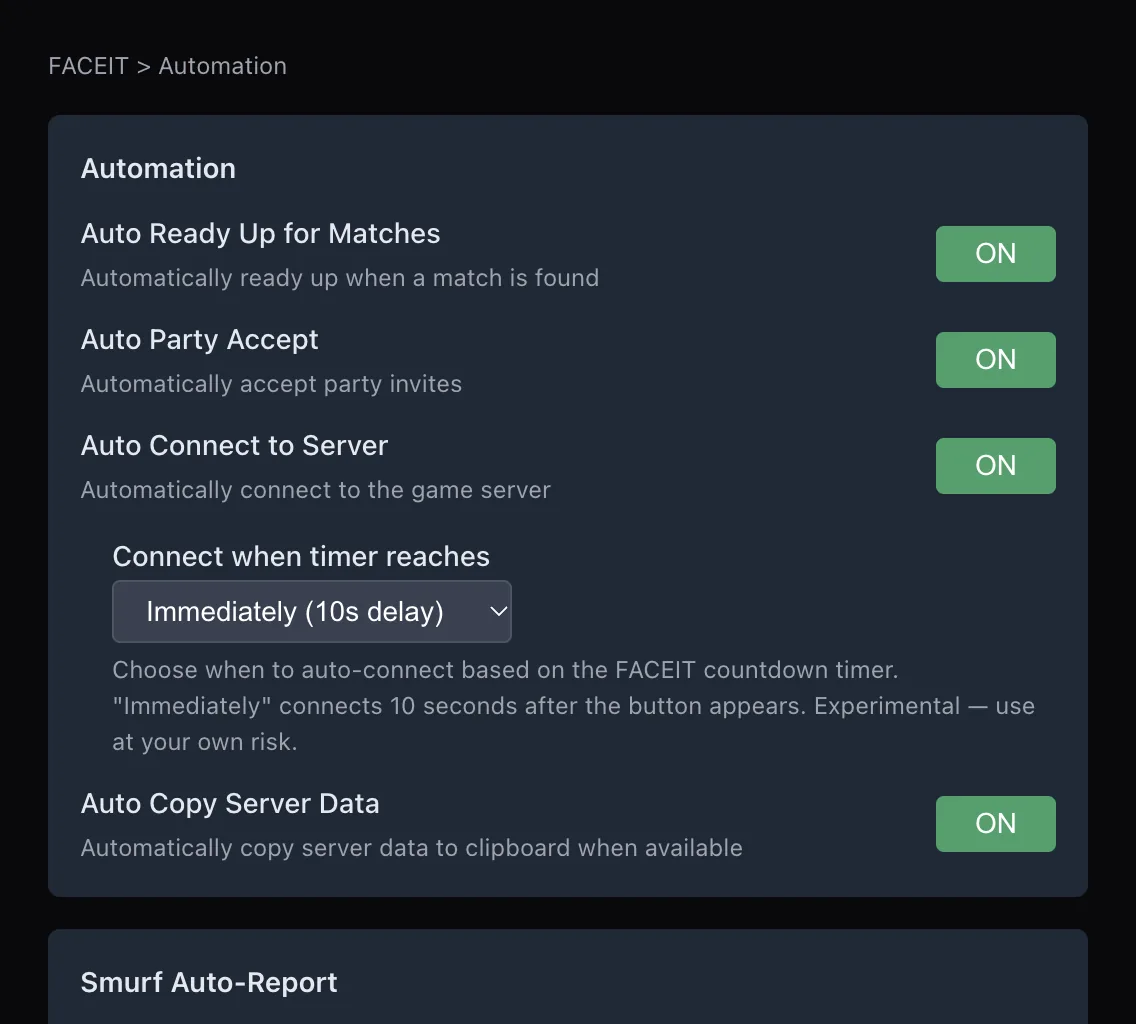
- Open the extension popup and the Automation tab.
- Switch on Auto Map Message (“Send the chosen map’s configured position after veto ends”).
- Click Configure map messages to open the list of maps.
- For each map you play, switch the map on and type a short message, such as “A long” or “Mid, flash for B”.
- Click Hide map messages when you are done.
Messages can be up to 16 characters per map, and a counter shows what is left. Maps you leave off or empty send nothing.
Set up a pretalk message
- In the Automation tab, switch on Pretalk message (“Send your custom text once in team chat as soon as the room loads”).
- Type your text in the field that appears. It can be up to 300 characters.
Pretalk is independent of the map messages, so you can use either or both.
How it behaves
- It only posts to your team chat, never the public room chat.
- It sends once per match and does not repeat as you move around the room.
- It will not overwrite something you have started typing. If the chat box has text, it waits.
- Map messages need a confirmed map pick. Nothing is sent during the veto.
- While Quiet mode is active, sending waits until it ends.
Writing good messages
Sixteen characters is not much, so write like a callout: the position first, an extra detail second.
- “A long” or “B site” say where you play.
- “Mid, flash B” says where and what you bring.
- Skip greetings. A pretalk message is a better place for those.
If a teammate is also using the feature, you will each send your own message, which is a quick way to settle roles.
If nothing is sent
- Check that the map you were given is switched on and has text.
- Check that the veto has finished and the map is confirmed.
- Make sure your team chat box is empty. The helper never overwrites a draft.
- Check that Quiet mode is not active because your match has started.
Tips
- Keep messages short and useful. Teammates read them while the match loads.
- Write a message only for the maps and roles you really have.
- Read the automation section of the features page for the other helpers, and install the extension to get them.
Related guides
FACEIT Extender is free for Chrome and Firefox: download it or read what it is and does.
Frequently asked questions
- How long can a map message be?
- Up to 16 characters per map. The pretalk message can be up to 300 characters.
- Will it send during the veto?
- No. Map messages are sent only after the veto is over and the map is confirmed.
- Does it spam the chat?
- No. Each message is sent once per match.
Comments
Comments load in your browser.