
Guide
The FACEIT floating stats box and sidebar dock
Turn on the Floating Stats Box, move it, pick a period and shrink it to a dock when you want space.
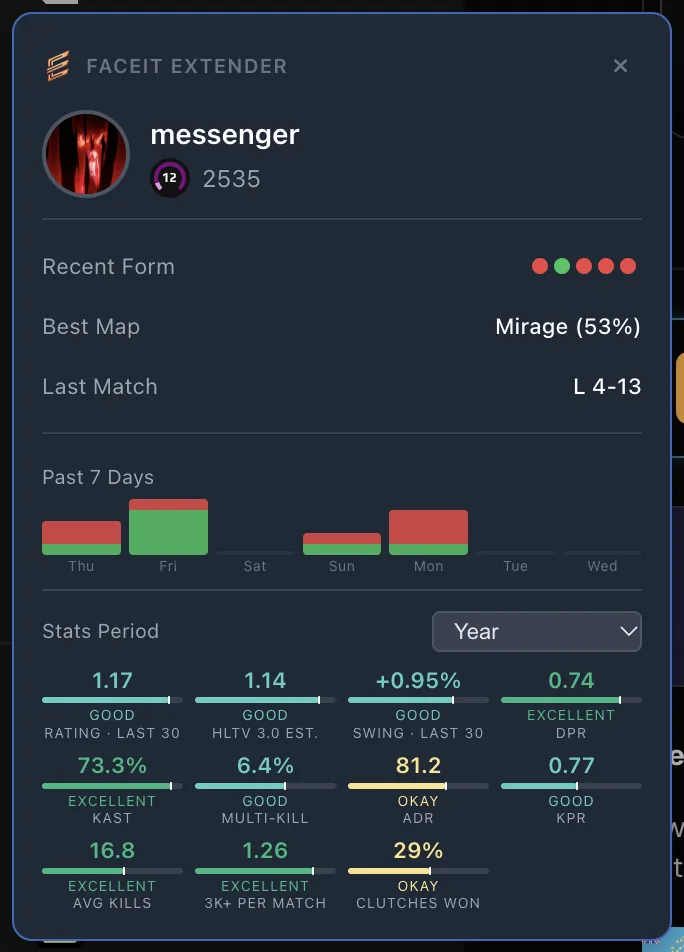
What the box shows
FACEIT Extender's floating stats box keeps your own Elo, form, best map and stats in view on FACEIT pages, and it can shrink to a small dock under your avatar.
The Floating Stats Box is a small panel about you, not about other players. It stays on top of FACEIT pages so you can see how your session is going without opening your profile.
- Your Elo and level.
- Recent Form, the last results as wins and losses.
- Best Map and Last Match, shown as a win or a loss.
- A Past 7 Days chart of matches played and won each day.
- A grid of stats: a FACEIT rating, an HLTV 3.0 estimate, Round Swing, DPR, KAST, multi-kill, ADR, KPR and average kills.
It follows your own account, so it is useful in the lobby while you wait and on pages where you would otherwise have to navigate away to check.
Turn it on
- Open the extension popup and go to the General tab.
- Under Features, switch on Floating Stats Box. The popup describes it as a floating box with your Elo, recent form, best map and last match on all pages.
- Open or refresh a FACEIT page. The panel appears.
It is off by default. The Full preset turns it on; Minimal and Balanced leave it off. See presets and settings.
Move it and choose a period
Drag the panel to put it where it does not cover anything you need. FACEIT Extender remembers the position.
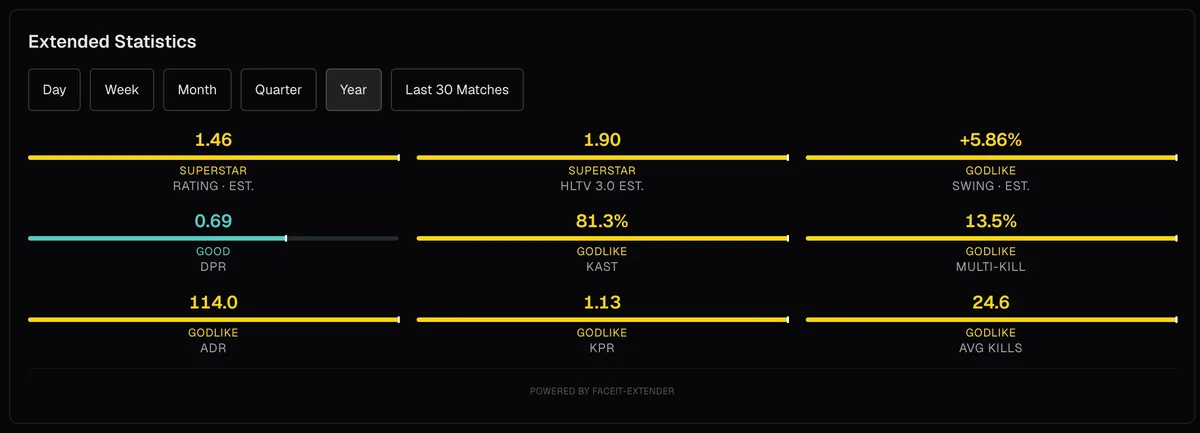
The Stats Period menu under the form row has four choices: Year, Month, Week and Day. It changes the stats grid, so a quick switch to Day shows how today is going, while Year shows your baseline. For the longer-period figures on a profile, see FACEIT profile stats by period.
Close it to the sidebar dock
Select the × in the panel’s corner. The panel closes, but it does not disappear: it shrinks into a dock under your avatar in FACEIT’s right-hand sidebar. The dock shows your level badge, your Elo and five dots for your last five results, green for a win and red for a loss.
- Hover the dock to see a short summary as a tooltip.
- Click it to open the full panel again.
- Click it while the panel is open to close it.
While docked, the extension skips the heavier stats requests and only keeps your identity and recent form up to date, so the dock is the light option.
If you cannot see it
- Check that the extension’s master switch, Enable Extension, is on.
- Make sure you are signed in on faceit.com; the box is built from your account.
- Look under your avatar in the sidebar: it may be docked.
- Refresh the page after changing the setting.
- During your own live match, Quiet Mode pauses the extension. See quiet mode.
New to the extension? Install it and read the features page for the overview.
Related guides
FACEIT Extender is free for Chrome and Firefox: download it or read what it is and does.
Frequently asked questions
- Does the floating box show other players?
- No. It is a summary of your own account.
- How do I get rid of it?
- Click the × to dock it, or switch off Floating Stats Box in the General tab.
- Why does the dock show only Elo and form?
- The dock is the light version. It keeps your level, Elo and last five results visible without loading the full stats.
Comments
Comments load in your browser.