
Guide
FACEIT profile stats by day, month and year
Choose a time window on any profile and see rating, ADR, KAST and multi-kills for just that period.
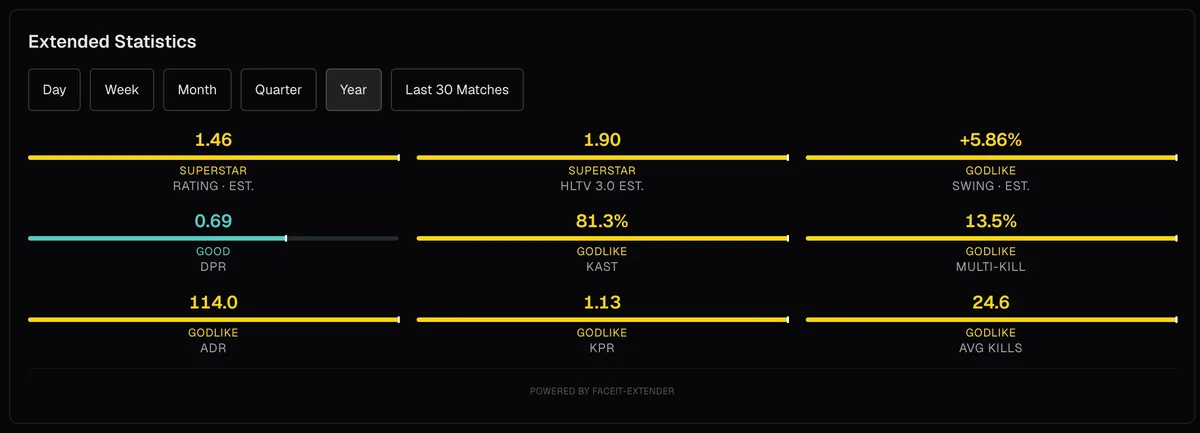
What the extended stats block adds
FACEIT Extender adds an extended stats block to FACEIT profiles, so you can switch between day, week, month, quarter, year and the last 30 matches and read rating and ADR for each period.
FACEIT’s profile shows a season summary and a few recent numbers. With Extended Stats switched on in the Player Profile tab, FACEIT Extender adds a block of more detailed figures to the profile overview: rating, ADR, KPR, DPR, KAST, multi-kills and average kills.
The block works on any player’s profile, so it is a quick way to size up a teammate or an opponent. The features page lists them all. What each figure means is explained in FACEIT stats explained and K/D, ADR and KAST.
Pick the period that fits your question
Above the figures there are six buttons. The selected one is highlighted and the numbers refresh without the block disappearing.
| Button | Use it to answer |
|---|---|
| Day | How is this player doing today? |
| Week | Are they in form this week? |
| Month | What is their level over the recent stretch? |
| Quarter | A steadier view that smooths out a bad week. |
| Year | Their baseline over a full year. |
| Last 30 Matches | Their most recent games, however long they took. |
Your choice is remembered, so the next profile you open starts on the same period and you can compare players like for like.
When the block says there are no matches
A short window can be empty. If the player has not played in the chosen period, the block says "No matches in the selected stats period. Try a longer period." Switch to Quarter, Year or Last 30 Matches. If it says stats could not be loaded, try another period or reload the page.
A single day is also very noisy: ten rounds can swing ADR a long way. Prefer Month or Last 30 Matches when you want to judge a player and use Day only to see how the current session is going.
Where a rating is an estimate
For most periods the rating comes straight from FACEIT’s match data. For a full year, FACEIT’s match feed cannot cover a whole year, so the block estimates it from the year’s own totals and labels it as an estimate. The HLTV 3.0 value is also an estimate, labelled as one, and is meant for comparing players, not for quoting.
- A label that says estimate means the number is calculated, not reported by FACEIT.
- Compare estimates only with other estimates for the same period.
- Where FACEIT supplies its own value, the block shows that value.
Turn it on

- Open the extension popup and go to the Player Profile tab.
- Switch on Extended Stats.
- Open any profile on faceit.com and look for the block under the season summary.
The Minimal, Balanced and Full presets all include it. If you have not installed the extension yet, get it here. To see where the same stats appear before a game, read what the match room shows.
Related guides
FACEIT Extender is free for Chrome and Firefox: download it or read what it is and does.
Frequently asked questions
- Which period should I look at first?
- Last 30 Matches is a good default for judging current form. Use Year as the baseline and Day only for today’s session.
- Does the block work on CS:GO profiles?
- It can show CS:GO stats on a CS:GO profile page, but CS:GO matchmaking ended in 2023, so the data stops there.
- Why is a year rating marked as an estimate?
- FACEIT’s match feed cannot cover a whole year, so the extension calculates one from the year’s totals and says so.
Comments
Comments load in your browser.