
How-to
FACEIT lobby and party layout options you can switch
A tour of the Player Lobby tab and the floating stats box, with two example setups.
Where the options are
FACEIT Extender can clean up the matchmaking lobby by removing ladders and the header and adding lobby stats, flags, map win rates and server ping.
Open the extension popup and the Player Lobby tab. It collects every switch for the matchmaking lobby and party cards. A separate switch in the General tab adds a floating stats box.
Refresh the lobby page after you change a switch so the layout loads cleanly.
The Player Lobby switches
| Switch | What it does |
|---|---|
| Remove Ladders | Removes ladder information under the current lobby. |
| Remove Header | Removes the header section: Monthly ladders, Skill level and Missions. |
| Extended Stats | Adds extended statistics under lobby cards. Choose the time range with the Stats Period selector in the lobby. |
| Country Flags | Shows the player’s country flag and code next to names. |
| Map Win Rates | Shows party map win rates on the map pool cards. It needs Extended Stats. |
| Server Ping | Shows an estimated ping to each server region on the Servers tab. |
The floating stats box
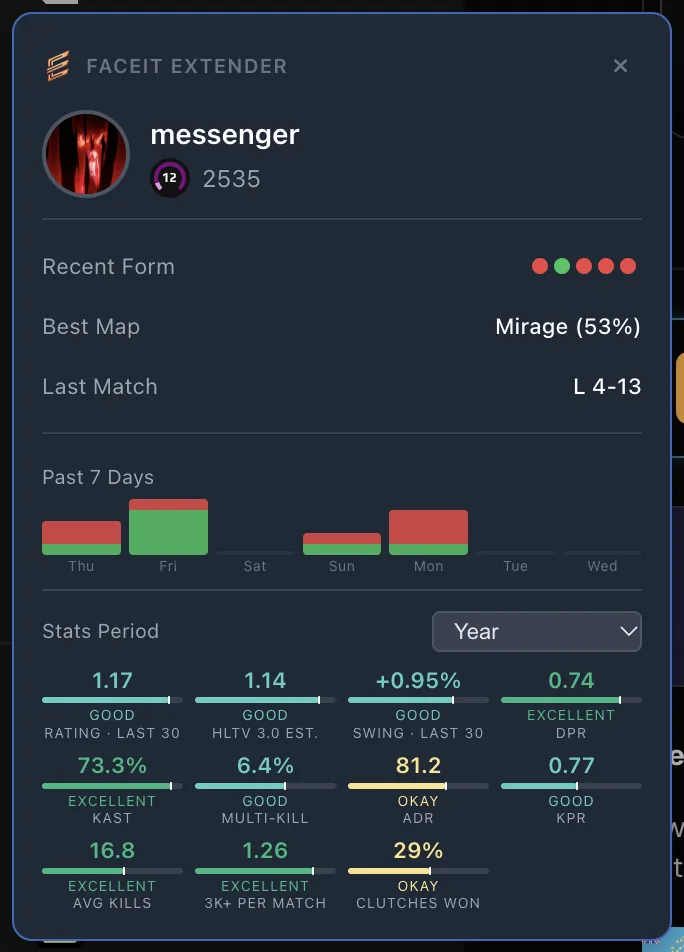
In the General tab, switch on Floating Stats Box (“Show a floating box with your ELO, recent form, best map, and last match on all pages”). It also has a Stats Period selector for the figures inside.
Click the small cross to close it. A compact level, Elo and form dock stays under your avatar in FACEIT’s sidebar, and clicking it opens the box again.
Two example setups
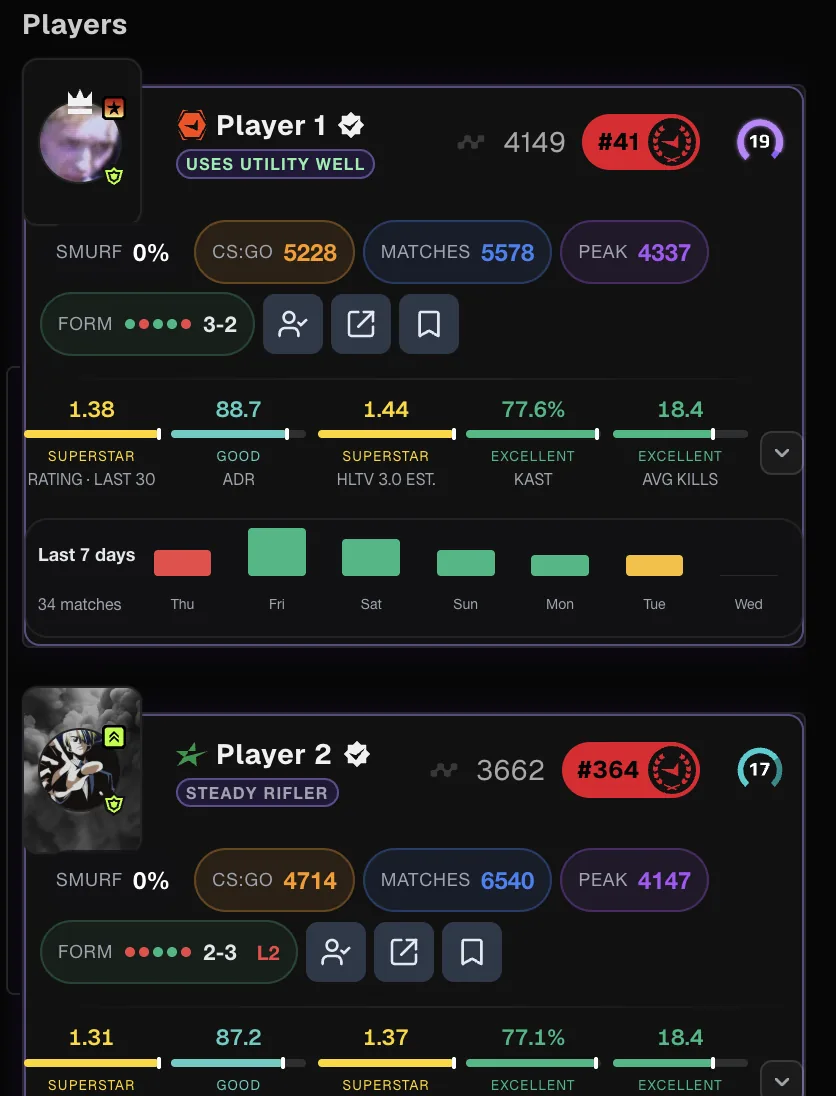
A clean layout for a quick queue:
- Switch on Remove Ladders and Remove Header.
- Keep Country Flags on.
- Leave Extended Stats off to keep cards short.
A data-heavy layout before you queue with a party:
- Switch on Extended Stats, Map Win Rates and Server Ping.
- Set Stats Period to Month.
- Keep the floating stats box open to compare your own form with the lobby.
Keep it readable
A lobby has to be read in seconds. Add one switch at a time and keep only the ones you actually use. Extended Stats is the heaviest addition because it adds a row under every card; Country Flags and Server Ping are light.
If you share the screen with teammates, keep the layout simple so everyone looks at the same few numbers.
Reading the lobby with a party
- Switch on Extended Stats and Map Win Rates in the Player Lobby tab.
- Choose a Stats Period in the lobby, such as Month, so everyone’s numbers cover the same window.
- Compare the map pool cards: keep the maps where your party wins and avoid the ones it loses.
- Open the Servers tab and check the estimated ping to each region before you pick one.
If a switch seems to do nothing, refresh the lobby page. The lobby is loaded in parts, so a fresh load applies your layout cleanly.
More lobby help
The party and lobby stats guide explains how to read the numbers, and level badges shows where levels 11 to 20 appear. See the floating panel section of the features page, and install the extension to get started.
Related guides
FACEIT Extender is free for Chrome and Firefox: download it or read what it is and does.
Frequently asked questions
- Why does Map Win Rates show nothing?
- It needs Extended Stats switched on in the same tab.
- Can I get my stats box back after closing it?
- Yes. Click the compact stats under your avatar in the FACEIT sidebar.
- Do these switches change what other players see?
- No. They only change your own view.
Comments
Comments load in your browser.