
Guide
Open a FACEIT player in Leetify, FaceitPerf and CSWatch
One click from a FACEIT card to a player’s page on other tools, with a switch for each and for each place.
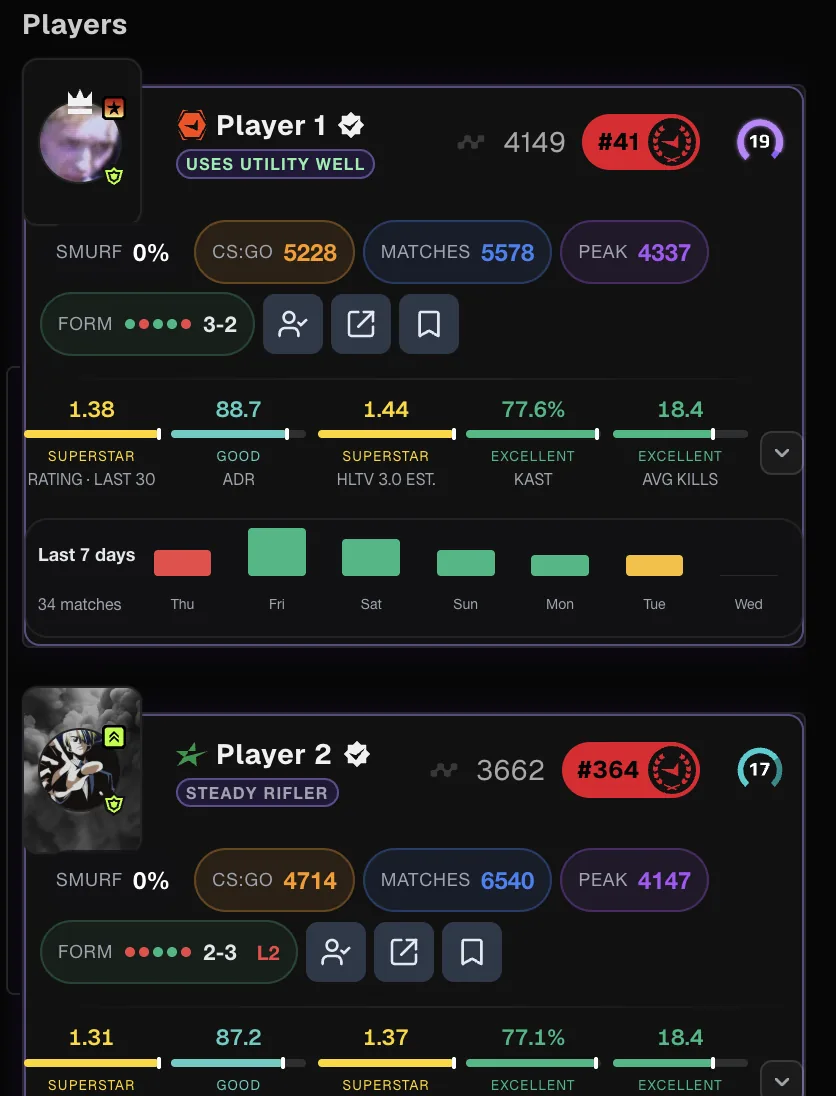
Why link to other tools
FACEIT Extender adds one-click links from FACEIT profiles and match rooms to other stat sites such as Leetify, FaceitPerf and CSWatch, and you choose which ones appear.
No single site answers every question. FACEIT Extender adds the most common stats itself, and for deeper views it can give you a shortcut to other tools instead of making you copy a nickname and search. These are independent services, not made by us.
- Leetify
- FaceitPerf.pro
- CSWatch
- FaceitHound (an embedded finder panel)
Turn the links on
Links are off by default and have a separate switch for each tool and each place. That lets you have, say, Leetify on profiles but not in the match room.
- Open the extension popup and the Player Profile tab for profile links, or the Matchroom tab for match room links. Both have an External Integrations section.
- Switch on the tools you want. Links appear for other players.
- The Integrations tab collects the settings and explains that links appear in both match rooms and profiles.
The Balanced preset enables Leetify and FaceitPerf links; Full enables them all. See presets and settings.
Use them well
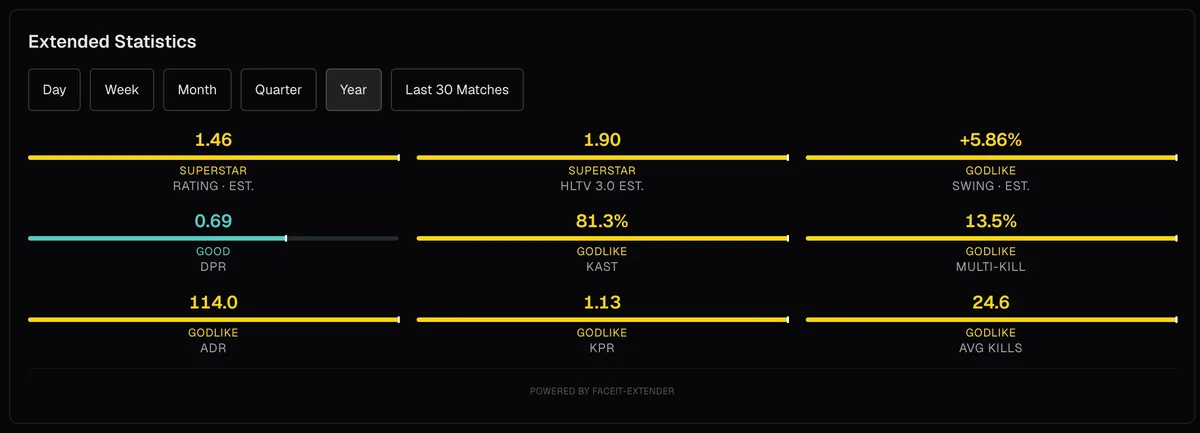
Read the card first. If something stands out, such as an odd map record or a high smurf estimate, open the link for a second view. Different tools define their statistics differently, so compare within one tool rather than across them.
On your own profile the buttons row keeps only Analyse. The links, tracking and Have We Met are for other players.
The FaceitHound finder
The Integrations tab includes a Face Hound entry, "Enable Faceit Finder search". It adds search through FaceitHound, a third-party service that is not created or maintained by us, as a convenience feature. Treat what it shows as that service’s data.
What happens when you click
Following a link opens the other site in a new tab, where its own terms and privacy policy apply. The extension does not send that site your data until you open it. For the bigger picture see privacy and data, and install FACEIT Extender to add the links. The integrations section of the features page lists them.
Choosing which links to keep
Three or four links on every card can crowd the page. Keep the ones you really use, and turn the rest off. Each tool has its own switch, so removing a link takes one click in the popup.
If you play alongside another FACEIT extension, the compatibility setting in the Appearance tab lets the other extension keep its own links while Extender fills any gaps, so you do not see the same link twice. It is off by default.
- Use links to confirm a suspicion, not to start one.
- Prefer one tool for a given question, so numbers are comparable.
- Remember that third-party figures can differ from FACEIT’s own, because each site defines and samples its statistics in its own way.
Related guides
FACEIT Extender is free for Chrome and Firefox: download it or read what it is and does.
Frequently asked questions
- Are the linked sites part of FACEIT Extender?
- No. They are independent services. The extension only adds the shortcut.
- Why do I not see links on my own profile?
- Links, tracking and Have We Met are for other players. Your own profile keeps only Analyse.
- Can I show links only in the match room?
- Yes. Each place has its own switches in the Matchroom and Player Profile tabs.
Comments
Comments load in your browser.