
How-to
Ultrablocker: fill your matchmaking block list
Turn on Ultrablocker, cycle the toggle by the Play button and understand the five-slot limit.
What Ultrablocker does
FACEIT Extender's Ultrablocker fills your FACEIT matchmaking block list from your last opponents or tracked players; it needs FACEIT Premium and has up to five slots.
FACEIT Premium members have a matchmaking block list of up to five players. Ultrablocker fills it for you so you do not have to add names one by one.
It needs FACEIT Premium, because without Premium the block list does not exist. See Premium versus the extension for the difference between the two.
Switch it on
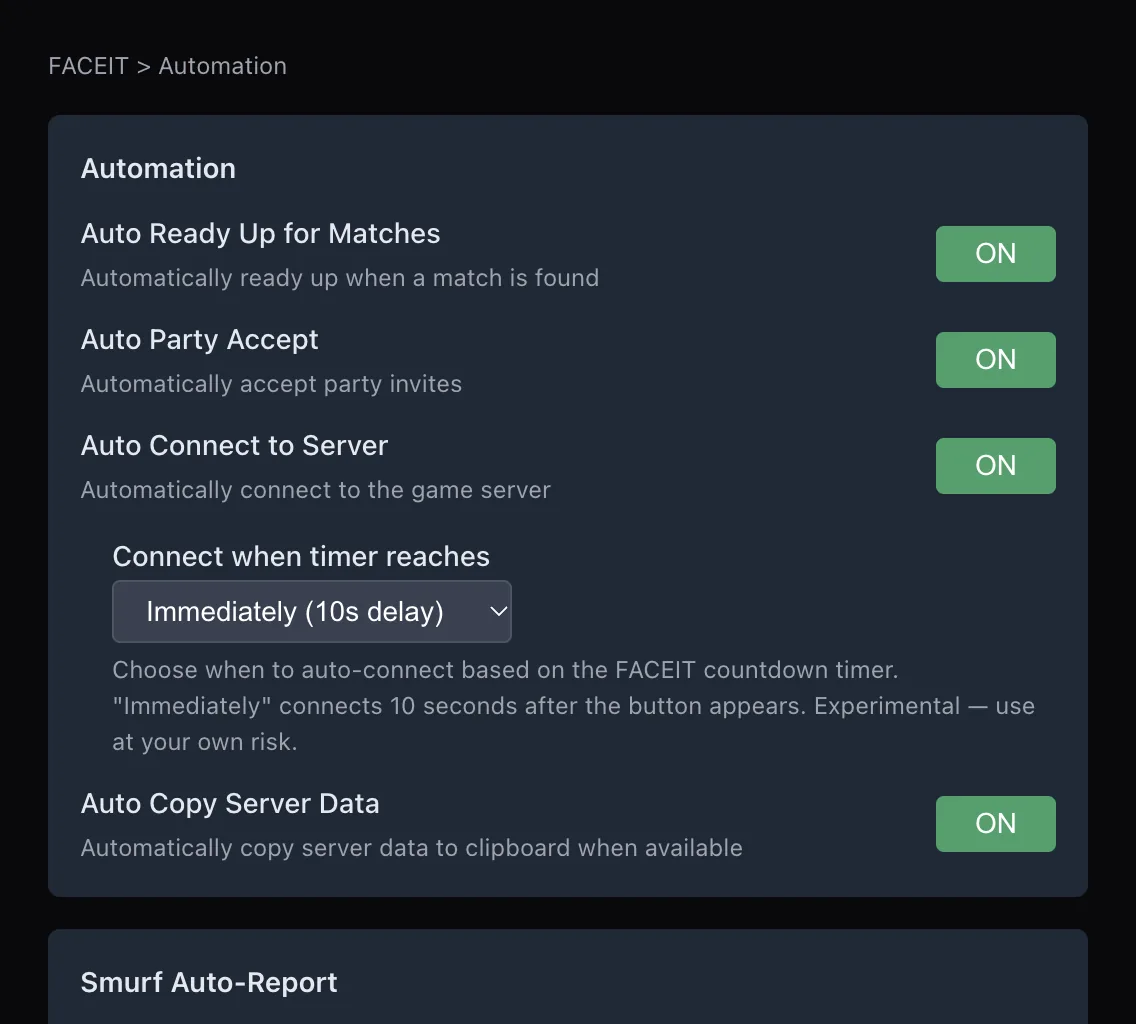
- Open the extension popup and the Automation tab.
- In the Ultrablocker · FACEIT Premium section, switch on Ultrablocker.
- Open the FACEIT matchmaking page. A toggle appears next to the Play button.
The Full preset turns it on; the other presets leave it off.
Cycle the toggle
Click the toggle to move through three states:
- Ultrablocker: Off.
- Block last opponents: blocks the players from your most recent match.
- Block active tracked: blocks the tracked players who were most recently active.
The block list is applied when you switch mode, which is right before you queue. In Block last opponents mode it also applies once for each finished match without another click.
To use the tracked mode you first need people on your tracked list.
Limits and messages
- The list holds at most five players. If it is full, Ultrablocker replaces the oldest blocks to make room, and a message says “Block list is full (max 5)” if some were skipped.
- A success message reads “Ultrablocker: N players blocked”.
- “Ultrablocker: no players to block right now” means there was nobody to add.
- Without FACEIT Premium the toggle shows as locked and explains why.
Blocking is your choice and affects matchmaking only. Review your block list on FACEIT if you want to see or change who is on it.
Which mode to choose
| Mode | Blocks | Good for |
|---|---|---|
| Block last opponents | The players from your most recent match | Avoiding a repeat of a match that went badly |
| Block active tracked | Tracked players who were most recently active | Staying away from players you have noted as toxic or unreliable |
You can switch modes between queues. Each switch applies the list again, so check the message that appears.
If nothing happens
- Check that Ultrablocker is switched on in the Automation tab.
- Check that your FACEIT account has Premium. Without it the toggle is locked.
- In tracked mode, make sure you have tracked at least one player.
- Refresh the matchmaking page and try the toggle again.
Good practice
Use it to avoid a repeat of a bad match, not to filter strong players out of your games. A block list is also a long-term choice: the five slots are shared by every mode, so keep room for the players you really cannot queue with, and look at the list from time to time to make sure it still matches what you want. The automation section of the features page lists the other helpers, and the download page has the extension.
Automatic reporting is a separate tool with different risks: see Auto Report Smurfs and Track players you report.
Related guides
FACEIT Extender is free for Chrome and Firefox: download it or read what it is and does.
Frequently asked questions
- Does Ultrablocker work without FACEIT Premium?
- No. The matchmaking block list belongs to Premium, so the toggle stays locked without it.
- How many players can it block?
- Five, the limit of the block list.
- Will it remove old blocks?
- When the list is full it replaces the oldest entries to make room for new ones.
Comments
Comments load in your browser.