
Guide
How to install the FACEIT Extender extension in Chrome or Firefox
Install from the Chrome Web Store or Firefox Add-ons, choose a preset, and fix the most common reasons nothing shows up.
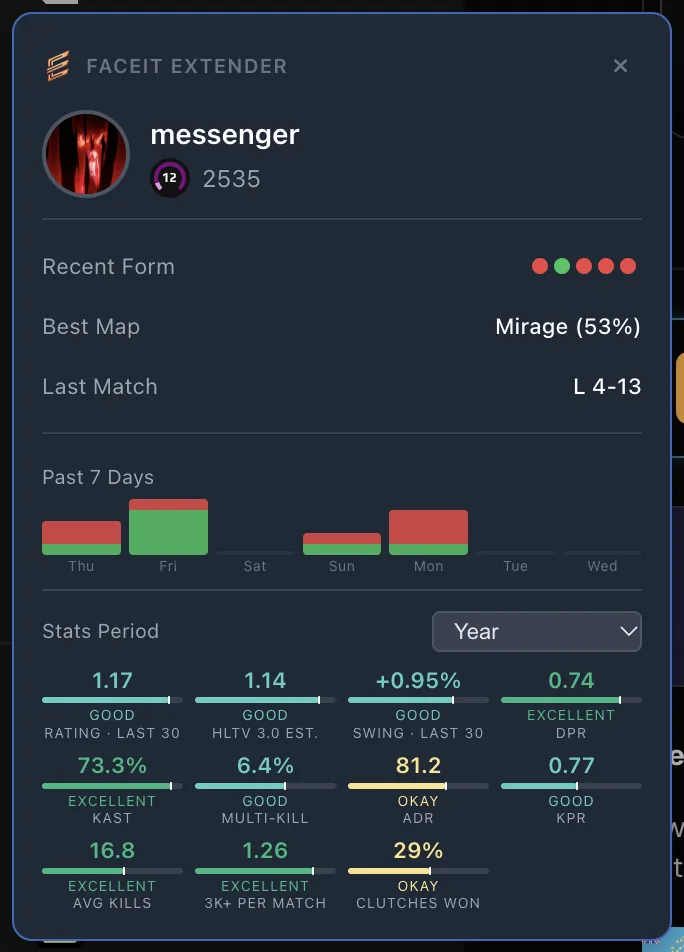
Before you start
To install FACEIT Extender, add it from the Chrome Web Store or Firefox Add-ons, then set it up on faceit.com; it is free and works on desktop Chrome and Firefox.
FACEIT Extender is a browser extension for desktop Chrome and Firefox. It works on faceit.com in the browser, not inside the FACEIT client or CS2 itself, and there is no mobile version. You do not need an account with us to install or use it.
Only install it from the official stores linked on our download page. Copies from other websites may be modified.
Install in Chrome
- Open the Chrome Web Store page from the download page.
- Click Add to Chrome, then Add extension in the dialog.
- Optionally pin it: click the puzzle icon in the toolbar and the pin next to FACEIT Extender.
Other Chromium-based browsers, such as Edge and Brave, can usually install extensions from the Chrome Web Store as well. Edge asks you to allow extensions from other stores first.
Install in Firefox
- Open the Firefox Add-ons page from the download page.
- Click Add to Firefox, then Add in the permission prompt.
- Firefox may ask whether the extension can run on faceit.com. Allow it, or the extension cannot change FACEIT pages.
First setup
- Open faceit.com and sign in as usual.
- Refresh any FACEIT tab that was already open before you installed.
- Follow the short setup guide, or open the popup from the toolbar icon.
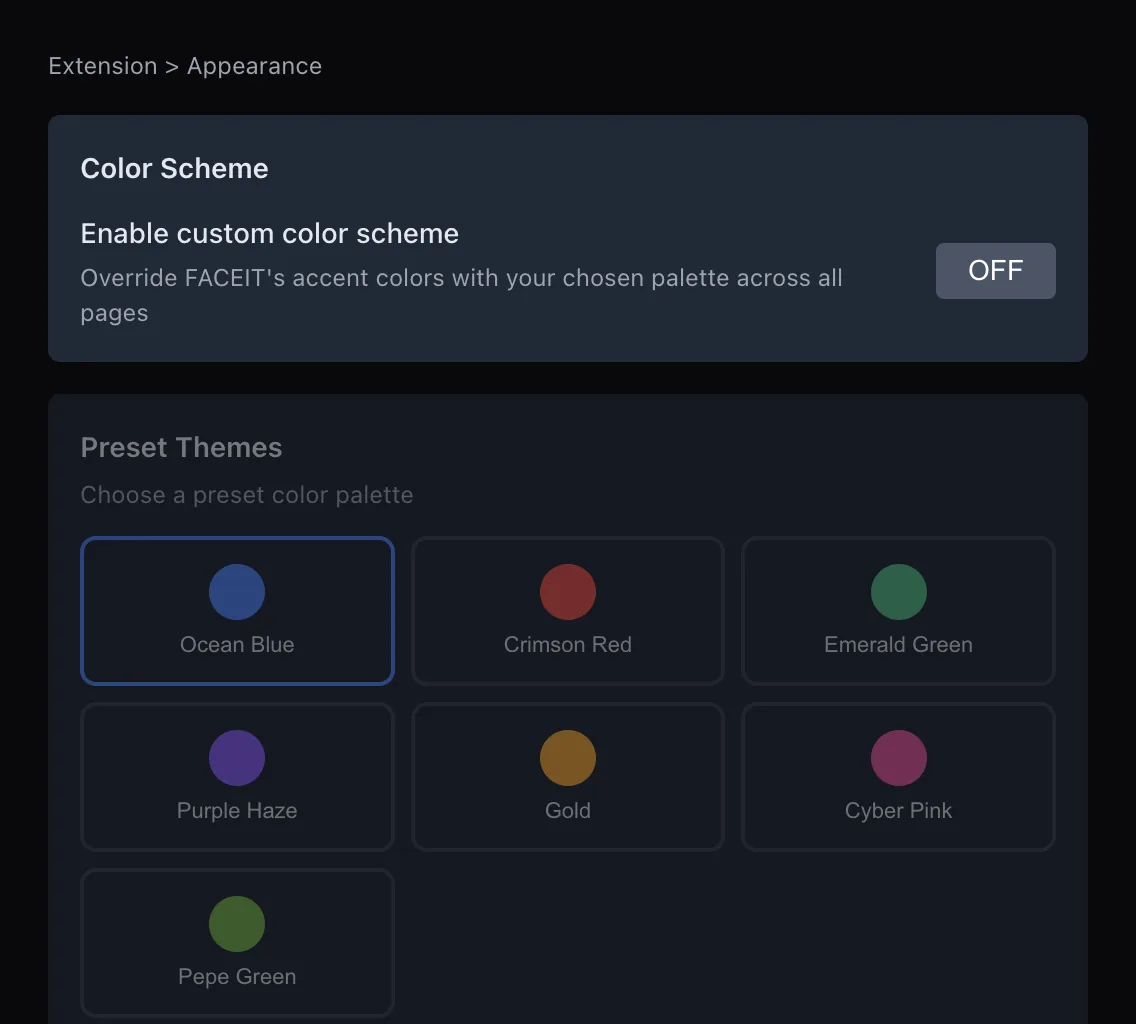
- Pick a preset (Off, Minimal, Balanced or Full) and adjust individual switches if you like.
The docs describe the presets, and the settings section of the features page lists what you can switch.
What the extension can access
The extension only runs on FACEIT pages. It reads what those pages show and the public FACEIT data behind them, and stores your settings and player notes in your browser. It does not need your FACEIT password, and installing it does not create an account anywhere.
A few optional features send data to our server, most notably the AI Match Briefing, which sends your public nickname, player id and a statistics-only summary. Features that act for you, such as auto-accept or automatic reporting, are off until you switch them on. The Privacy Policy lists everything in detail.
If nothing appears
- Refresh the FACEIT page. Tabs opened before the install are not changed until you reload them.
- Check the master switch in the popup is on.
- In Firefox, check the extension is allowed to run on faceit.com (Add-ons and themes, then FACEIT Extender, then Permissions).
- Turn off other FACEIT extensions for a moment. Two extensions changing the same page can conflict.
- Stats may take a few seconds to load in a busy lobby.
Still stuck? Open a ticket on the support page.
Updates and removal
Both stores update the extension automatically. To remove it, right-click the toolbar icon and choose Remove from Chrome, or remove it from Add-ons and themes in Firefox. Your settings and notes are stored in the browser and are deleted with it, so export your player notes first if you want to keep them.
Want every step for one browser? See install in Chrome or install in Firefox, and Edge, Opera and Brave for the others.
Related guides
FACEIT Extender is free for Chrome and Firefox: download it or read what it is and does.
Comments
Comments load in your browser.