
Guide
FACEIT Extender not showing on FACEIT: 8 fixes that work
A checklist for the most common reason people write to us: the extension is installed but nothing appears.
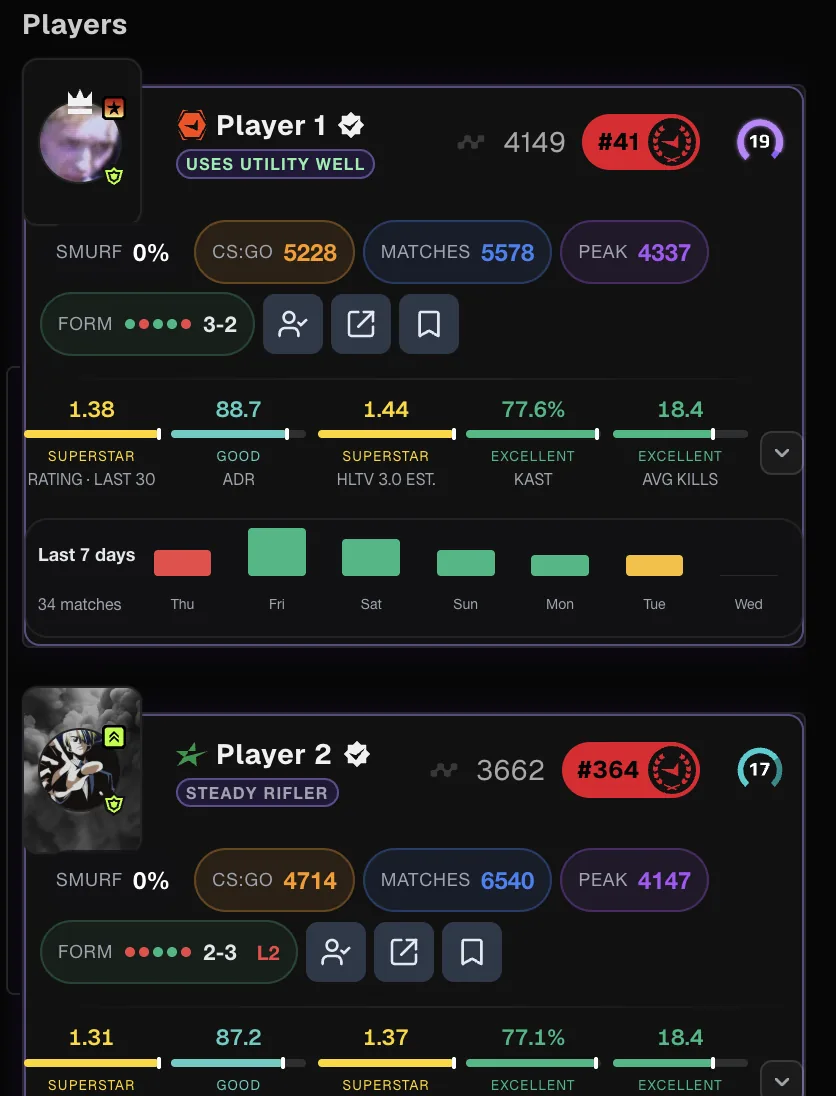
Start with the quick checks
If FACEIT Extender is installed but nothing appears on FACEIT, work through these checks in order: refresh, the master switch, your preset, site access and the page type.
- Refresh the FACEIT tab. A tab that was open when you installed or updated is not changed until you reload it.
- Open the popup and check Enable Extension is on in Extension Status on the General tab.
- Check the extension is enabled in your browser: Manage extensions in Chrome, or Add-ons and themes in Firefox.
- Pin the icon to the toolbar so you can tell it is there.
Check your preset and switches
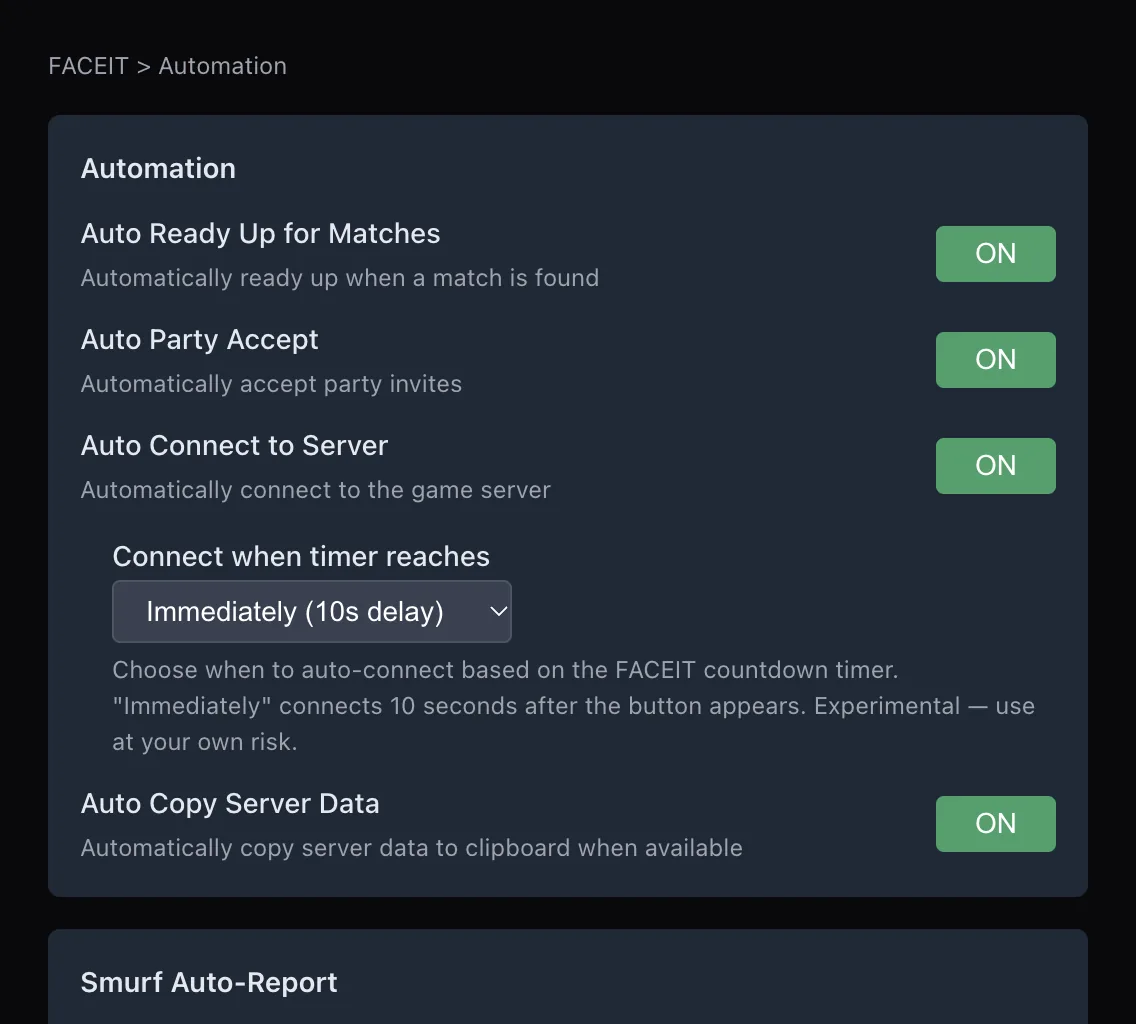
Each feature has its own switch. If you applied the Off preset, or turned individual features off, nothing extra shows. Apply a preset on the General tab, or find a specific switch with Search toggles. See the first-run guide for what each preset turns on.
Some features appear only on certain pages: the match room, a profile, a lobby or a leaderboard. Check you are on the right kind of page. The features page lists where each feature appears.
Check that it may run on faceit.com
The extension runs only on faceit.com. If your browser restricts it, it cannot change the page.
- In Chrome, open the extension’s Details and check Site access allows faceit.com.
- In Firefox, open the add-on’s Permissions tab and allow faceit.com. See the Firefox guide.
- Use www.faceit.com in the address bar; the extension targets that site.
Rule out conflicts
- Turn off other FACEIT extensions for a moment. Two extensions changing the same page can conflict. If you use Repeek, see using it with Repeek.
- Pause content blockers on faceit.com and reload.
- Try a fresh browser window to rule out a stuck tab.
Check your browser version
The extension needs Chrome 111 or newer, or Firefox 140 or newer. An older browser may install it but cannot run it properly. Update the browser, then reload FACEIT.
Still nothing
Open a ticket on the support page with the category Bug report. Tell us the browser and version, the extension version (General tab, Version) and the FACEIT page. For data that does not load, see stats missing or stuck loading. To start over, reinstall from the download page.
One-minute checklist
- Reloaded the FACEIT tab after install or update.
- Enable Extension is on.
- A preset other than Off is applied, or the specific switch is on.
- The browser allows the extension on faceit.com.
- No other extension or blocker is hiding the panel.
- The browser is Chrome 111+ or Firefox 140+.
If you can tick every line and nothing shows, the cause is probably a conflict or a change on FACEIT. Our docs troubleshooting section has the short version, and you can always start again from the download page.
When to reinstall
A reinstall rarely fixes more than the checks above, but it is a reasonable last step if the extension itself seems corrupted, for example if the popup will not open. Export your player notes first from the Player Tracking tab, remove the extension, restart the browser, and install again from the official store link. Your settings are reset on a fresh install, so you will see the setup guide again.
Related guides
FACEIT Extender is free for Chrome and Firefox: download it or read what it is and does.
Frequently asked questions
- I installed it and see nothing. What is the first thing to try?
- Refresh the FACEIT tab. Tabs opened before the install are not changed until reloaded.
- Could a preset be the reason?
- Yes. With the Off preset applied, nothing extra is shown. Apply Minimal, Balanced or Full from the General tab.
- Where do I report it?
- Use the contact form on the support page and include your browser, version and the FACEIT page.
Comments
Comments load in your browser.