
Guide
FACEIT Extender first-run setup: presets and options
A walk through the setup guide, what each choice changes, and how to run it again later.
When the setup guide appears
After you install FACEIT Extender, a short setup tour lets you pick a preset and the options you want, so only the features you choose appear on FACEIT.
After a fresh install, the setup guide opens as a short step-by-step tour. It begins with a look at what the extension adds to a match room, and then asks for a few choices. Each screen shows Step X of Y, with Back, Next, Skip and Finish buttons.
Your choices are applied when you finish. If you skip, nothing is lost: everything can be changed later in the popup.
Step: choose your feature preset
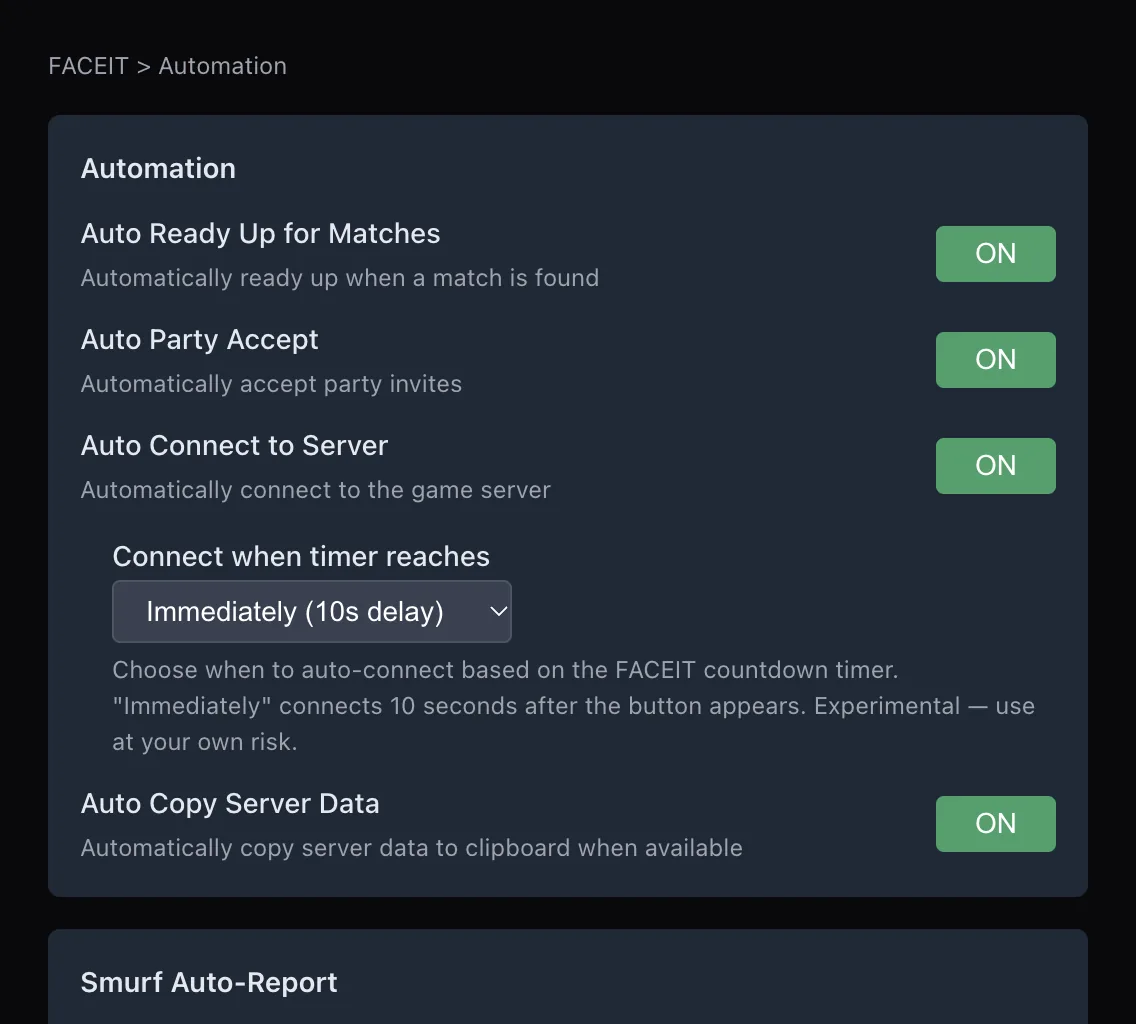
There are four presets: Off, Minimal, Balanced and Full. Each is built from the complete list of switches.
| Preset | In plain words |
|---|---|
| Off | Nothing extra is turned on. |
| Minimal | Core stats and player context, plus auto-ready for matches. |
| Balanced | More match and player stats; its automation is listed on the setup screen. |
| Full | Every feature; its automation is listed on the setup screen. |
The setup screen lists the automation a preset turns on under Automation, so you can see it before you finish. Some switches are never changed by a preset, including the master switch, the partner minigame and the compatibility switch. You can change individual switches afterwards on the features page overview.
Step: appearance and level badges
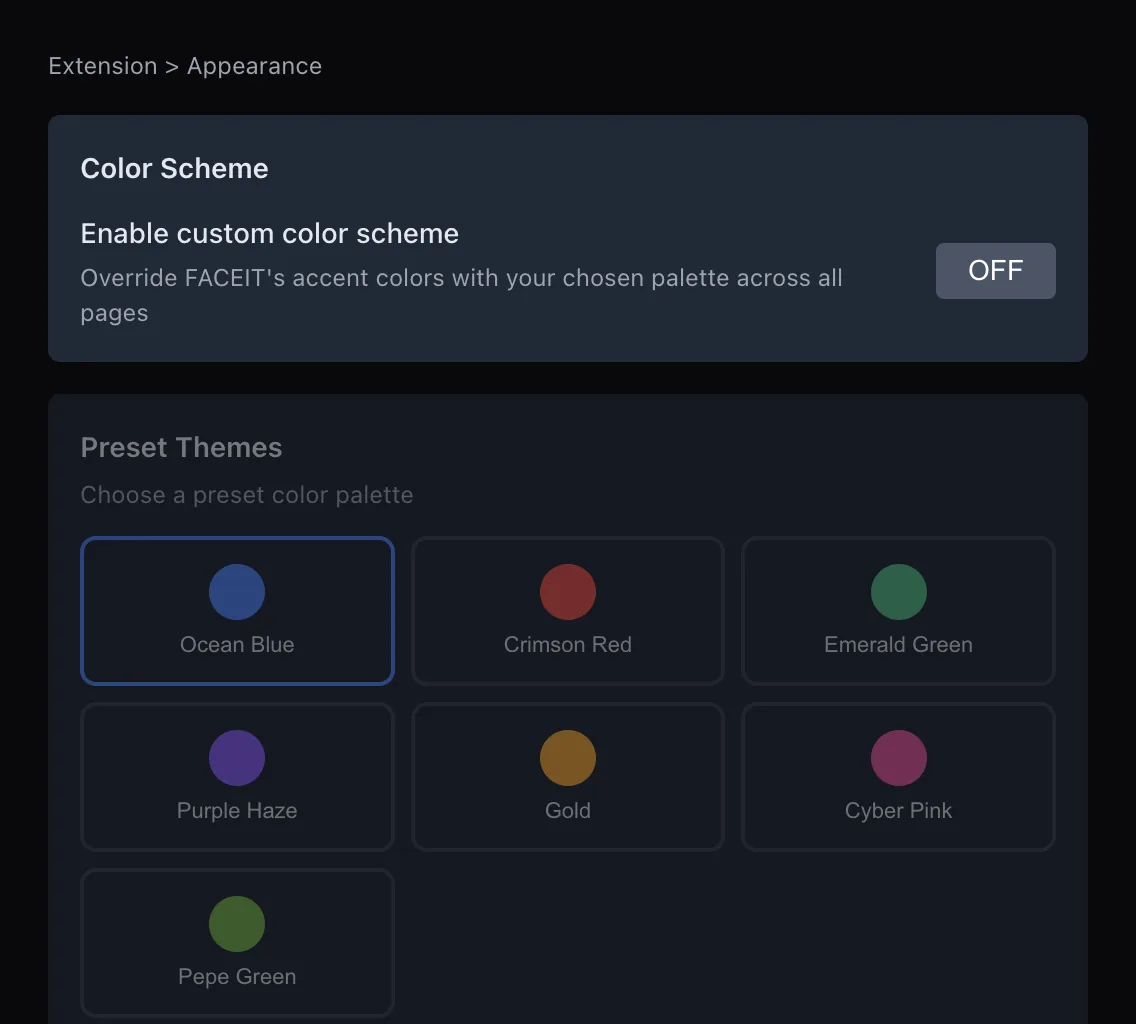
You can pick an accent colour for FACEIT (or keep the current one) and choose the extended level badge collection, with a preview of the level 11 badge. Levels above 10 are shown only if Show extended levels is on. Read how levels beyond 10 work.
Step: the two optional choices
The last screens ask for two optional choices, and both are described in the Privacy Policy.
- Support FACEIT Extender: an optional sponsored minigame from our partner TradeIt.gg. The switch is on by default, is labelled Sponsored wherever it appears, and can be turned off here or later with Enable Commercial on the General tab.
- Share anonymous usage statistics: counts active installs and which features are used. On by default; switch it off here, or any time by replaying setup. It never includes your FACEIT identity, players, matches or browsing.
Change your mind later
- Click the toolbar icon to open the popup.
- Open the General tab.
- Under Quick Presets, apply another preset, or select Replay setup to go through the guide again.
Turning the extension off with Enable Extension keeps your feature settings; they return as they were when you turn it on again. Use the search box in the popup (Search toggles) to find any individual switch.
Where to go next
If something does not show after setup, read the extension is not showing on FACEIT. To install first, see the download page.
Good starting choices
- New to the extension and want mostly information: choose Minimal. It adds core stats and player context, plus auto-ready for matches.
- Want a bit more context per player: choose Balanced and look at the automation list on the screen before you finish.
- Want to see everything: choose Full, then switch off whatever feels noisy.
- Already tuned your switches: choose Keep my current settings so setup does not overwrite them.
Presets are a starting point, not a commitment. Nothing in them is permanent, and the compatibility switch for other extensions is never changed by a preset. If you use Repeek, read using it with Repeek after setup.
Related guides
FACEIT Extender is free for Chrome and Firefox: download it or read what it is and does.
Frequently asked questions
- Can I skip the setup?
- Yes. Select Skip. You can change everything later in the popup.
- How do I run setup again?
- Open the popup, go to the General tab and select Replay setup.
- Does a preset overwrite my settings?
- Applying a preset overwrites your current feature switches, so pick it deliberately. Keep my current settings leaves them as they are.
Comments
Comments load in your browser.