
How-to
CS2 demo viewer 3D view: cameras and first person
Switch from the 2D map to a 3D view on supported maps and learn each camera button.
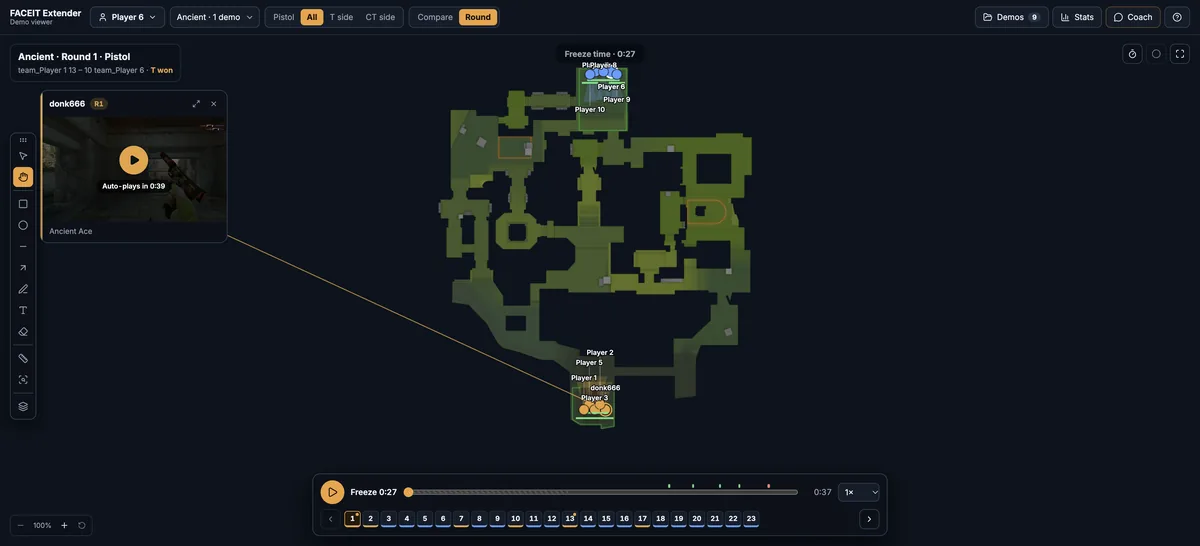
Open the 3D view
FACEIT Extender's demo viewer includes a beta 3D view where you can orbit the map, follow a player, switch to first person and cut away roofs.
- Open a round in Round view, or choose Compare.
- Select View in 3D · beta (or Compare in 3D · beta) in the strip above the playback bar.
- Wait for Loading 3D map… to finish. The 3D engine only loads the first time you ask for it.
If the button is missing, that map does not have a 3D model yet. The 2D map still works the same way.
Choose a camera
A 3D camera group appears over the map. Its buttons are:
- Back to the 2D map.
- Overview camera: drag to orbit, right-drag to pan, scroll to zoom.
- Follow the selected player: needs a player to be selected first.
- First person (F): see where the selected player aimed.
- Cut away roofs above the players.
- Mute game sounds or Play game sounds.
- Show stick figures or Show player models.
Click a player on the map to select them, and the follow and first-person buttons become available.
See inside buildings
Roofs and ceilings can hide the players you want to watch. Switch on Cut away roofs above the players. While you follow a player, a see-through tunnel from the camera to them also keeps them in view.
Use 3D in Compare
Compare in 3D overlays your selected rounds on the 3D map. Only some layers are drawn in 3D: names, paths, utility, sounds, shots and chat. View cones, fights and the kill feed show on the 2D map.
If it runs slowly
See the performance guide for ways to lighten the load, such as stick figures, fewer layers and a smaller browser window.
When 3D helps and when 2D is better
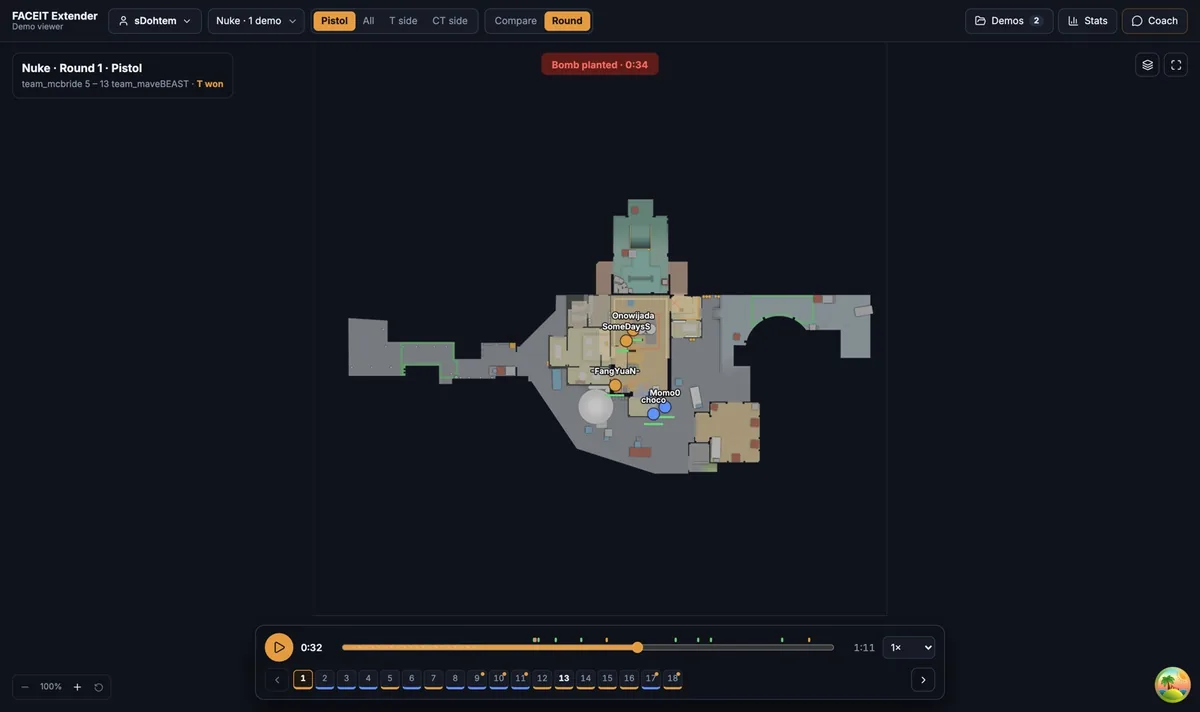
3D is good for understanding height: a rooftop angle, a ramp, a window above a site. First person helps you judge what a player was looking toward when a fight began.
2D is better for team shape, rotations and comparing many rounds. Switch with Back to the 2D map as often as you like; your round and playback position stay where they were.
A quick 3D walkthrough
- Open a round and select a player on the map.
- Choose Follow the selected player and play at 1×.
- When a fight starts, press F for first person and watch where they aim.
- Press the Overview camera button to see where everyone else stood.
If sound is on, gunshots, footsteps and drops play from the camera. Use Mute game sounds when you want quiet.
The 3D view is marked beta, so expect some rough edges. If something looks wrong, switch back to 2D to confirm what the demo recorded, and use the game’s own playback for anything that depends on precise lines of sight.
Where to go next
Use the keyboard shortcuts to play, pause and seek while you orbit. Open the free CS2 demo viewer to try it on your own matches, and install the extension if you want a Demo Viewer shortcut on finished match rooms.
Related guides
FACEIT Extender is free for Chrome and Firefox: download it or read what it is and does.
Frequently asked questions
- Is the 3D view available on every map?
- Only on maps that have a 3D model. If a map has none, the View in 3D button does not appear.
- How do I orbit and zoom?
- Drag to orbit, right-drag to pan and scroll to zoom in the Overview camera.
- Does first person show exactly what the player saw?
- It shows where they aimed. Demos imported before first-person data was added look level, and re-importing gives the up and down aim.
Comments
Comments load in your browser.