
How-to
Watch FACEIT highlight clips inside the demo viewer
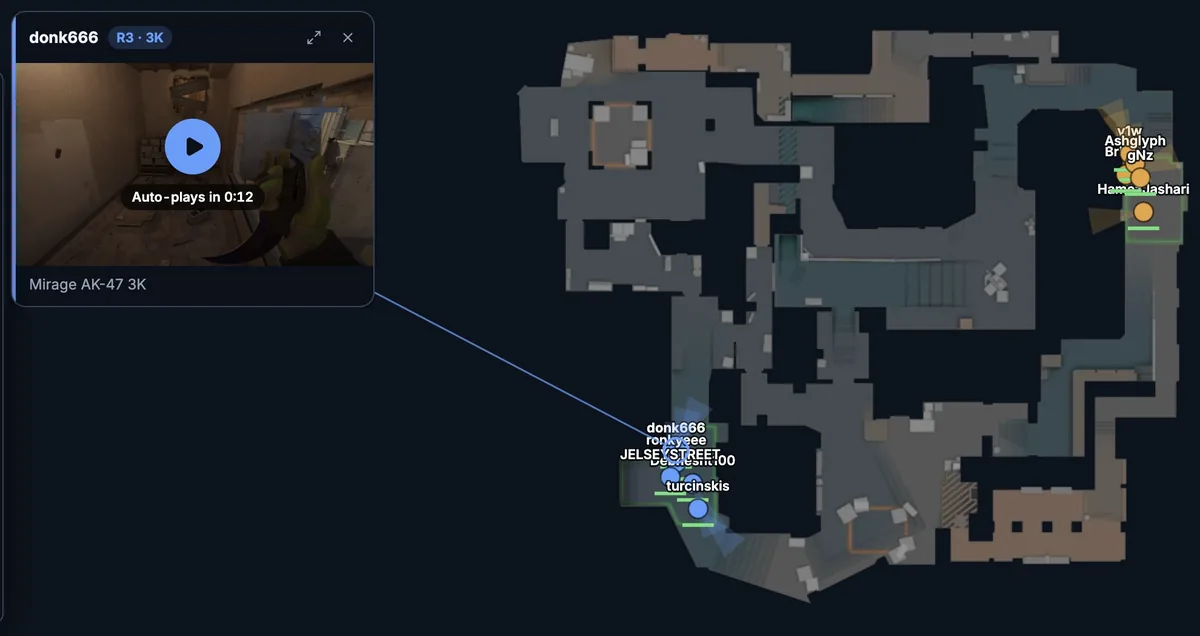
Highlight clips for a round appear beside the map, tied to the player who made the play.
Find rounds with a clip
FACEIT Extender's demo viewer can show FACEIT highlight clips next to the replay map, so you can play a clip and line it up with the kill in the round.
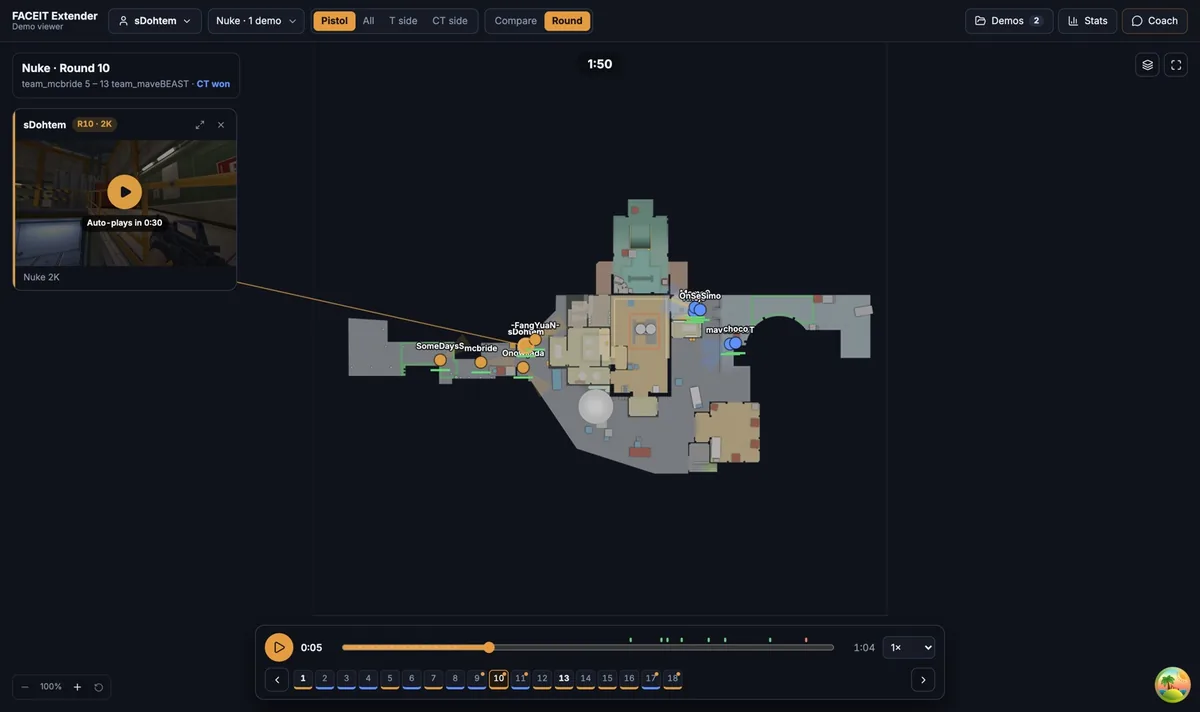
In Round view, look at the round strip under the map. A small dot on a round number marks a round with a FACEIT highlight clip. Click that round.
Clips are only available for matches opened with their highlight data, usually through the Demo Viewer link in a match room. A file imported by hand does not carry them.
Play a clip
- Open a round marked with a dot.
- A panel appears beside the map with the player’s name, a badge such as R12 · 3K and the clip title.
- Press the play button on the thumbnail to start the clip.
- If the thumbnail shows a start time, the clip is timed to begin about four seconds before that player’s first kill in the round.
A line connects the panel to a ring on the player, so you can see who made the play and where they were as the replay runs.
Move, enlarge or close a panel
- Drag the header to move a panel.
- Drag the corner to resize it.
- Select Enlarge highlight to make it bigger, and Shrink highlight to bring it back.
- Select Close this highlight for this round to dismiss it for the round.
Use the clip and the map together
A clip shows what the player saw. The map shows where everyone else was. Watch the clip once, then replay the same moment on the map at 0.5× to see whether the play depended on a rotation, a flash or an enemy mistake.
What to expect
Clip playback is provided by the clip service, so it needs an internet connection. The panel appears in the standard 2D view. Highlight links are not a substitute for reviewing the full round.
A short example
Say round 12 has a dot and its badge reads R12 · 3K. Open it, press the thumbnail and watch the three kills. Then pause the replay and scrub to the first kill on the map to see which angle the player used and where the enemies were standing.
What you need
- A match opened from its FACEIT match room with the extension.
- A round that actually has a clip. Not every round does.
- A connection, because the clip plays from the clip service.
If a round has no dot on the strip, the viewer has no clip for it, and nothing is wrong with your import.
Clips are most useful for rounds you already want to study: a clutch you lost, an ace you want to learn from, or an opponent play you want to understand. Use the round strip to hop between flagged rounds quickly, and keep notes of the round numbers.
Where to go next
For the full routine, follow the round review guide. Open the free CS2 demo viewer to try it on your own matches, and install the extension if you want a Demo Viewer shortcut on finished match rooms.
Related guides
FACEIT Extender is free for Chrome and Firefox: download it or read what it is and does.
Frequently asked questions
- Where do the clips come from?
- FACEIT match highlights that the extension passes to the viewer for the match. Only clips for rounds in the demo are shown.
- Why do I not see any clips?
- Not every match has highlights, and a demo imported from a file has none unless it was opened from its match room.
- Can I move or resize a clip?
- Yes. Drag its header to move it, drag the corner to resize it or use the Enlarge highlight button.
Comments
Comments load in your browser.