
How-to
How to open a FACEIT match in the demo viewer
From the Demo Viewer link on a finished match room to the first replay, with what each progress step means.
What you need before you start
FACEIT Extender adds a Demo Viewer link to the match room of a finished match, so you can open the demo in the browser viewer without downloading it by hand.
The match room route needs the browser extension and a finished match. The extension adds a Demo Viewer link to the match room, so you do not have to download and unpack the file yourself.
Use a desktop browser. The viewer is built for a large screen with a map, a playback bar and a side panel, and it is not designed for phones.
No extension? Skip to the import walkthrough. A .dem or .dem.zst file you already have opens directly in the viewer.
Open the match from its room
- Open a finished match on FACEIT and stay on the match room page.
- Select the Demo Viewer link added by FACEIT Extender. A viewer tab opens.
- Wait on the progress screen. It shows three steps: Download demo, Read rounds and Open match.
- When the last step completes, the viewer shows the match. If this is your first visit, a short tour starts.
Leave the new tab open while it works. The progress bar fills as the demo is downloaded and then read, and larger matches take longer than short ones.
What you see first
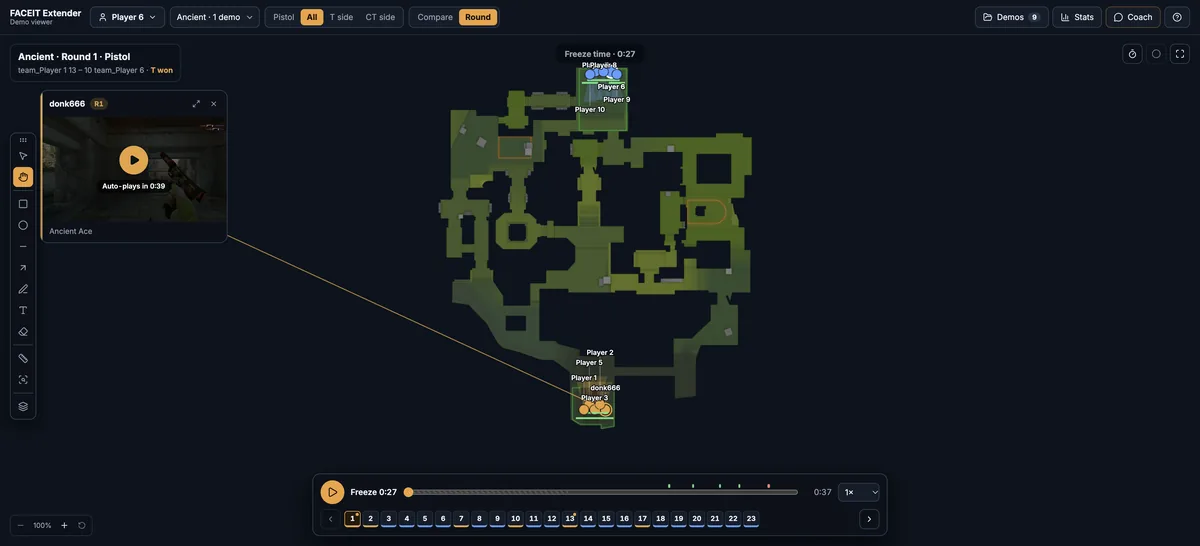
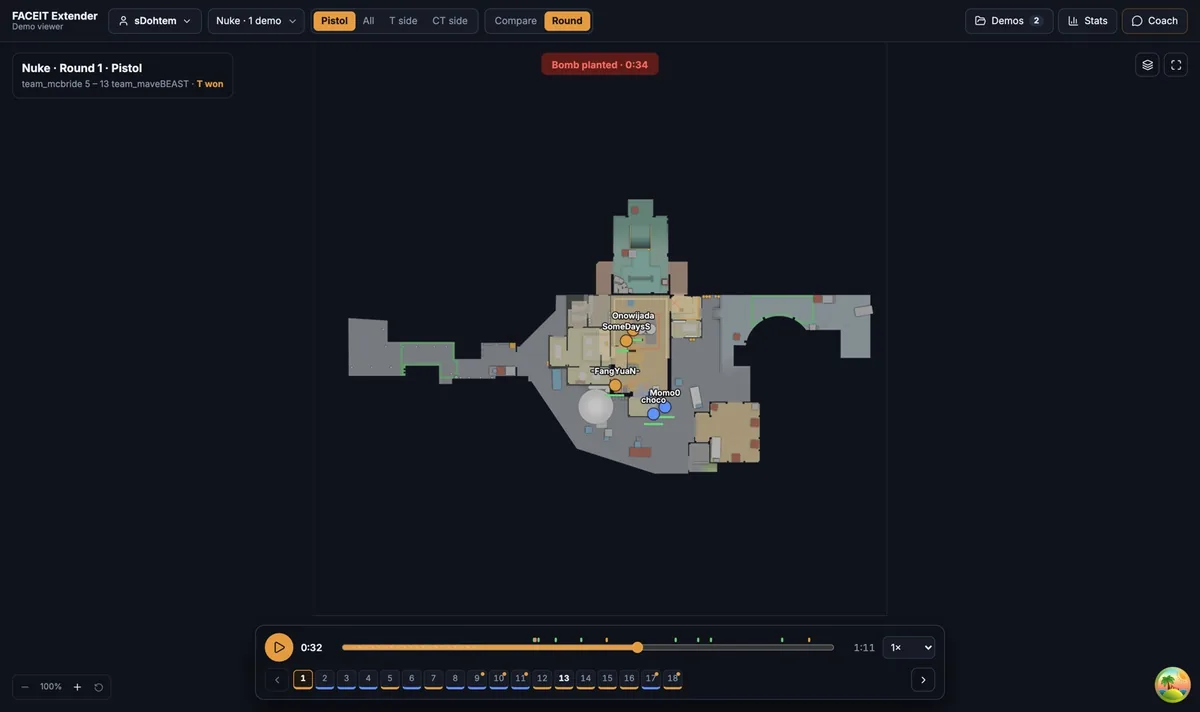
The top bar picks what you look at: a player or team, the map, the rounds filter (Pistol, All, T side, CT side) and the view, Compare or Round. The side panel on the right has the Players, Rounds, Layers, Stats and Coach tabs. Comms appears when the demo recorded voice.
Choose a player first, because Compare, Stats and the Coach all follow that choice. Then press Round to replay a single round with all ten players, or stay in Compare to see the same player across many rounds.
If the demo cannot be opened
- Read the message on the error screen. It explains what the extension could not do.
- Select Back to FACEIT, wait a moment and try the Demo Viewer link again.
- For an older match, FACEIT may no longer provide the file. Import a demo you saved earlier instead.
- Check that your browser tab can finish downloading. Content blockers that stop large downloads can interrupt the first step.
If a file still will not open, the troubleshooting section of the import guide lists the supported file types and common fixes.
Check that it is the right match
Open the Demo library from the top bar. A demo opened from FACEIT is checked against its match room: map, score, players and kills, deaths and assists. A green FACEIT badge means they match, and a note tells you when only some K/D/A numbers differ.
Read how to manage your demo library for what each badge means.
On your first visit
A short tour starts the first time you open the viewer. It walks through the player picker, the map, the playback bar and the side panel. You can reopen it any time from Help and tours in the top bar.
Where to go next
Once the match is open, play and scrub the replay and choose the rounds that matter. Open the free CS2 demo viewer to try it on your own matches, and install the extension if you want a Demo Viewer shortcut on finished match rooms.
Related guides
FACEIT Extender is free for Chrome and Firefox: download it or read what it is and does.
Frequently asked questions
- Do I need to download the demo myself?
- Not when you use the Demo Viewer link on a finished match room. The extension prepares the demo and hands it to the viewer. If you already have a .dem or .dem.zst file, you can import it directly instead.
- Why does the viewer say a demo could not be opened?
- The most common reason is that FACEIT no longer offers the file for an older match. The error screen has a Back to FACEIT button; try a more recent match or import a file you saved earlier.
- Is the demo uploaded to FACEIT Extender?
- No. The demo is read on your device and shown in your browser.
Comments
Comments load in your browser.