
How-to
How to pick the right rounds in the demo viewer
One filter drives Compare, Stats and the Coach. Learn the presets, the one-second nudge and the Watch button.
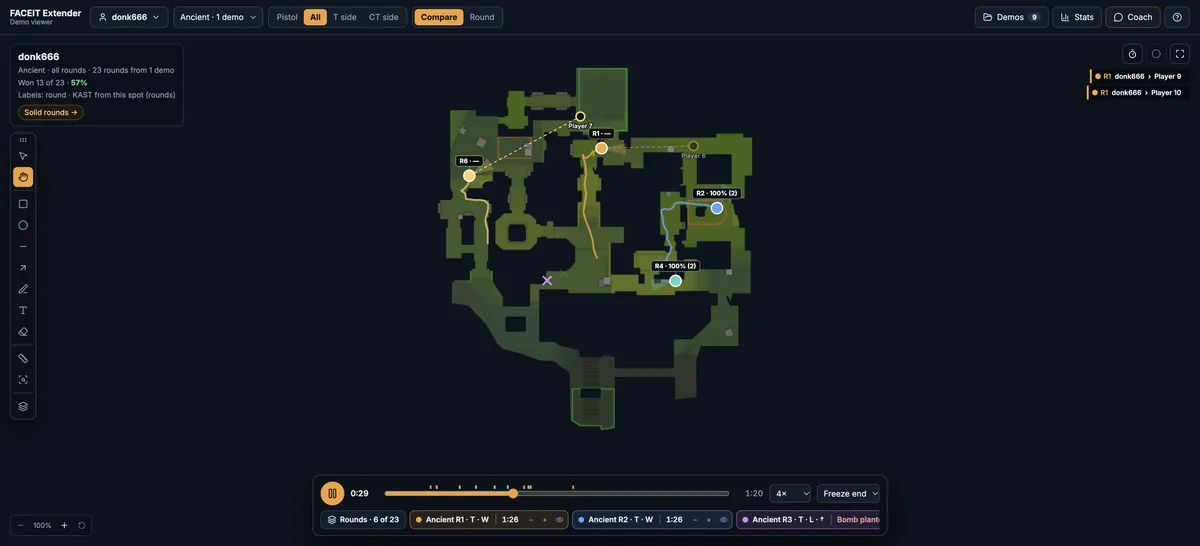
One filter for the whole viewer
FACEIT Extender's demo viewer can filter a CS2 demo to Pistol, T-side or CT-side rounds, stack the chosen rounds in Compare and open any round with all ten players.
In the top bar, the Rounds control has four choices: Pistol, All, T side and CT side. The choice applies everywhere. Compare stacks only those rounds, Stats counts only those rounds and the Coach reasons about only those rounds.
In Round view the filter does not hide anything. Rounds outside it are dimmed on the round strip but remain clickable.
Choose rounds in the Rounds tab
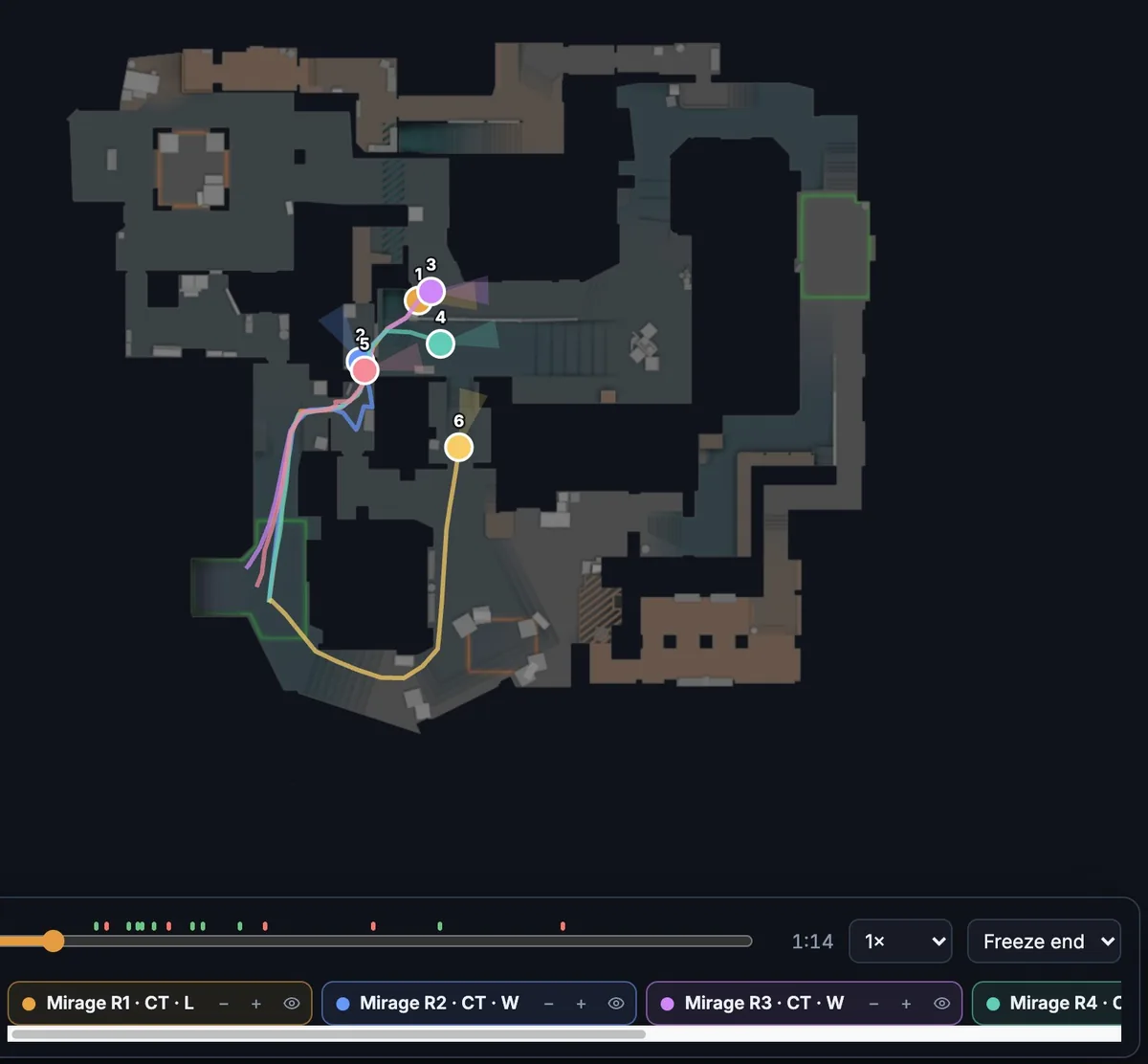
- Select Compare in the View control.
- Open the Rounds tab in the side panel.
- Use the quick select buttons: All, Won, Lost, First 6 or None.
- Tick or untick individual rounds to add or remove them from the map.
Start with a small group. Six rounds in different colours read clearly, while twenty can bury the pattern you want to see.
Line up a moment
Each row in the Rounds tab has small controls. The minus and plus buttons shift that round one second earlier or later against the others. The eye hides or shows it on the map without removing it from your selection.
Use the nudge when two rounds do the same thing but one is slightly out of sync, for example a rotation that starts a second later. The offset shows next to the round so you remember it.
Watch a round with everyone
Press the play button on a row to open that round in Round view with all ten players. Compare shows the pattern, and Round view shows the context: where the teammates were, what utility was thrown and who died first.
Use Line up at to compare at freeze end, first kill or bomb plant.
Turn KAST labels on or off
The Show KAST at each spot switch adds labels to the Compare map. Each one shows a round and how often rounds went well (a kill, an assist, survival or a trade) when the player stood near that spot at that time, with the number of rounds in brackets. Treat small counts with caution.
Read how KAST works at each spot before drawing conclusions.
Questions that need a filter
- Do I play pistol rounds differently from the rest? Choose Pistol and compare.
- Does my opening on attack repeat? Choose T side, then Line up at first kill.
- Is the CT anchor spot working? Choose CT side and read the won-of-total summary.
In Compare, the strip above the playback bar shows how many of the rounds in view the side won, for example Won 4 of 8, so you can see the sample size while you look at it.
Where to go next
With the right rounds on screen, review the round timeline. Open the free CS2 demo viewer to try it on your own matches, and install the extension if you want a Demo Viewer shortcut on finished match rooms.
Related guides
FACEIT Extender is free for Chrome and Firefox: download it or read what it is and does.
Frequently asked questions
- What does the Pistol filter include?
- Pistol rounds only. All shows every round, and T side and CT side show the rounds played on that side.
- Does the filter change the Stats tab?
- Yes. Compare, Stats and the Coach all follow the same rounds filter.
- How many rounds can I put on the map?
- By default the first six are shown, and you can tick more yourself. Fewer rounds are easier to read.
Comments
Comments load in your browser.