
How-to
Import and manage CS2 demos in the viewer library
Import several demos, choose which ones feed Compare, Stats and the Coach, and understand the FACEIT check.
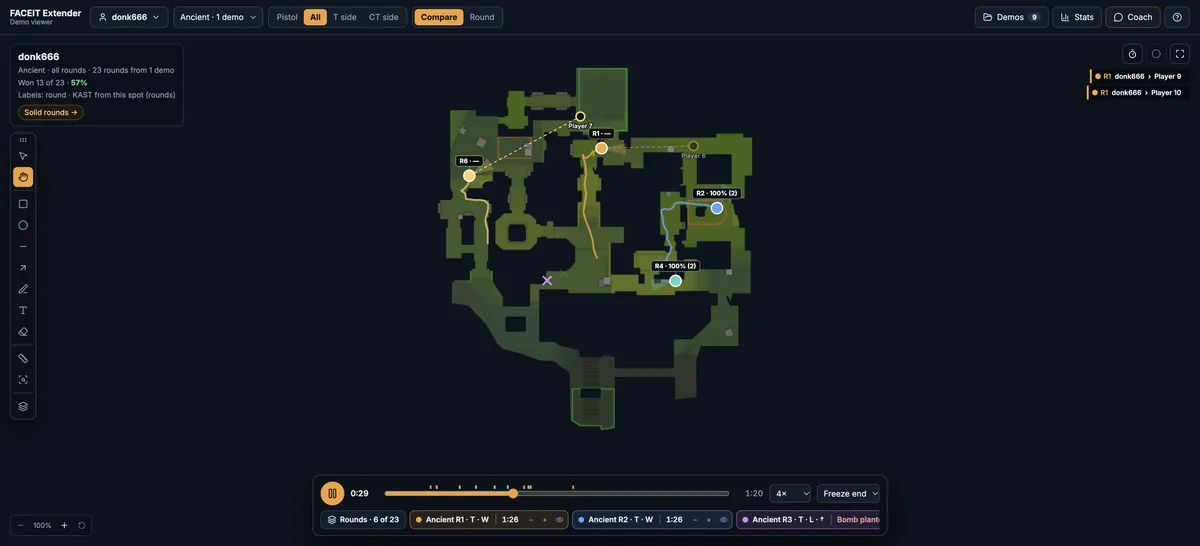
Import demos
FACEIT Extender's demo viewer accepts .dem and .dem.zst files, keeps them on your device and shows a FACEIT check badge, so you can build and manage a local demo library.
- Open the demo viewer.
- Select Import demos and choose one or more files, or drop the files anywhere on the page.
- Wait while the status line shows progress. Select Cancel if you chose the wrong files.
- When parsing finishes, the viewer asks which demo to review and who to analyse.
The page accepts .dem files and .dem.zst files. Zstandard files can be imported as they are, so you do not need to unpack them.
Choose the demos and the player
With more than one demo, the first screen is titled Which demo do you want to review? Tick the demos you want. The next screen, Who do you want to analyse?, only lists players who appear in the selected demos.
- Tick the demos you want to include and confirm.
- Switch between one player and a team, then search for a name with Search players.
- Pick the player. The viewer opens with their rounds on the map.
You can change this later from the player control in the top bar, or by going back to the library.
Use the Demo library
Select Demo library in the top bar to see every demo on this device with its date, map, score, length and whether it has recorded comms. Use the search field, the Source filter and the checkbox in the In column to decide what is part of the analysis.
- In the analysis: tick or untick a demo to include it in Compare, Stats and the Coach.
- Analyse only this demo: leaves every other demo out of Compare, Stats and the Coach.
- Remove this demo: deletes it from this device.
- Team lineup: when you analyse a team, sets how many of its players a demo needs to count.
Read the FACEIT check
Demos opened from FACEIT, or files named the way FACEIT names its downloads (for example 1-…-1-1.dem.zst), are looked up against their match room. A FACEIT badge shows the result.
- FACEIT with a green tick: the map, score, players and stats match the room.
- FACEIT · stats differ: it is the same match, but some kills, deaths or assists are counted differently, for example for suicides, fall damage or a disconnect.
- A red badge: the demo does not match its room. Open it to see what differs.
- File: there is no FACEIT room id, so there is nothing to check.
Open a demo in the library for its scoreboard, round history and file name. Click a round to watch it.
Keep the library tidy
Imported demos stay on this device so you can come back to them. Remove the ones you no longer need, and keep the analysis focused on a single map or opponent when you have a specific question.
If you reimport an older demo, newer layers such as sound rings or nade trajectories can become available, because the viewer notes which layers need a reimport.
Tips for a clean analysis
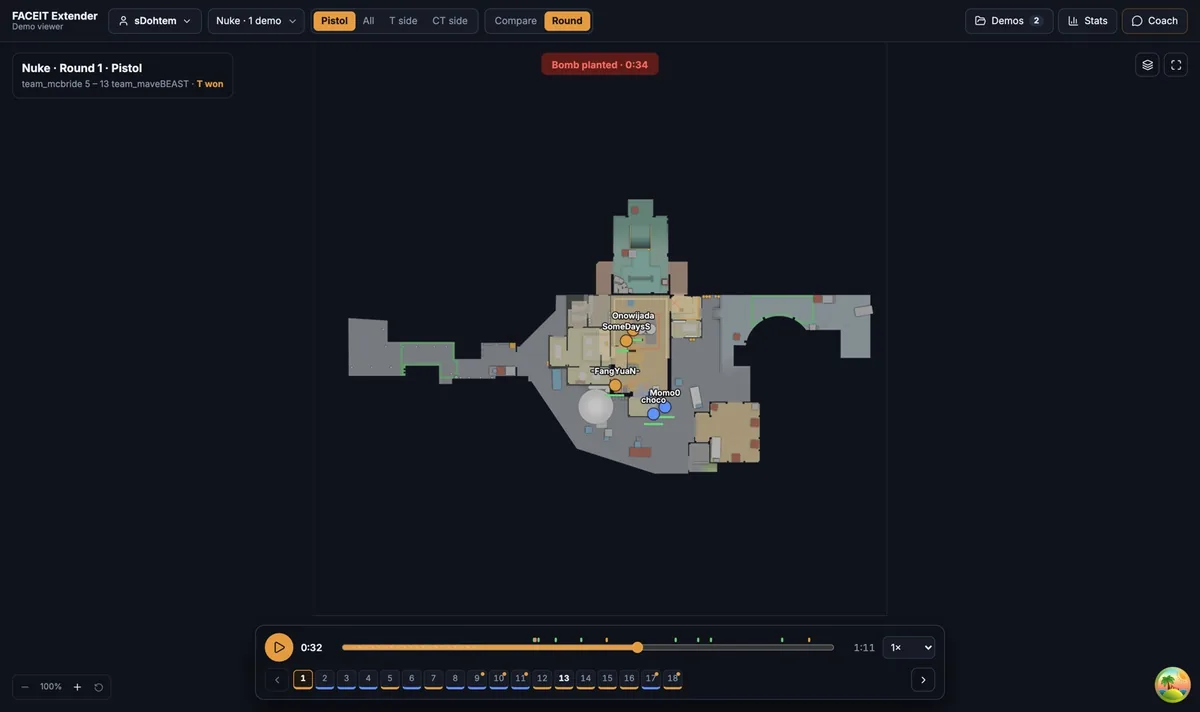
Mixing demos from different maps is fine because the viewer groups them by map: the Map menu lists each one with its demo count. Pick one map at a time when you compare routes, since a position on Mirage means nothing on Inferno.
If a map shows no radar next to its name, the viewer has no image for it yet and some map features are limited. The demo is still listed and its scoreboard still opens.
Where to go next
To open a demo straight from a match room instead, follow the match room walkthrough. Open the free CS2 demo viewer to try it on your own matches, and install the extension if you want a Demo Viewer shortcut on finished match rooms.
Related guides
FACEIT Extender is free for Chrome and Firefox: download it or read what it is and does.
Frequently asked questions
- Which files can I import?
- .dem and .dem.zst files. A ZIP or other archive must be extracted first.
- Can I import more than one demo?
- Yes. Choose several files or drop them together. Compare, Stats and the Coach can then use all of them.
- Where are my imported demos stored?
- In your own browser on this device. Nothing is uploaded, and removing a demo from the library deletes it from this device.
Comments
Comments load in your browser.