
Guide
Install FACEIT Extender in Chrome: step by step
The Chrome install in five steps, how to pin the icon, and how to confirm the extension is running on FACEIT.
Before you start
To install FACEIT Extender in Chrome, add it from the Chrome Web Store, pin the icon and refresh faceit.com; it is free, needs no account and works on desktop Chrome 111 or newer.
FACEIT Extender is a free desktop extension. It works on faceit.com in the browser. It does not run inside the FACEIT client or CS2, and it has no mobile version.
The extension needs Chrome 111 or newer. If your Chrome is older, update it first from the About Chrome page.
Install only from the official store page linked on the download page. A copy from another website may have been changed.
Install from the Chrome Web Store
- Open the download page and choose Install for Chrome. The Chrome Web Store opens in a new tab.
- Select Add to Chrome.
- Read the permission prompt, then select Add extension. The permissions guide explains each item in plain words.
- Chrome confirms the install. The setup guide may open straight away; if it does, follow the first-run guide.
The install takes under a minute and does not need a restart.
Pin the icon so you can find it
- Click the puzzle-piece Extensions button in the Chrome toolbar.
- Find FACEIT Extender in the list.
- Click the pin next to it. The icon now stays in the toolbar.
Clicking that icon opens the settings popup. That is where the master switch, presets and every feature switch live.
Check that it is running
- Open faceit.com and sign in as you normally do.
- Refresh any FACEIT tab that was already open before the install. Tabs opened earlier are not changed until you reload them.
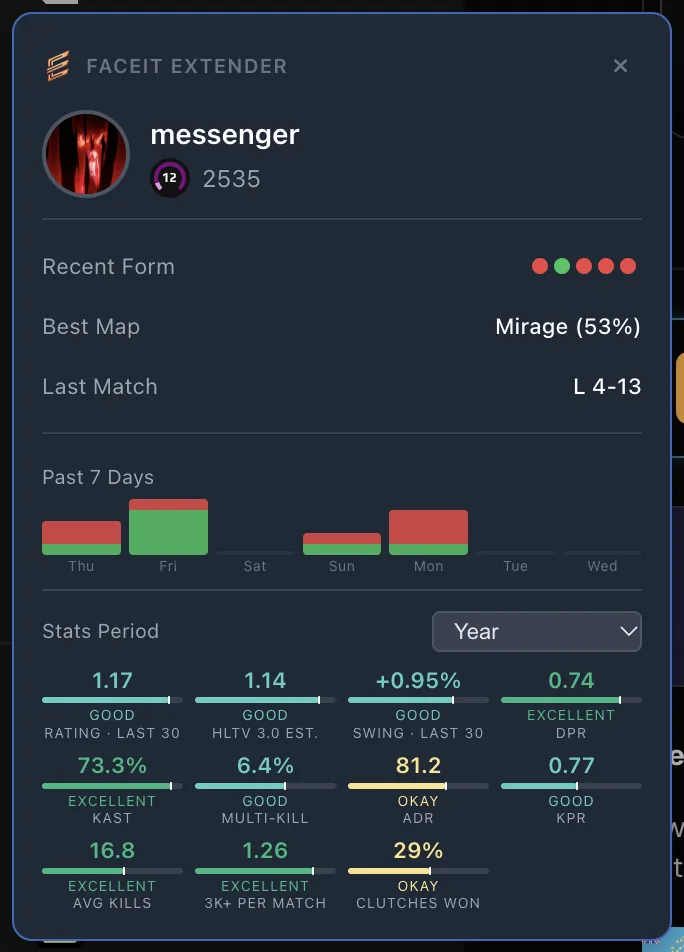
- Open a match room or a profile. Player cards and extra stats should appear, depending on your preset.
- Open the popup and check Enable Extension is on (it is under Extension Status on the General tab).
Nothing there? Work through the extension is not showing on FACEIT.
Edge, Brave and other Chromium browsers
Browsers built on Chromium can usually install from the Chrome Web Store as well. Edge asks you to allow extensions from other stores first. See FACEIT Extender on Edge, Opera and Brave for the details and what we have not verified.
What to do next
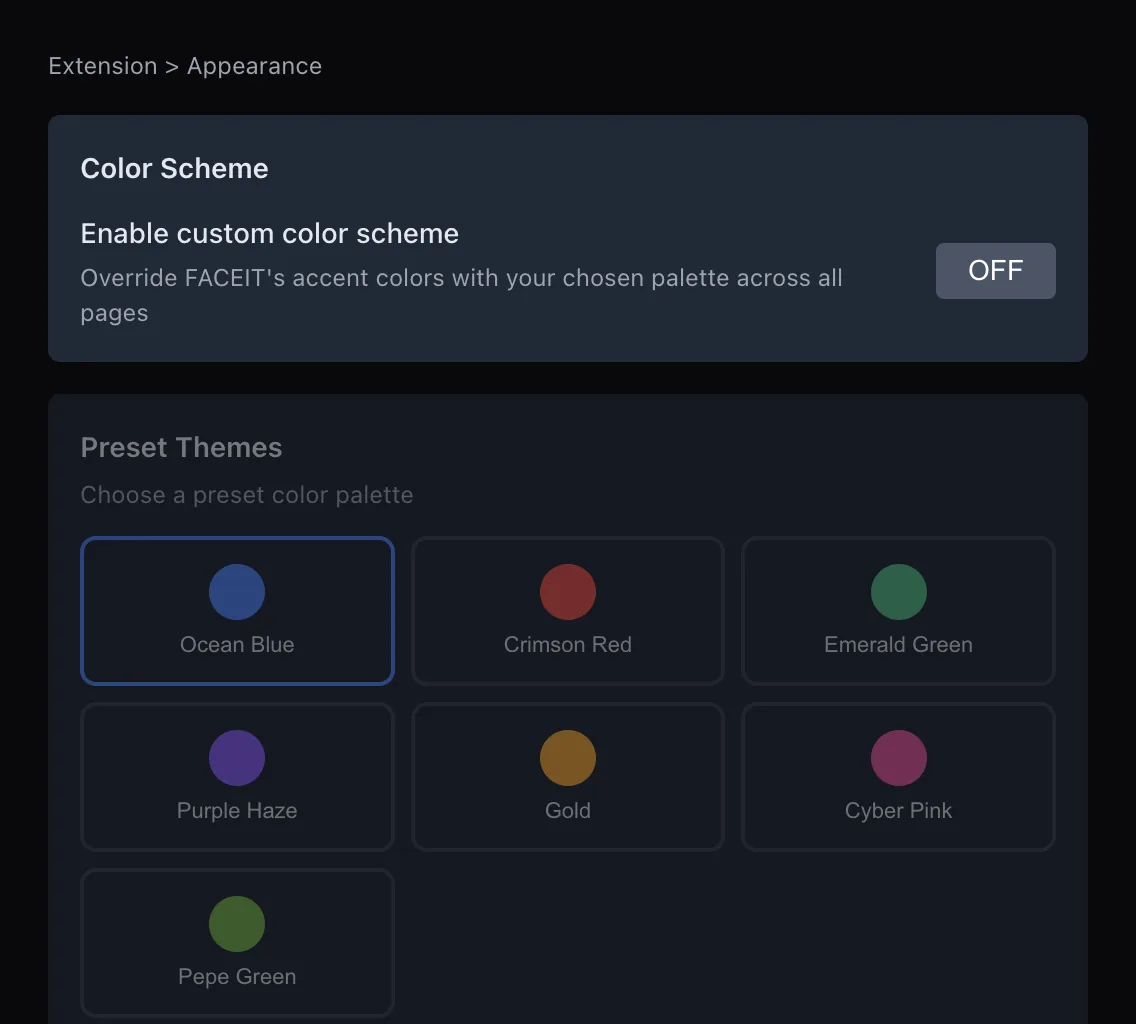
- Choose a preset and an accent colour in the first-run setup.
- Read what the extension can see in permissions explained.
- Browse what the features do and how to switch them.
- Stuck? Open a ticket on the support page.
Prefer a general overview of installing in either browser? See how to install the FACEIT Extender extension in Chrome or Firefox.
If the install does not go through
- The Add to Chrome button is missing or greyed out: update Chrome, then reload the store page. The extension needs Chrome 111 or newer.
- Your organisation manages Chrome: a work or school policy can block extensions. Only the administrator can allow it.
- The store says the item is unavailable in your region or account: try signing in to a normal Chrome profile rather than a restricted one.
- You installed from a different listing: remove it and install from the link on the download page, so you get the official build.
A good habit after any install is to open the popup once and look at the General tab. It shows the Version, the master switch and the Quick Presets, which confirms the extension itself is healthy before you look at FACEIT. If the popup opens but FACEIT shows nothing, the cause is on the page side, not the install. Details for that are in the extension is not showing on FACEIT. If you would rather read the product docs first, the getting started section summarises the same steps.
Related guides
FACEIT Extender is free for Chrome and Firefox: download it or read what it is and does.
Frequently asked questions
- Which Chrome version do I need?
- Chrome 111 or newer. Update Chrome from its About page if the Add to Chrome button is missing or the install is refused.
- Do I need an account to install it?
- No. Installing does not create an account with us, and the core features work without signing in anywhere.
- Can I install it on Chrome for Android or iOS?
- No. It is a desktop browser extension for faceit.com, and there is no mobile version.
Comments
Comments load in your browser.