
Guide
How to analyse your FACEIT match history
Sort and filter your matches by Elo, K/D and map, see averages for any selection, and export everything to CSV or JSON.
Why your match history is worth a look
FACEIT Extender extends your FACEIT match history table, so you can sort, filter and export CS2 matches, spot trends in Elo, rating and ADR and find games against a player.
Your Elo tells you where you are; your match history tells you how you got there. Patterns such as a weak map, a drop in damage when you play late, or a losing streak that started on a particular day only show up when you look at many matches together. FACEIT’s own history list shows one match at a time.
The extended history table
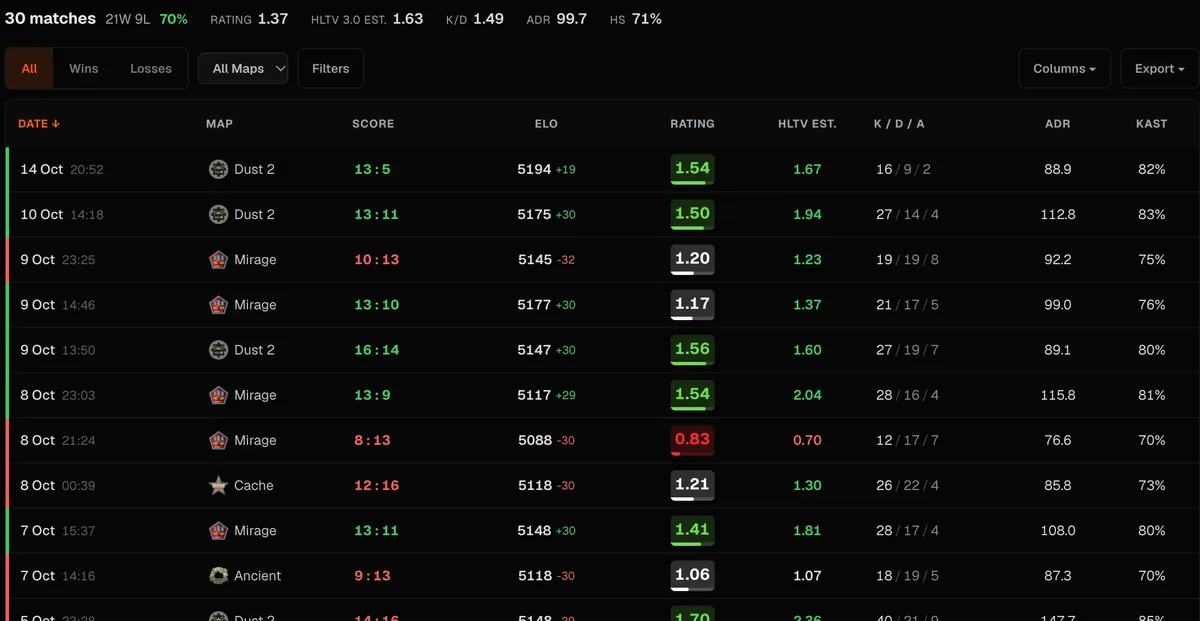
With the Extended Match History Table switched on, FACEIT Extender replaces the history on a player’s profile with a table that has one row per match and more columns:
- Date, map, score and result.
- Elo after the match and the change, with a small level badge.
- FACEIT rating and an HLTV 3.0 rating estimate.
- Kills, deaths and assists, K/D, KPR, DPR and ADR.
- KAST, headshot percentage, Round Swing and RWS.
You can sort by most numeric columns and hide the optional ones. It works on any player’s profile, not only yours. The profile’s short Recent matches card gets the extra stats too.
Filters and averages
Filters narrow the table to the matches you care about:
- Result: all, wins or losses.
- Map: one map or all maps.
- Ranges, such as minimum and maximum Elo or K/D.
A summary above the table shows the average rating, K/D, ADR and headshot rate for whatever is currently selected. Filtering to one map and comparing wins with losses is a quick way to see what changes when you lose there. The meaning of each column is in the K/D, ADR and KAST guide.
Exporting to CSV or JSON
With Match History Export switched on, an export button appears on the table. The CSV file includes more than the table shows, such as T and CT side ratings, multi-kills, team and enemy average Elo, server region and match id. Open it in a spreadsheet to build your own charts, or keep it as a record. The export is created in your browser.
Matches with or against one player
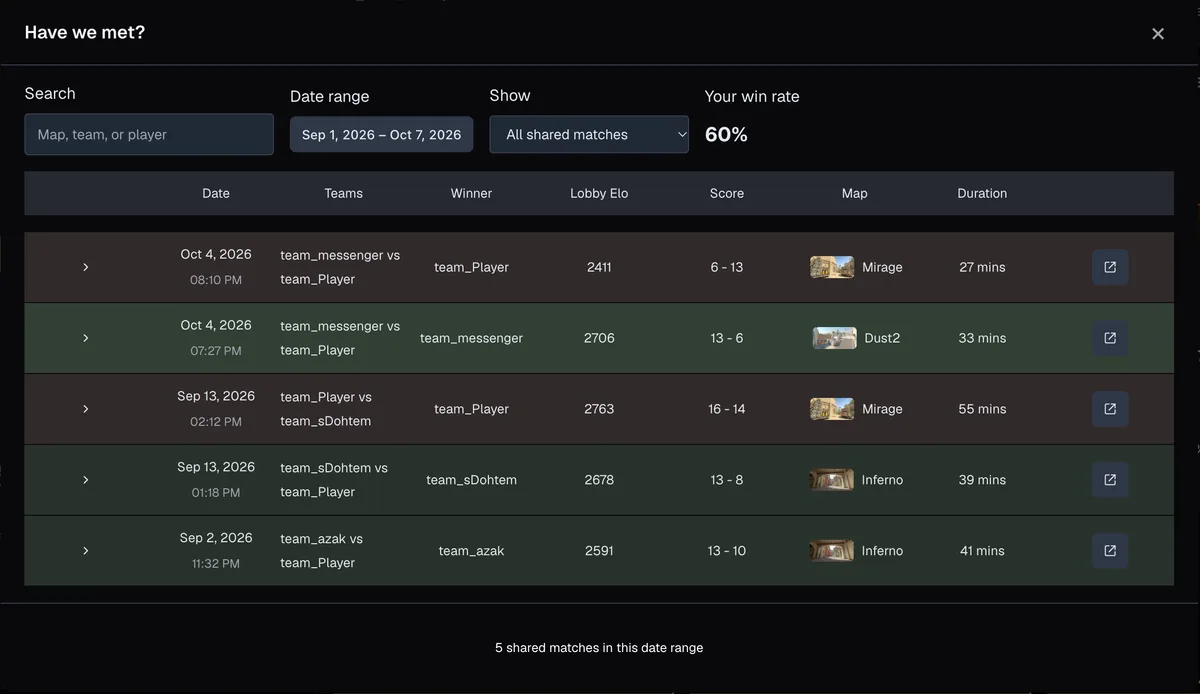
Sometimes the question is about one person: have I played with this player before, and how did it go? Have We Met, opened from a player card, lists your shared matches. You can search by map, team or player, choose a date range, and show only games as teammates or as opponents.
A simple weekly review
- Open your profile’s history and sort by date to see the week’s matches.
- Filter to losses and compare the summary with the same filter set to wins. The stat that changes most is usually the one to work on.
- Filter by map to find the map where your rating or ADR is lowest.
- Open one of those matches in the demo viewer and watch the rounds you lost.
Ten minutes a week is enough to spot a pattern that a single bad game would hide.
Get started
Install FACEIT Extender, then switch on the extended table (and export, if you want it) in the Player Profile tab of the popup. The Balanced preset includes the extended table; the Full preset adds export.
Related guides
FACEIT Extender is free for Chrome and Firefox: download it or read what it is and does.
Comments
Comments load in your browser.