
Guide
Change FACEIT Extender language, colours and level icons
Five languages, seven preset colour themes, a custom colour and three level icon collections.
Choose the language
FACEIT Extender lets you change its display language, accent colour theme and level icon collection (New, Legacy or Pepe) from the Appearance settings.
FACEIT Extender can show its own interface in several languages. In the popup’s General tab, find Language and choose a Display language.
- Auto (browser default), which follows your browser language.
- English, Español, Русский, 中文 (Simplified) and हिन्दी.
The setting changes the extension’s own text. FACEIT’s pages stay in the language you chose on FACEIT.
Pick an accent colour
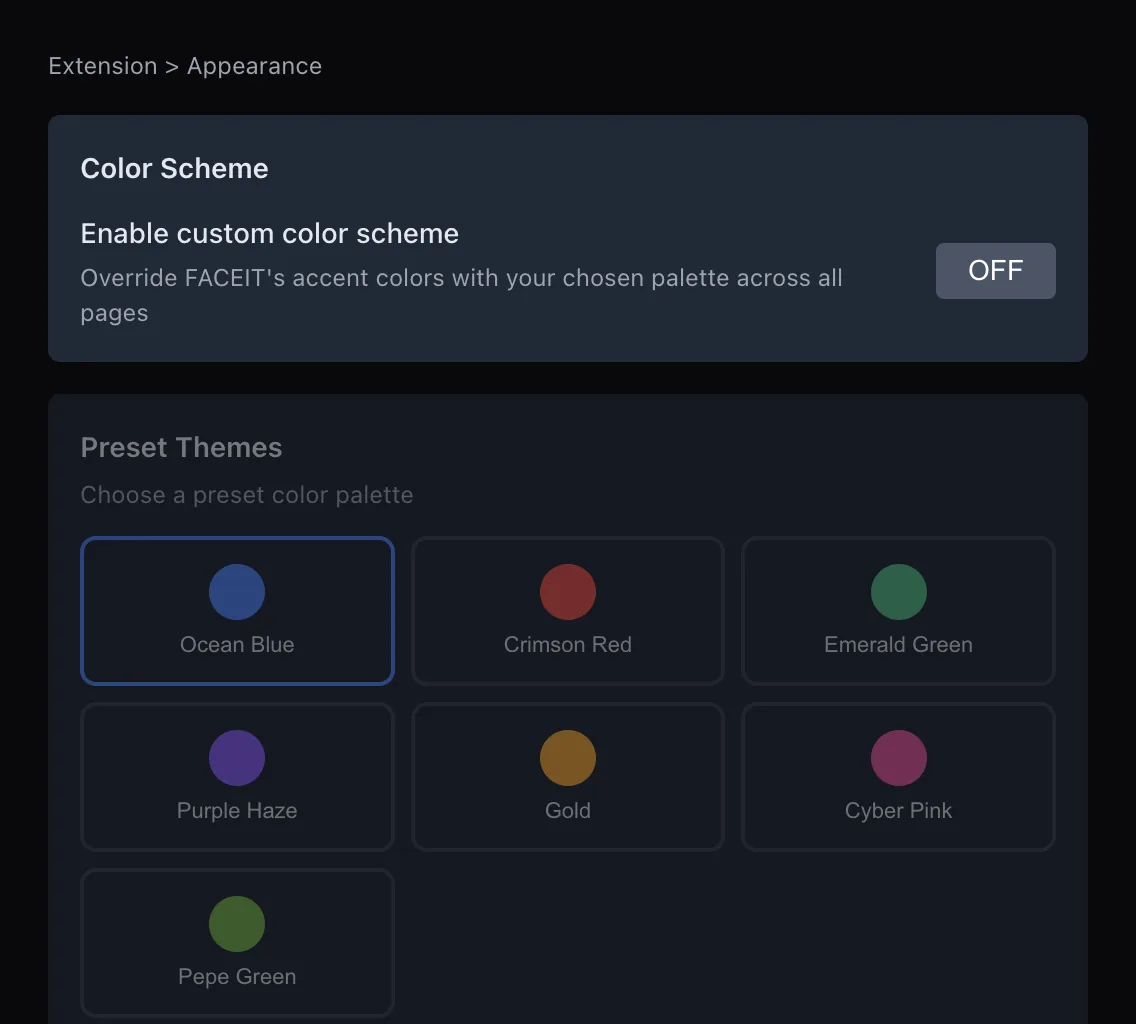
The custom colour scheme replaces FACEIT’s orange accent with a colour of your choice across all pages. Open the Appearance tab and switch on "Enable custom color scheme".
- Choose a preset in Preset Themes: Ocean Blue, Crimson Red, Emerald Green, Purple Haze, Gold, Cyber Pink or Pepe Green.
- Or pick your own in Custom Color. The popup tells you when a custom colour is active.
- Check the Color Preview, which shows the Accent, Hover, Muted and Border colours that will be used.
Switch the scheme off at any time to return to FACEIT’s own colours. The first-run setup also offers an accent colour, so you may have picked one already.
Pick the level icons

FACEIT only goes to level 10. FACEIT Extender can show levels 11 to 20 from your Elo, each with its own badge. Switch on Extended Levels in the Appearance tab, then choose a collection:
- New Collection: the current badges for levels 11-20.
- Legacy Collection: an older look for the same levels.
- Pepe Collection: Pepe frogs for levels 1 to 20.
The setup compares the level 11 badge so you can choose. The thresholds are in the Elo levels guide, and level badges shows where they appear.
Other appearance options
The Appearance tab also holds the privacy switches described in hiding Elo and anonymizing names, and a Compatibility switch for use alongside another FACEIT extension. Compatibility is off by default; when it is on and another extension is detected, the other interface is kept and Extender fills the gaps.
In the match room, Focus Mode hides both rosters and shows only the map ban and pick section. It is a switch in the Matchroom tab.
Get started
Install FACEIT Extender, open the popup and try a colour and a level collection. Nothing is permanent: every change here can be reversed from the same tab. The appearance section of the features page shows more.
Tips
Pick a colour with enough contrast against FACEIT’s dark background. The Color Preview shows the Accent, Hover, Muted and Border colours before you settle, and you can change your mind at any time.
If you chose a preset during first-run setup, the same choices are here. Replay setup in the popup shows the setup again.
Related guides
FACEIT Extender is free for Chrome and Firefox: download it or read what it is and does.
Frequently asked questions
- Does changing the language change FACEIT itself?
- No. It changes the extension’s own text. FACEIT keeps the language you set on FACEIT.
- Can I use my own colour?
- Yes. Use Custom Color in the Appearance tab after enabling the custom color scheme.
- Which collection shows levels 11 to 20?
- New and Legacy both show 11-20 badges, and Pepe shows frogs for 1 to 20.
Comments
Comments load in your browser.