
Guide
FACEIT Extender tips: settings, layout and shortcuts
Small habits that make the extension easier to live with, plus browser shortcuts that help.
Getting around the popup
FACEIT Extender is controlled from its toolbar popup, presets and browser shortcuts rather than shortcuts of its own; this guide collects the practical tips for settings, compact and focus modes and the floating panel.
- Pin the icon to the toolbar so the popup is one click away.
- Use Search toggles to find a single switch without hunting through tabs.
- The tabs include General, Appearance, Matchroom, Player Profile, Player Lobby, Player Tracking, Analyse and Get Supporter.
- Display language is on the General tab; Auto follows your browser language.
The extension does not define keyboard shortcuts of its own. The toolbar icon and your browser’s own shortcuts are the way in.
Start from a preset
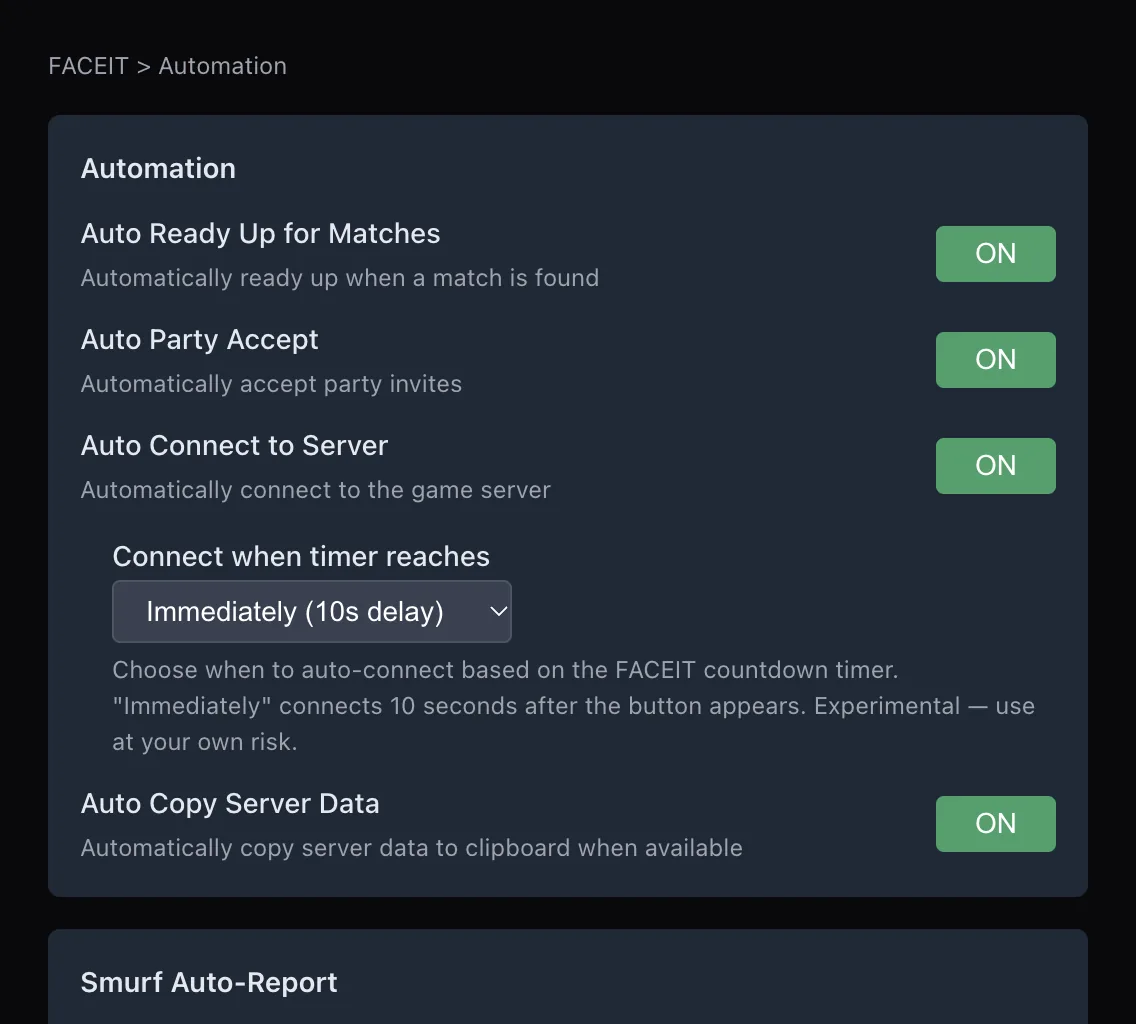
Quick Presets on the General tab set many switches at once. Minimal is a calm starting point; Balanced adds more stats; Full turns everything on. Applying a preset overwrites your current switches, so change individual ones afterwards. Toggle All Features turns every feature switch on or off but not the master switch.
Make the match room fit you
- Compact mode gives the native match interface more room.
- Focus Mode hides both team rosters and shows only the map ban and pick section. You can also toggle it from the match room’s middle column.
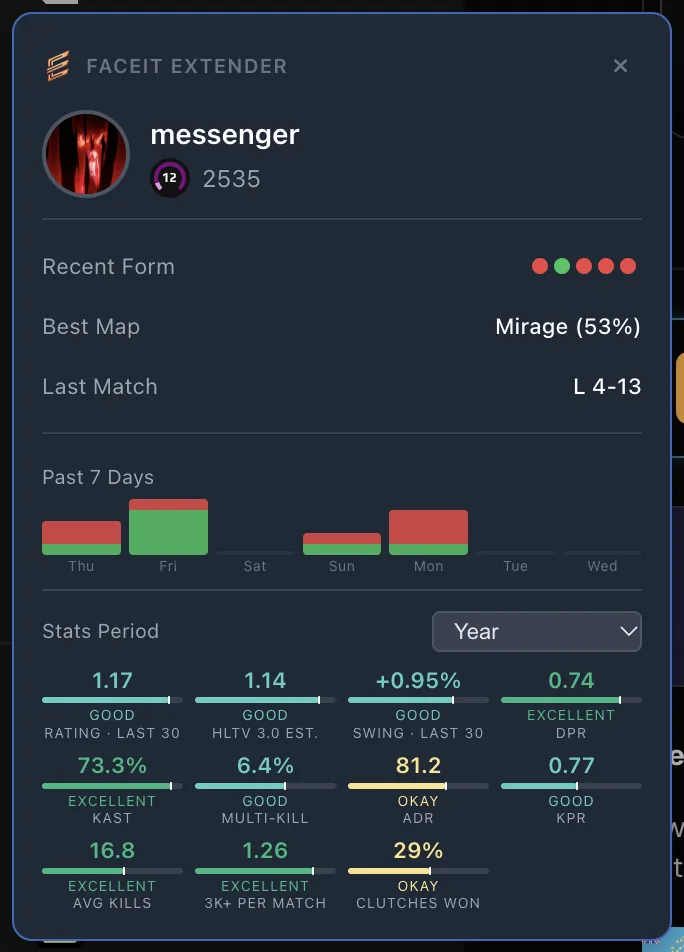
- Floating Stats Box shows your ELO, recent form, best map and last match on all pages.
- Pick an accent colour on the Appearance tab; see color schemes.
Browser shortcuts that help
| Shortcut (Windows or Linux / Mac) | Use |
|---|---|
| F5 / Cmd+R | Reload the FACEIT tab after changing a setting. |
| Ctrl+Shift+R / Cmd+Shift+R | Hard reload, bypassing the cached copy of the page. |
| Ctrl+Shift+N / Cmd+Shift+N | New private window (Firefox: Ctrl+Shift+P) to test without other extensions, if allowed there. |
| Ctrl+T / Cmd+T | New tab, handy for opening the viewer next to your match. |
Protect your notes
Player notes live in your browser. Export them as JSON from the Player Tracking tab now and then, especially before reinstalling. See uninstall and feedback. New to the extension? Begin on the download page or the FAQ.
More small tips
- After changing a setting, reload the FACEIT tab if a panel does not update.
- Test a change in one tab before applying it widely; presets overwrite many switches at once.
- If the page is crowded, try Compact mode before turning features off.
- Look at the features overview to discover switches you did not know about.
- Join the Discord linked in the popup if you want to suggest a feature.
Most of the time, a reload and a look at the General tab solves it. For anything else, the support page is the place to go.
A simple workflow
A comfortable routine is to keep FACEIT in one tab and the viewer in another. After a match, open the finished match and use the demo link, or import a downloaded file in the viewer, and use compare mode for the rounds you want to learn from. Keep the Minimal or Balanced preset on for the lobby, so you see the information without distraction.
Related guides
FACEIT Extender is free for Chrome and Firefox: download it or read what it is and does.
Frequently asked questions
- Does the extension have its own keyboard shortcuts?
- No. It does not define shortcut keys of its own. Use your browser’s shortcuts and the toolbar icon.
- How do I find a setting quickly?
- Use Search toggles at the top of the popup.
- How do I give a page a clean reload?
- Use your browser’s hard reload shortcut, for example Ctrl+Shift+R, or Cmd+Shift+R on a Mac.
Comments
Comments load in your browser.