
Guide
Signing in with FACEIT: what the login does and does not do
You do not need to sign in to use the core extension. Here is what signing in adds and what it shares.
You do not need an account to start
FACEIT Extender does not need an account with us for its core features, and it never asks for your FACEIT password; this guide explains what the optional sign-in does and does not do.
Installing the extension does not create an account with us, and the core features read public FACEIT data in your browser. You just sign in to faceit.com as usual. The extension never needs your FACEIT password.
Logging in on the website
The website’s Account page shows Log in with FACEIT when you are not signed in. It is there so you can see your supporter purchases and claim codes.
- Open the account page.
- Select Log in with FACEIT.
- Approve the request on FACEIT’s own sign-in screen. FACEIT handles your credentials there; we never see them.
- You return to the account page. Use Sign out when you are done.
When you sign in this way, we receive your FACEIT account id and nickname. While you are signed in, we record which pages and features you use on the website against your account, to understand how the site is used. It is deleted after 180 days, and signing out stops it. All of this is written in the Privacy Policy.
Signing in from the extension
In version 0.6.0 and newer, the popup’s account area offers Sign in with FACEIT. It opens a FACEIT sign-in window so that our server can verify which FACEIT account you are. While it waits it shows Waiting for FACEIT…, and if it fails it says Sign-in failed. Try again. If the account in that window differs from the one open on faceit.com, the popup tells you which nickname it uses.
Once signed in, the popup shows your AI token allowance (for example, a number out of your weekly cap). Use Sign out in the same place to stop.
What actually needs a sign-in
- Optional AI coaching, which spends one weekly token per generated answer.
- Supporter purchases, badges and claim codes. See supporter tier and claim codes.
- Nothing else in the core extension. The demo viewer opens and replays local files without it; see the viewer.
If signing in does not work
- Make sure you are signed in to faceit.com in the same browser.
- Allow pop-up windows for the sign-in window if your browser blocks them.
- If FACEIT shows a security check, finish it first; see login and security-check problems.
- Send a ticket from the support page and choose Account / claim code.
Not installed yet? Start from the download page.
Signing out and your data
You can sign out at any time. On the website, use Sign out on the account page. In the extension, use Sign out in the popup’s account area. Signing out on the website also stops the per-account recording of which pages and features you use.
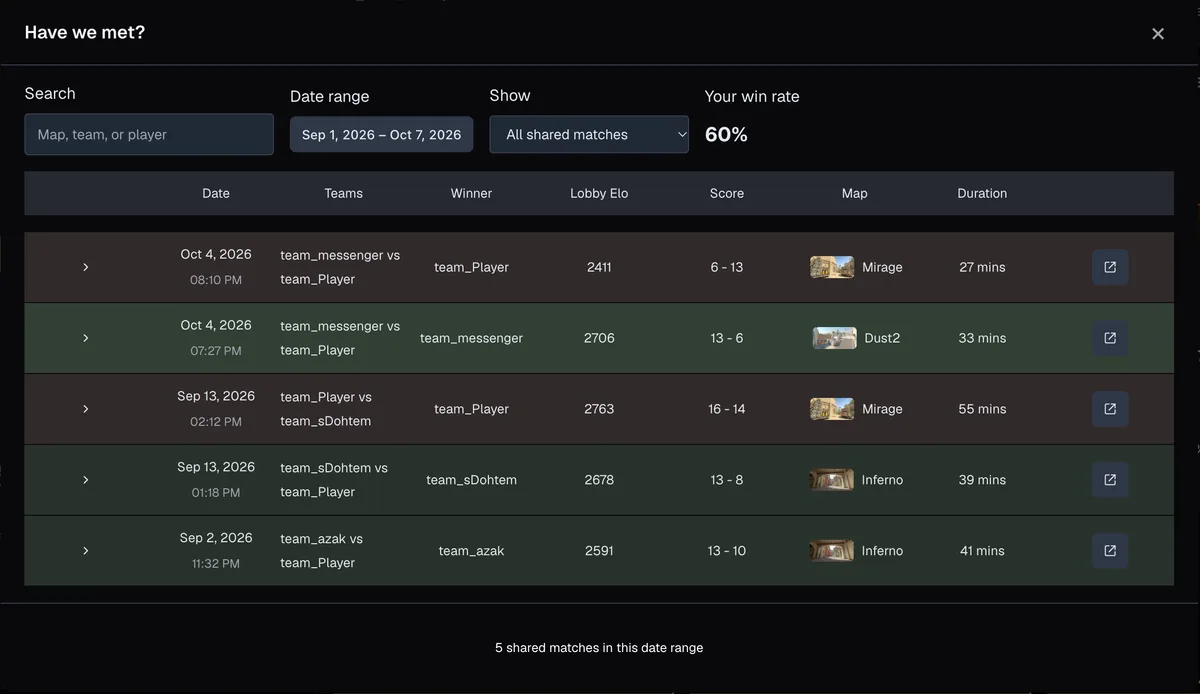
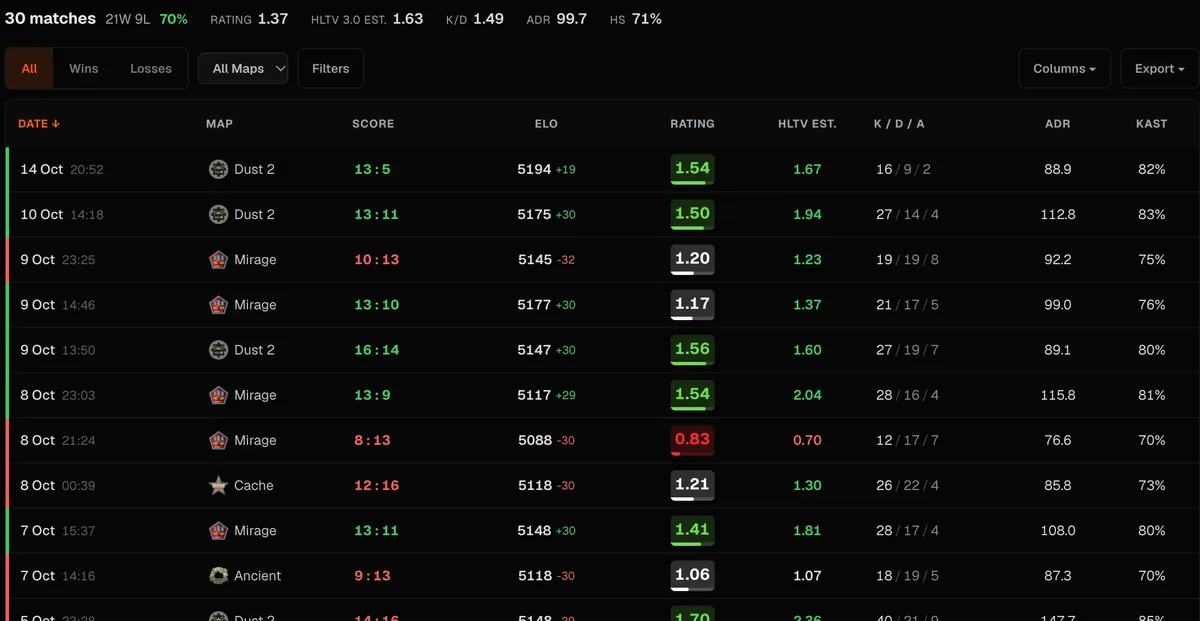
The extension itself does not need you to sign in to show player cards, stats, Have We Met, map stats or the other core displays. They read public FACEIT data and work with the FACEIT session you already have on faceit.com. See what the features do.
To ask for access to or deletion of data we hold about you, use the contact details in the Privacy Policy.
Related guides
FACEIT Extender is free for Chrome and Firefox: download it or read what it is and does.
Frequently asked questions
- Do you see my FACEIT password?
- No. The extension never asks for or sees your password, and installing it does not create an account.
- What do you receive when I sign in on the website?
- Your FACEIT account id and nickname, so we can show your supporter purchases and claim codes.
- Do I need to sign in to use the extension?
- No. Core features work without it. Signing in is needed for things tied to your account, such as AI coaching and supporter purchases.
Comments
Comments load in your browser.