
How-to
Listen to voice comms and make subtitles in the viewer
If the demo recorded voice, the Comms tab lets you listen along and turn speech into subtitles locally.
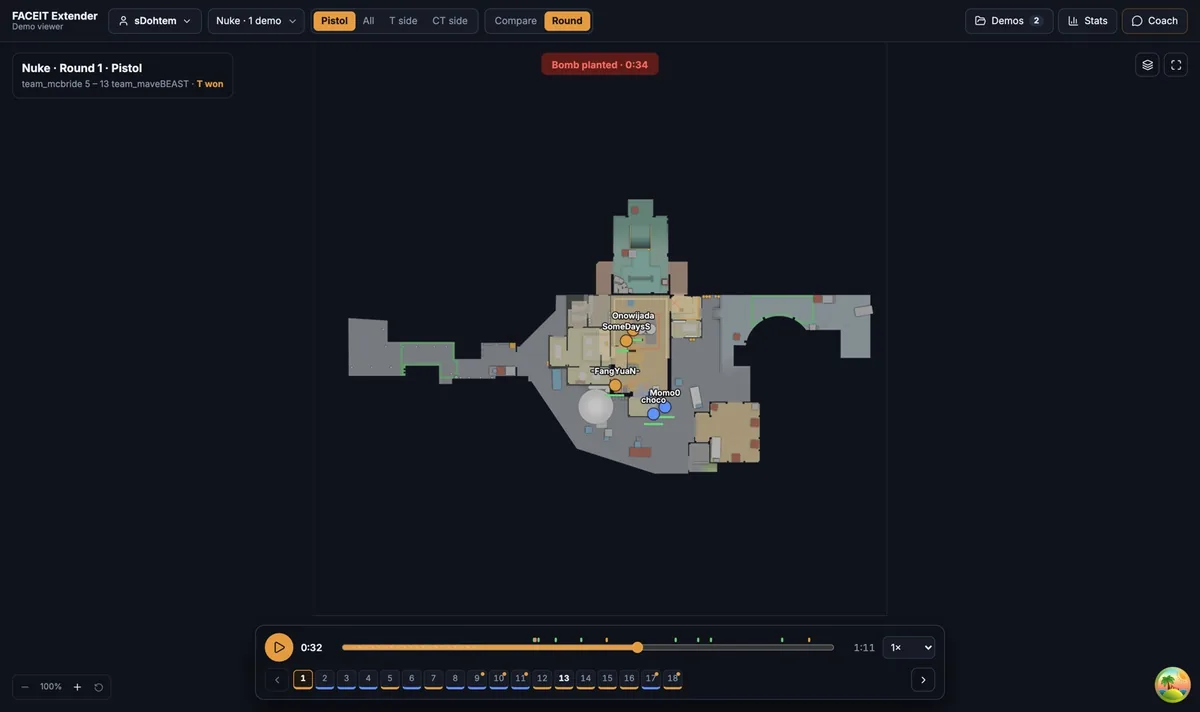
Listen to a round
FACEIT Extender's demo viewer can play a team's recorded voice during a CS2 replay, let you mute players and make subtitles on your own device.
- Open a round in Round view.
- Open the Comms tab. If there is none, the demo has no recorded voice.
- Use Whose comms to play to choose Player’s team, Both teams, T comms, CT comms or Comms off.
- Press Play. A green microphone in the Players tab shows who is talking.
By default you hear the followed player’s team, like in the game.
Mute players
Each player has a speaker button. Click it to mute or unmute that player. Muting is a quick way to isolate one voice, or to remove a player who talks over everyone else.
Make subtitles
- Select Subtitles in the Comms tab.
- Choose the speech model: Standard model is faster, Better model is a bigger one-time download and slower but much better at short and non-English comms.
- If you know the language, choose it under Spoken language instead of letting it detect.
- Tick the translation option to show non-English comms in English.
The viewer shows progress, for example Subtitling 4 of 12 clips…. Use Try again if some clips fail.
Speech is recognised on this device and nothing is uploaded. Subtitles are automatic and can be wrong, so treat them as a rough guide.
Comms in Compare
In Compare, Comms plays what your player said in each selected round at the same moment. Pick rounds with the chips in the Comms tab. If you analyse a team, only their comms play.
Use comms for review
Look for calls before deaths, mismatches between a call and a rotation, and information that did not reach a teammate. The Coach can quote subtitles once you have made them, which helps with questions such as what the team called before their deaths.
Privacy and device limits
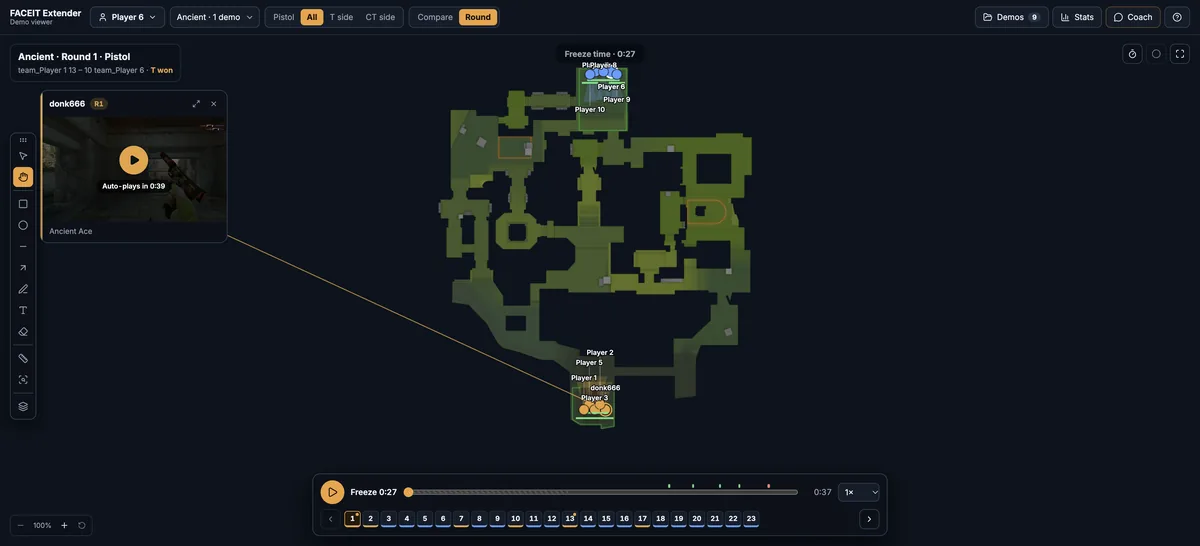
Speech recognition runs on your device. The first run downloads a speech model once, about 80 MB for the Standard model and about 225 MB for the Better model. Subtitles need a current Chrome, Edge or Firefox that can decode the voice audio.
Know the limits
Comms are only present when the demo recorded voice. Very short calls are hard to recognise, so set the spoken language if you know it. Treat subtitles as a guide to where to listen, then listen.
Keep the volume moderate: gunshots and voice play together, and loud comms can hide the footsteps you are trying to read. Muting the speaker button for the player who is not relevant makes a round much easier to follow.
Where to go next
Combine comms with the Players tab to see who was speaking when something went wrong. Open the free CS2 demo viewer to try it on your own matches, and install the extension if you want a Demo Viewer shortcut on finished match rooms.
Related guides
FACEIT Extender is free for Chrome and Firefox: download it or read what it is and does.
Frequently asked questions
- Why is there no Comms tab?
- The tab only appears when the demo recorded voice. Not all demos do.
- Are subtitles uploaded?
- No. Speech is recognised on your device. The first time, the viewer downloads a speech model.
- Are the subtitles accurate?
- Not always. They are made automatically and are often inaccurate for short, noisy or non-English comms.
Comments
Comments load in your browser.