
How-to
Read KAST at each spot in the CS2 demo viewer
Use KAST labels on the Compare map to see which positions tend to work, without over-reading a small sample.
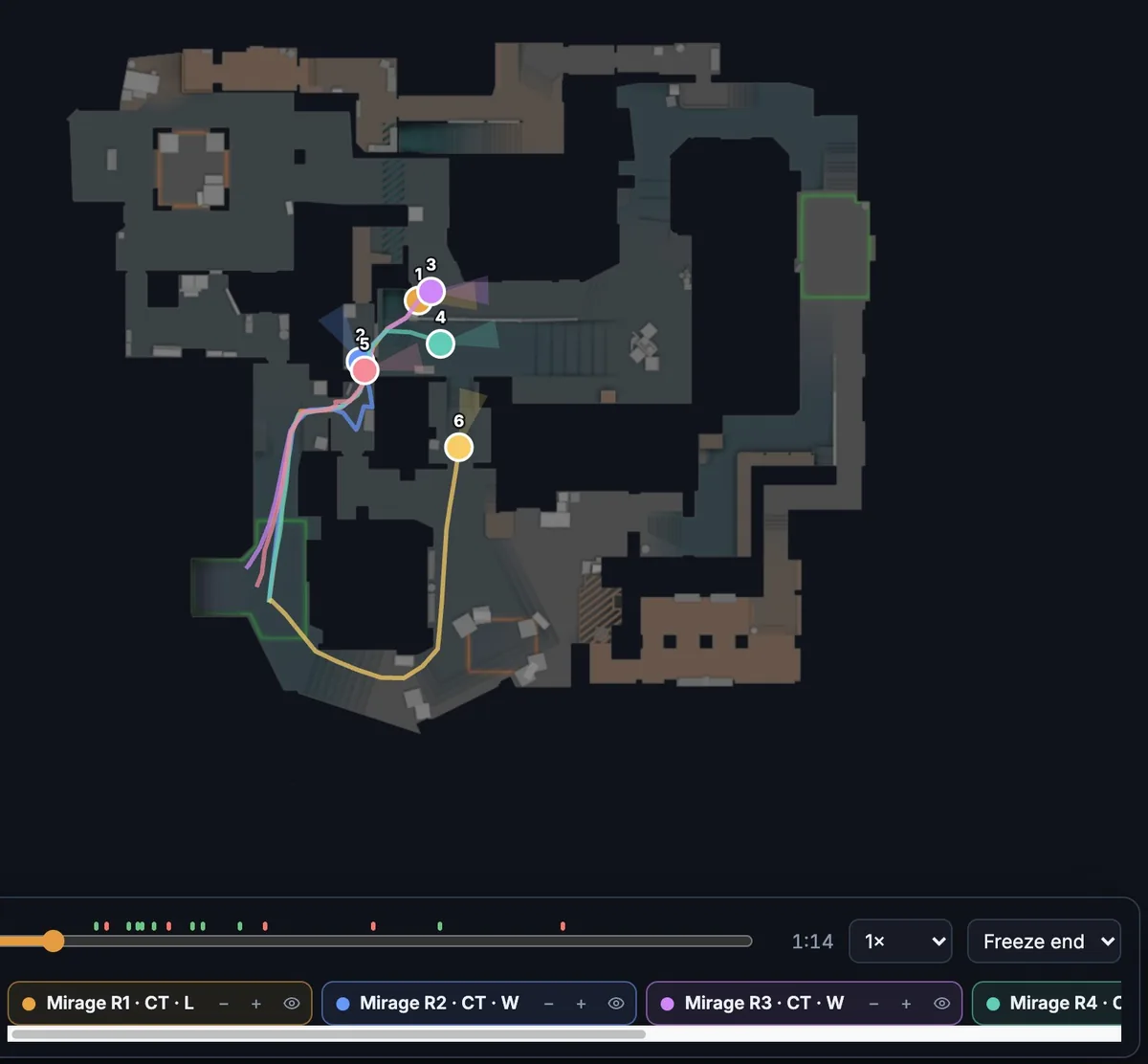
What the labels show
FACEIT Extender's demo viewer can label each spot in Compare mode with KAST for that position, and this guide explains how to read the labels and when the sample is too small.
In Compare mode, each coloured dot is the same player in a different round. With Show KAST at each spot on, a label next to a dot reads Labels: round · KAST at this spot (rounds).
The percentage is the share of rounds that went well when the player stood near that position at that point in the round. The figure in brackets is the number of rounds behind it.
Turn it on
- Choose a player, a map and a side filter.
- Select Compare.
- Open the Rounds tab and switch on Show KAST at each spot.
- Press Play and watch the labels change as the rounds move.
The setting is remembered in this browser. If a demo is older, the label can show a ≥ because assist data is missing, and reimporting the demo gives an exact figure.
Read it with the map key
- The solid dot is where the player is now.
- The trail is where they went in the last 12 seconds.
- A cross marks where they died.
- A dashed ring is a grenade they threw.
Pause when several dots gather at the same place. If the same position appears with a high KAST in many rounds, it is probably a spot that suits the player. If it appears in only two rounds, treat it as an idea to check, not a result.
Keep it honest
KAST at a spot is a description of what happened, not a recommendation. A strong position in rounds you won may reflect the economy or a lucky opening. A weak one may be a good position that was exposed once.
Compare the pattern against the actual rounds. Open the round with the play button on its row, and check the fights around that spot before changing how you play.
Compare sides separately
Switch between T side and CT side with the Rounds filter. A spot that is a strong anchor on defence can be a poor place to stand on attack, so a combined view hides the difference.
A worked example
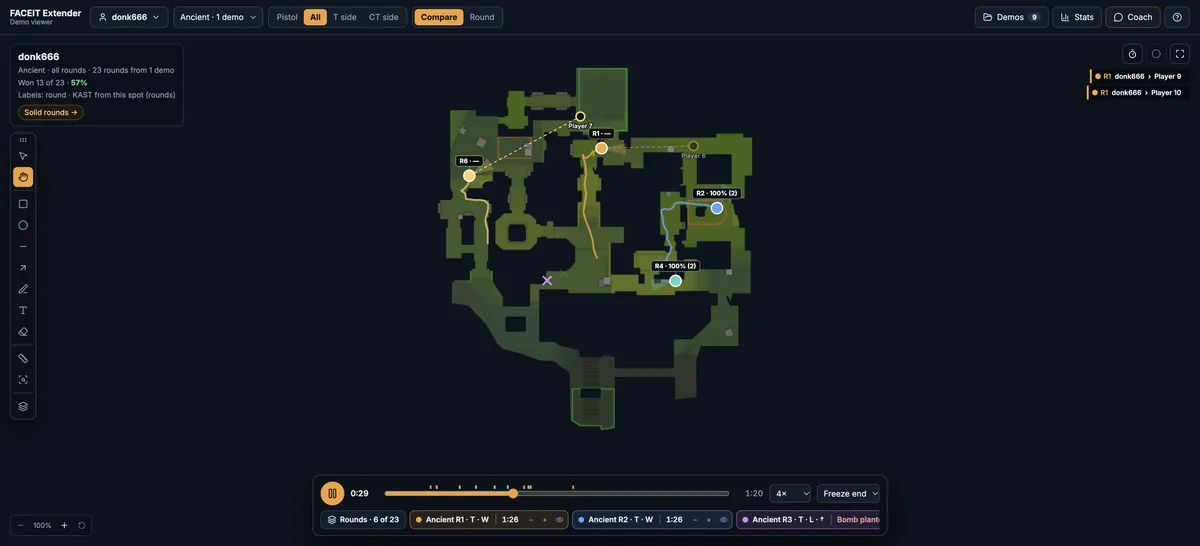
Say you choose CT side on one map and six rounds. A label near the A-site corner reads a high percentage with (5) beside it. That means in five of those rounds the player stood near that corner at this point, and most went well for them.
Pause, then open two of those rounds in Round view. Look at what the opponent did. If the opponent never contested the corner, the result tells you about the opponent as much as the position.
Where to go next
Pair this with the route comparison walkthrough and the Stats tab. Open the free CS2 demo viewer to try it on your own matches, and install the extension if you want a Demo Viewer shortcut on finished match rooms.
Related guides
FACEIT Extender is free for Chrome and Firefox: download it or read what it is and does.
Frequently asked questions
- What does KAST stand for?
- Kill, assist, survived or traded. A round counts when the player did at least one of these.
- Is this a heatmap?
- No. The viewer draws each round’s path and a label per round. It does not show a density heatmap.
- What does the number in brackets mean?
- How many rounds had the player near that spot at that time. A small number means a weak sample.
Comments
Comments load in your browser.